


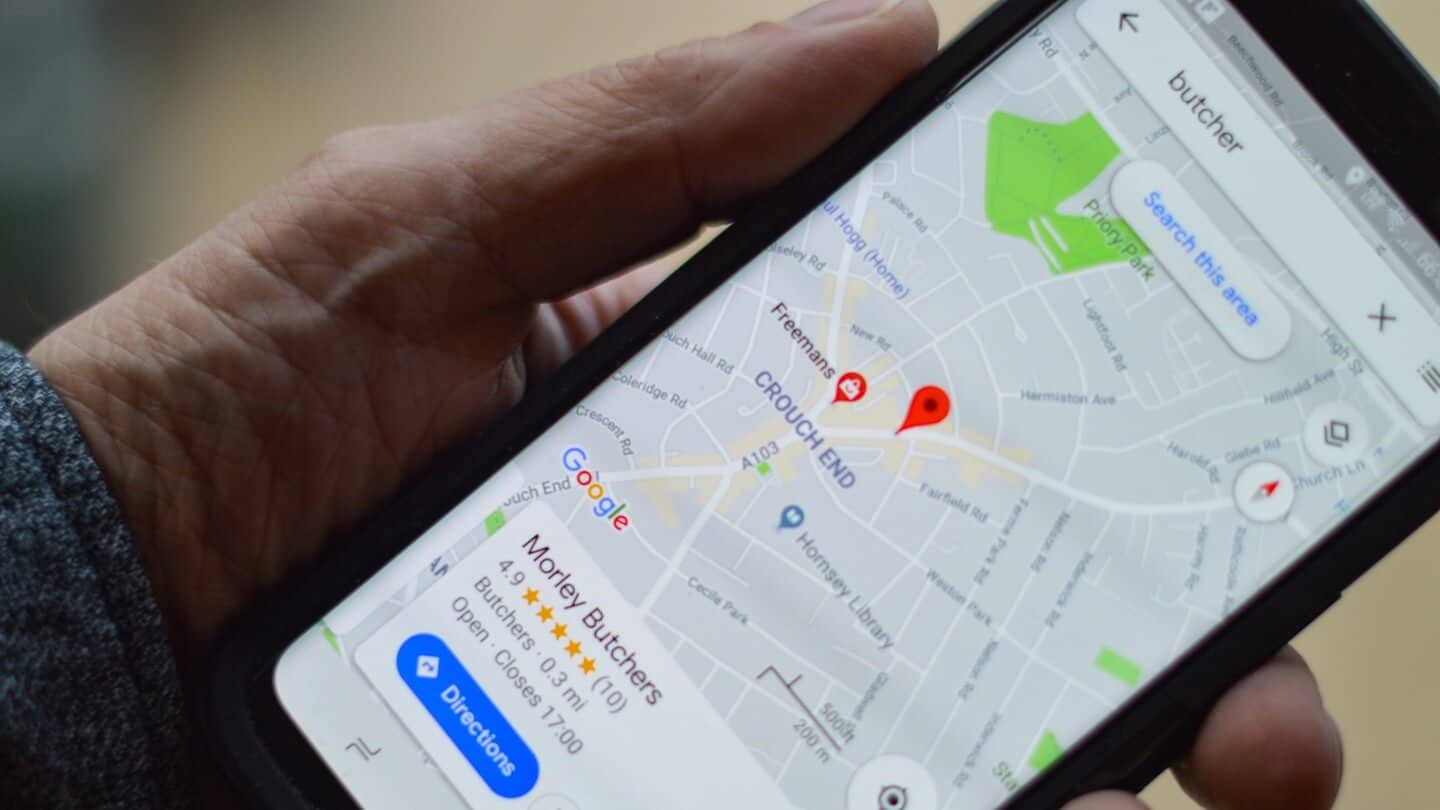
- Google Maps appears in local search results: an up-to-date Google Business profile puts you there, with a phone number reachable in one click.
- The business type is the decisive step. If in doubt, look at the category your competitors chose.
- Use the same URL structure, in http or https, everywhere your site is listed.
- Recent reviews weigh more than old ones: set up a process to receive them regularly.
In France, 97% of mobile searches and 82% of desktop searches are made on Google (2020, source: webrankinfo.com). It’s the go-to platform where your prospects and customers will look for information about your products or services.
Google geolocates every user across every connected device. So for every search, we get suggestions based on our location. Even when we don’t include any geographic criteria in the search.
Google Business is the tool that lets you manage the image of your company or store on Google for free. It lets you edit the result that appears on Google Maps & on Google when your customers type your brand name or related keywords.
In this article you’ll find all the key information to understand Google Business, along with the steps to follow so your business is easy to identify, and to get the most out of this opportunity to grow your business.
Google Business, what is it for?
Grow your business
Google includes Google Maps in “local” search results, and so displays the matching stores and businesses around the place where the search was made.
With Google Business, you’ll be able to show up in these searches. By appearing in the top results, you’ll drive traffic to your website and increase your sales volume.
Today, 50% of searches are made on mobile. In one click from the Google result, your customers and prospects can contact you directly by phone. Having an optimized, up-to-date Google Business profile is therefore a must.
Control your image
Google Business lets you fill in the following information:
- Address
- Phone number
- Opening hours
- Your latest offer
- Your customers’ reviews
- A photo of you or your store
This information tied to your brand is decisive in the quick choice your prospect will have to make between you and your competitors. You control this content, so you choose the information you share.
Qualify incoming contacts
As explained above, by optimizing your Google Business profile, you can put a phone number front and center to increase your volume of inbound calls.
But the goal isn’t to generate leads in volume, it’s above all to get qualified leads. Prospects whose need matches the offer you provide. Because the more qualified a lead is, the better your chances of turning it into a customer.
Read alsoCheck out our complete guide to lead qualification.
So the elements you choose to highlight on your Google Business profile will let you do a first sort based on the contacts you want to get. In other words, you take back control over the reason people contact you.
How to optimize your Google Business profile
Step 1: Go to the Google Business site
Go to the following page: https://business.google.com/ or go to Google and type “google my business”. It will be the first result you see.
Step 2: Click “Add your business to Google”
The button is on business.google.com/add. If you’re not already signed in to Gmail, it will ask you to sign in. Make sure you’re signed in to the Gmail account you want to associate with your business profile.
Step 3: Enter your business name
Once signed in, enter your business name. You may already be listed; if so, you should see your business appear as shown below.
If your business doesn’t appear, click the result with the text under your business name that says: Create a business with this name.
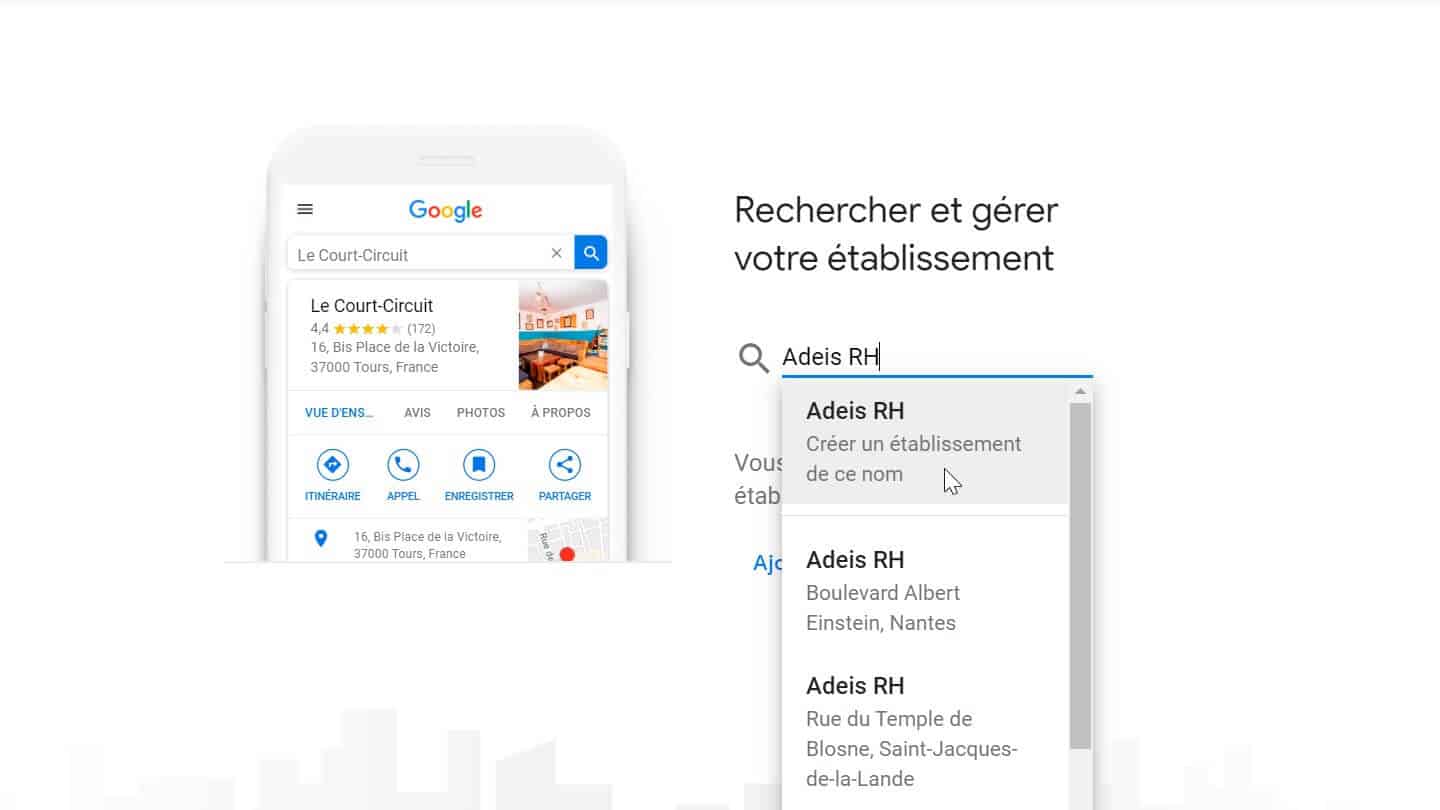
Then click next.
Step 4: Select a business type
This step is crucial if you want to appear on Google’s results page when potential customers search for a product or service you offer. When you set your “categories” in Google Business, you can define primary and secondary categories.
Type your business type, then choose from the drop-down menu that appears the category that best matches the services you offer.
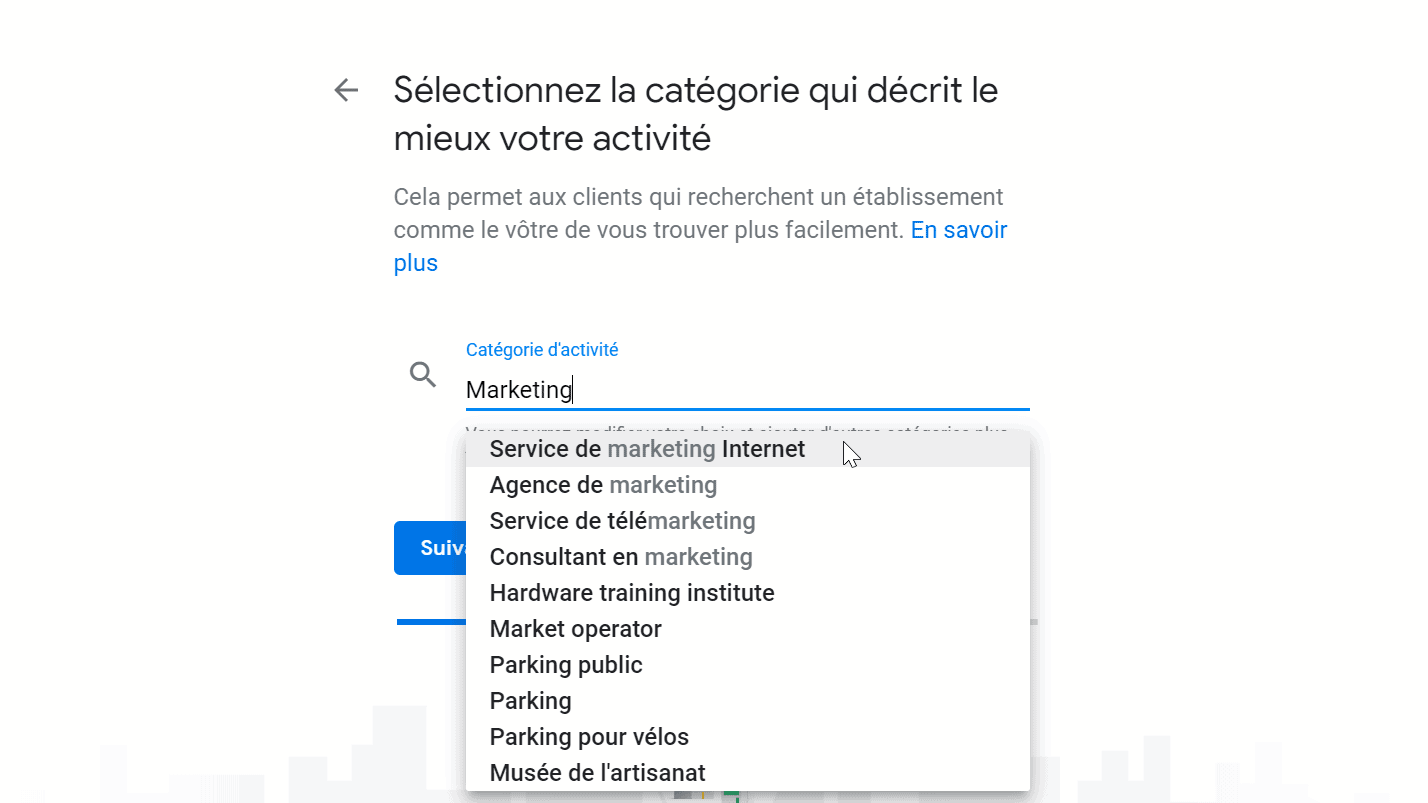
How to choose the best Google Business category
If you’re not sure which category you belong to, run a Google search to see which categories your competitors have selected.
If you see a trend among all these categories, that’s the category you should choose.
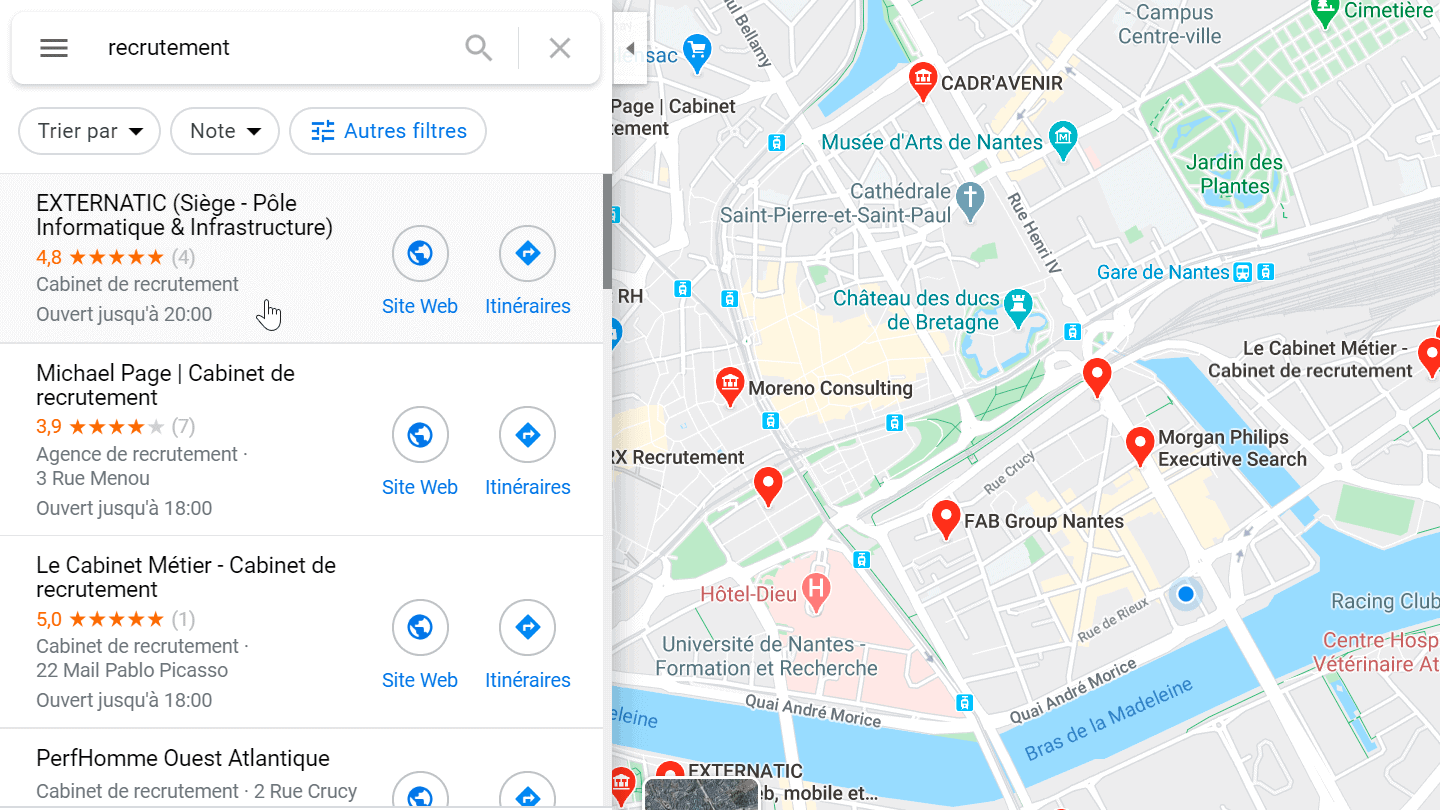
In the example above, most of the recruitment firms in Nantes have classified themselves under the “Cabinet de recrutement” (recruitment firm) category.
Don’t hesitate to be specific if you provide a specific type of service.
Then add the other categories related to your business.
Step 5: Enter your business address
Enter your business address, then click next.
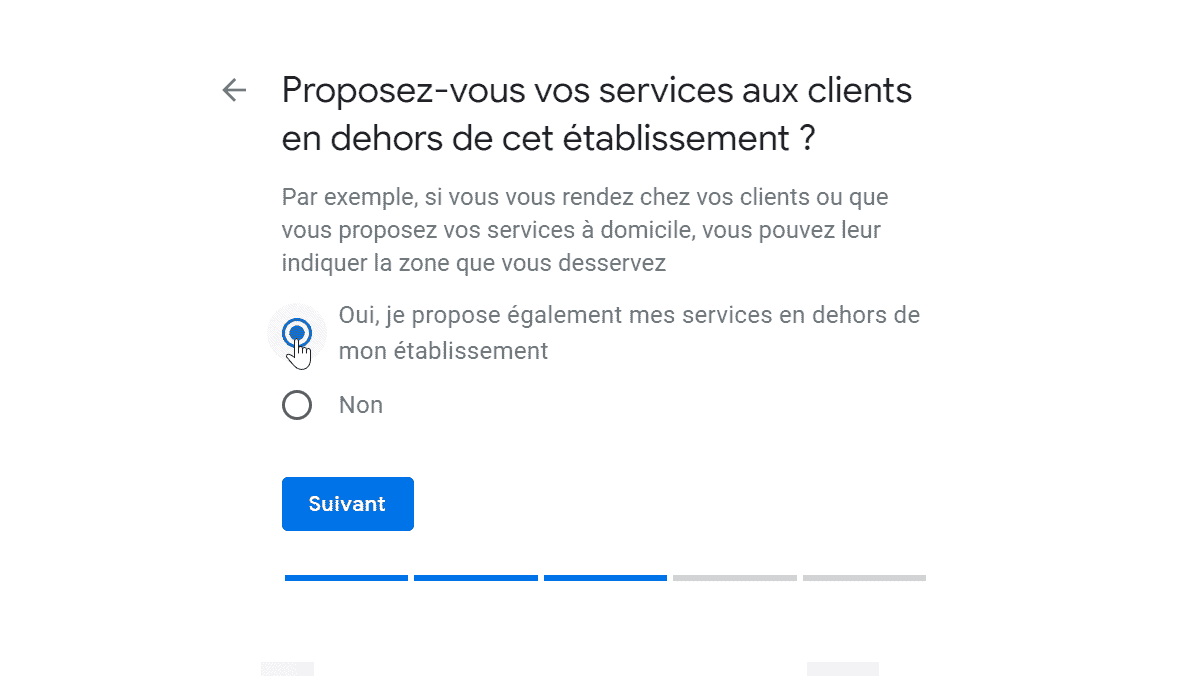
Next, you need to indicate whether you offer your services to customers outside this location.
Which types of business does this apply to?
A business that goes to the customer or provides them with a service, but doesn’t “serve” its customers at its business address:
- Landscapers
- Plumbers
- Roofers
If you serve customers at your business address and also deliver:
- Pizzerias
- Florists
If your business matches one of the cases above, check “Yes”.
Step 6 (optional): Specify the area you serve
If you checked no in the previous step, this step doesn’t apply to you.
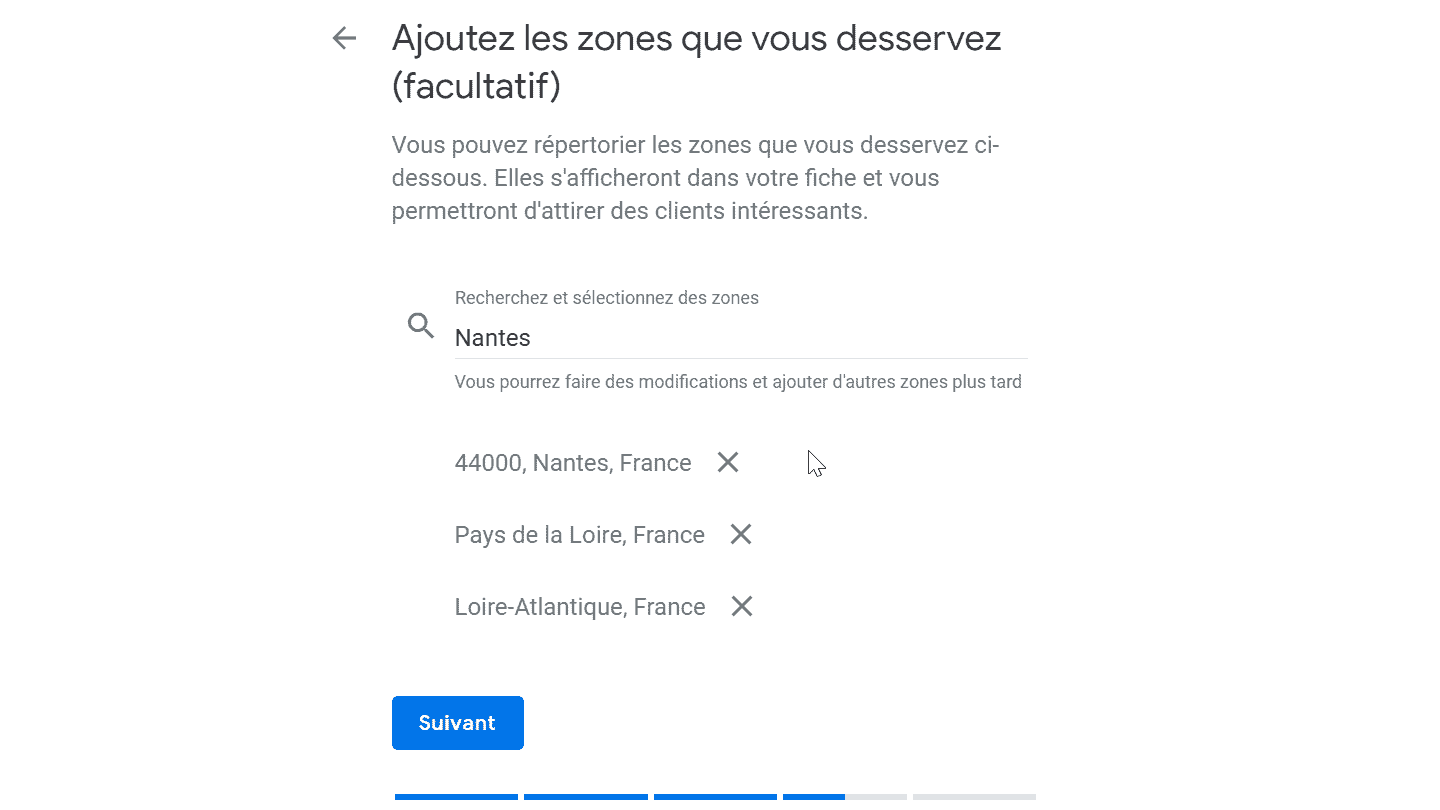
This step is about letting Google know in which area you serve customers.
How do I define my service area?
You can define your service area based on the following criteria:
- City
- Postal code
- County
- Region
- Country
Step 7: Choose the information you share
Adding this information to your Google Business profile is optional, but it’s strongly recommended.
Adding your website has the obvious advantage of potentially leading a customer to your site, where you can more easily convert them into a prospect.
By giving your phone number, you offer your customers a direct way to reach you.
TipGoogle ranks local results on three criteria: relevance, distance and prominence, meaning how well known the business is. A complete, accurate profile has a better chance of showing up in nearby results: don’t leave these fields empty.
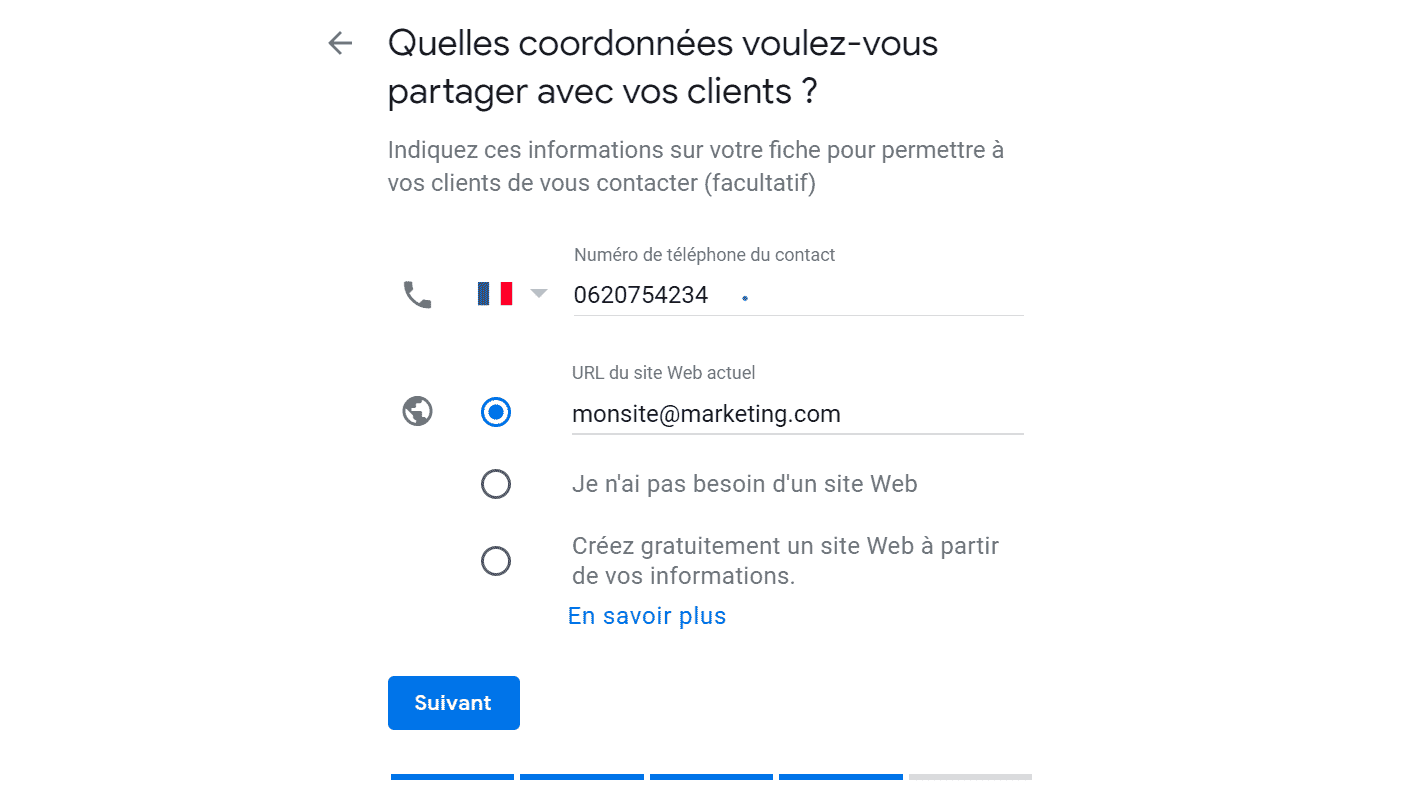
NoteIf you don’t have a website, you can select the “I don’t need a website” option.
Read alsoDon’t have a website? Check out 5 examples of successful landing pages that can inspire you!
Important:
- Make sure that wherever you put your website online (in a Google Business listing, Yelp, the Yellow Pages, etc.), you use the same URL structure for your website.
- Also make sure you use the same “http” or “https” structure.
- Secure your website, which will require installing an SSL (Secure Socket Layer) certificate.
Once you’ve filled in this information, press the “Next” button one more time!
Step 8: Verify your profile
Hold on, you’re not done yet!
Google then asks you to choose a verification option: follow the steps shown on screen. Until the profile is verified, you don’t control the information it displays. Once verified, you edit it directly from Google Search and Google Maps.
Going further
Take care of your photos
Google is first and foremost a visual medium. Striking photos, taken with your smartphone or by a professional, are essential for a good first impression and are the key to making your potential customers want to contact you. Google Business lets you upload your best photos and videos to encourage customers to visit you.
Get customer reviews
91% of consumers read online reviews, and 84% of people trust reviews as much as personal recommendations from their friends. One of the fundamental aspects of appearing in the top results is having customer reviews that inspire trust. Don’t try to write fake reviews, Google will detect it.
ImportantRecent reviews always carry much more weight for Google than old ones. So set up processes that let you receive reviews regularly.
For example, you can offer a bonus to your sales reps if they get a Google review from a customer, or send your customers a personalized card after a few months followed by an email a week later asking for a Google review (with no apparent connection). Build this practice into your sales funnel.
Your profile’s performance statistics show the searches that lead to you, calls, direction requests and clicks to your website. It will help you better understand your community and therefore offer a better-targeted offer.
Keep control of your information
The information about your business available on Google is the information that people writing about you will find first. So the information you choose to share on your Google Business profile will end up in other media.
To go further, feel free to contact the websites that mention you to correct or add certain information. You can also contact sites that don’t mention you yet if it seems relevant.
Keep in mind that no website exists for free, and you may have to put your hand in your pocket, but it can be a good way to grow your online presence and control your image.
Online, your image also depends a lot on how you manage social media, and Facebook in particular. Find out how to use Facebook Ads for B2B marketing.
The questions we get over and over.
What is Google Business for?
For managing your company’s image on Google for free: you edit the result that appears on Google Maps and on Google when your customers type your brand name or related keywords. Address, phone, opening hours, latest offer, customer reviews and photos are shown there.
How do you choose the best Google Business category?
Run a Google search to see which categories your competitors chose. If a trend emerges, that’s the category to pick. Be specific if you provide a specific service, then add the secondary categories.
Who should specify a service area?
Businesses that go to the customer, like landscapers, plumbers or roofers, and those that receive customers at their address but also deliver, like pizzerias or florists. The area is defined by city, postal code, county, region or country.
How do you get Google reviews regularly?
By building the review request into your sales funnel: for example a bonus for sales reps who get a customer review, or a personalized card sent a few months after the sale, followed by an email a week later. Don’t write fake reviews, Google detects them.


What the community says.