

The tool in detail
PlayPlay after real-world use: feature scope, integrations, pricing and concrete limits.
PlayPlay is a video creation platform built for marketing and communication teams, to turn their messages into engaging videos.
If you want to produce video content on par with what the biggest brands put out on LinkedIn, X, Instagram, YouTube and on more and more landing pages, it’s well worth a look.
PlayPlay: getting started and features
#1 The template library
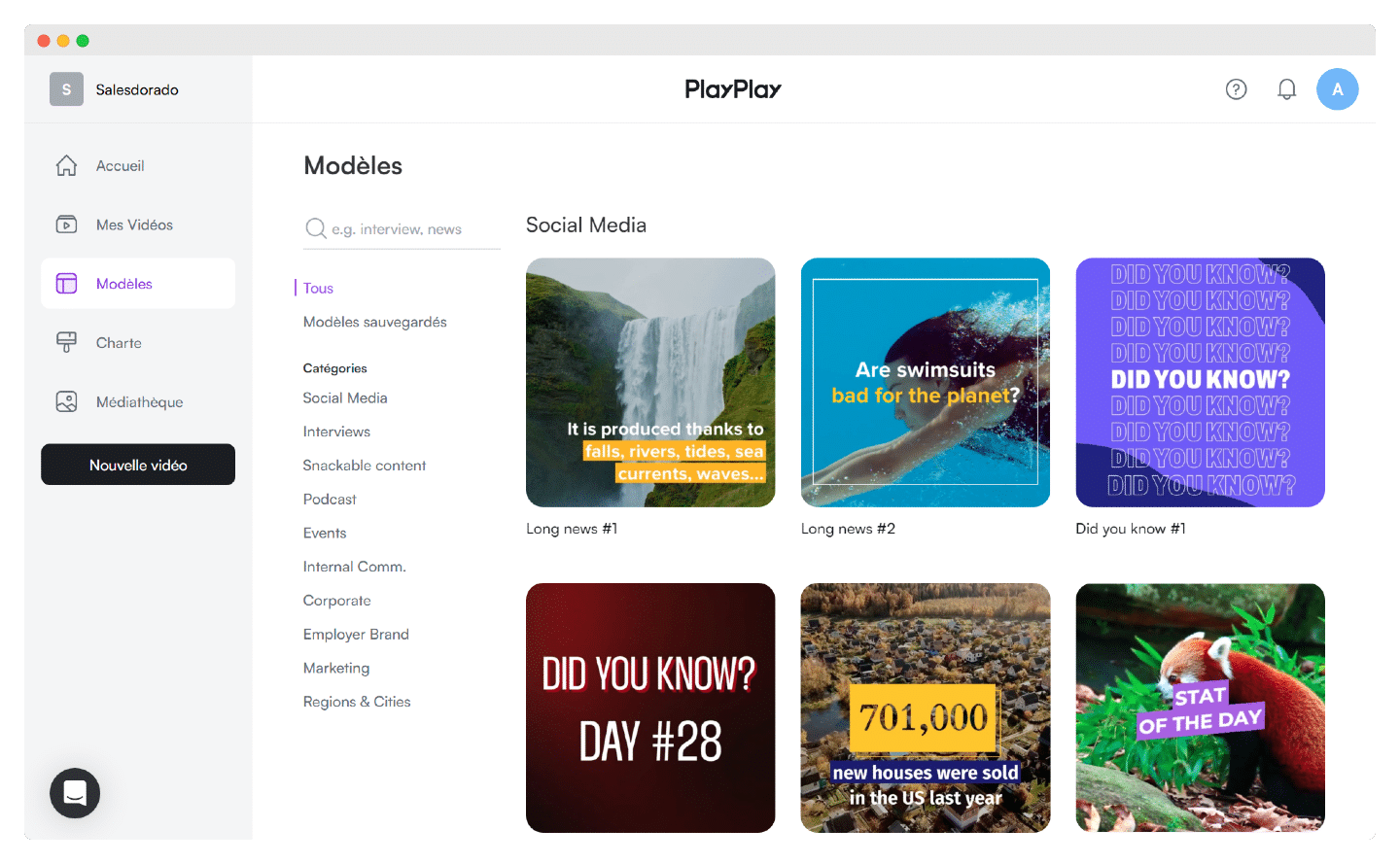
PlayPlay aims above all to be intuitive, even for someone who knows nothing about video editing, and you can see it from the start with a choice of more than 300 templates.
The difference with other software of this kind is that the templates are genuinely high quality, and you can then customize them endlessly.
For a beginner, it’s extremely simple: depending on the message and content of the video, you pick your template by following the suggested categories.
Podcast, internal or external communication with project launches and partnership announcements, marketing with customer case studies, or all kinds of social media content, tutorials and contests: there is honestly just about everything you could want, including what you need to reproduce the short formats of social media.
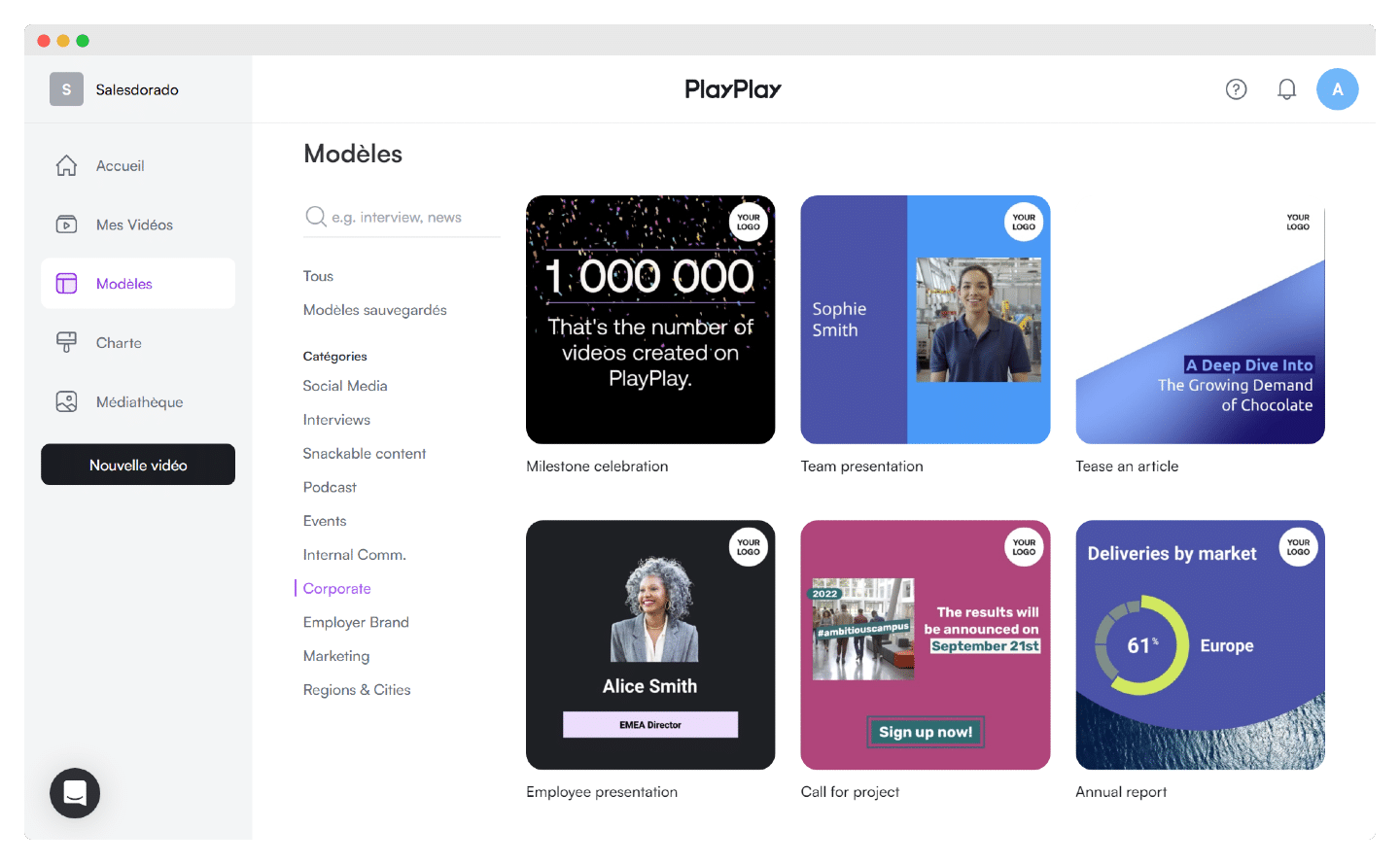
PlayPlay doesn’t just help you with editing: the advantage of these categories is that they steer you from the start on defining the message you want to get across and on structuring your content.
For example, on the corporate side, you choose between a team or employee introduction, a call for projects or celebrating a milestone for your company. PlayPlay also offers templates to make classic presentations, such as an annual report, more dynamic and therefore easier to follow.
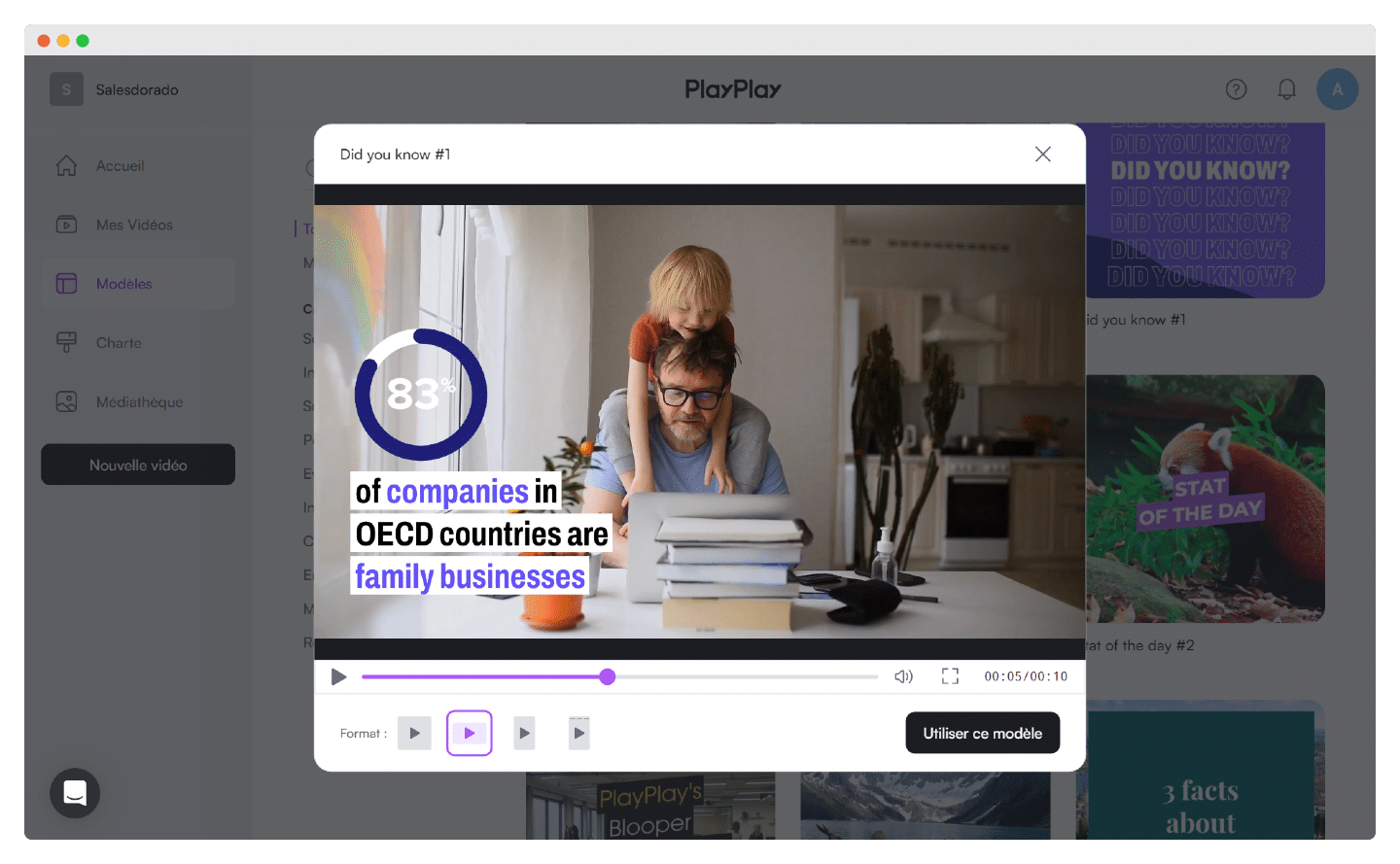
Once the template is chosen, you set the format you want, landscape, portrait or square, depending on the distribution channel and the target device, and you can start editing your video.
#2 The video editor
On the editing side, PlayPlay stands out for its ease of use and accessibility, even for those who run away from more advanced software like After Effects or Final Cut. And you can get a very good result very easily.
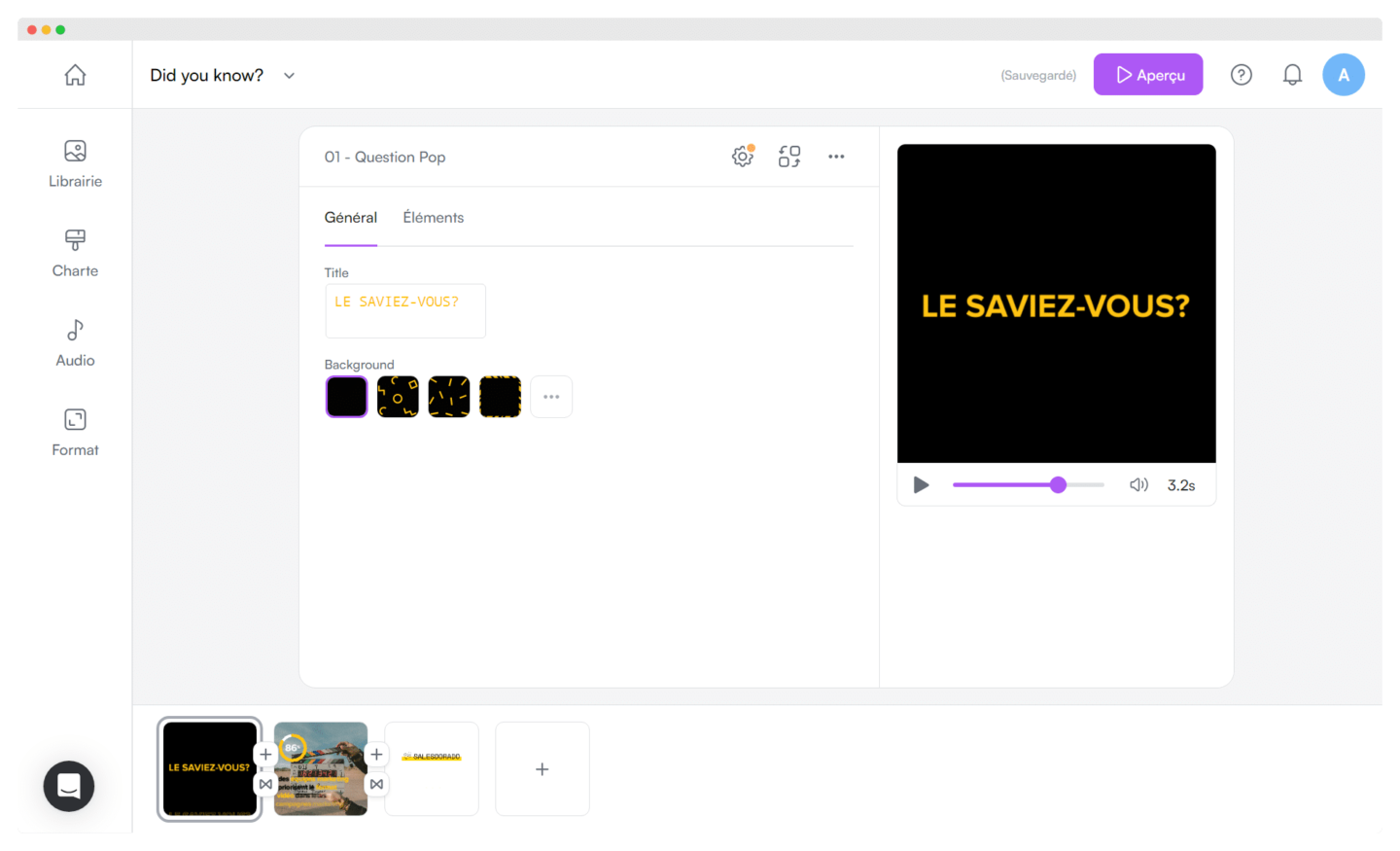
Once your template is chosen, you start customizing it. Nothing could be simpler: just like a PowerPoint presentation, each video slide appears and can be edited, changing the background, the title, adjusting the sound and the duration.
You can cut or crop a video, merge several of them or convert them to MP4. In the Elements section, you add your own visuals, logos or images.
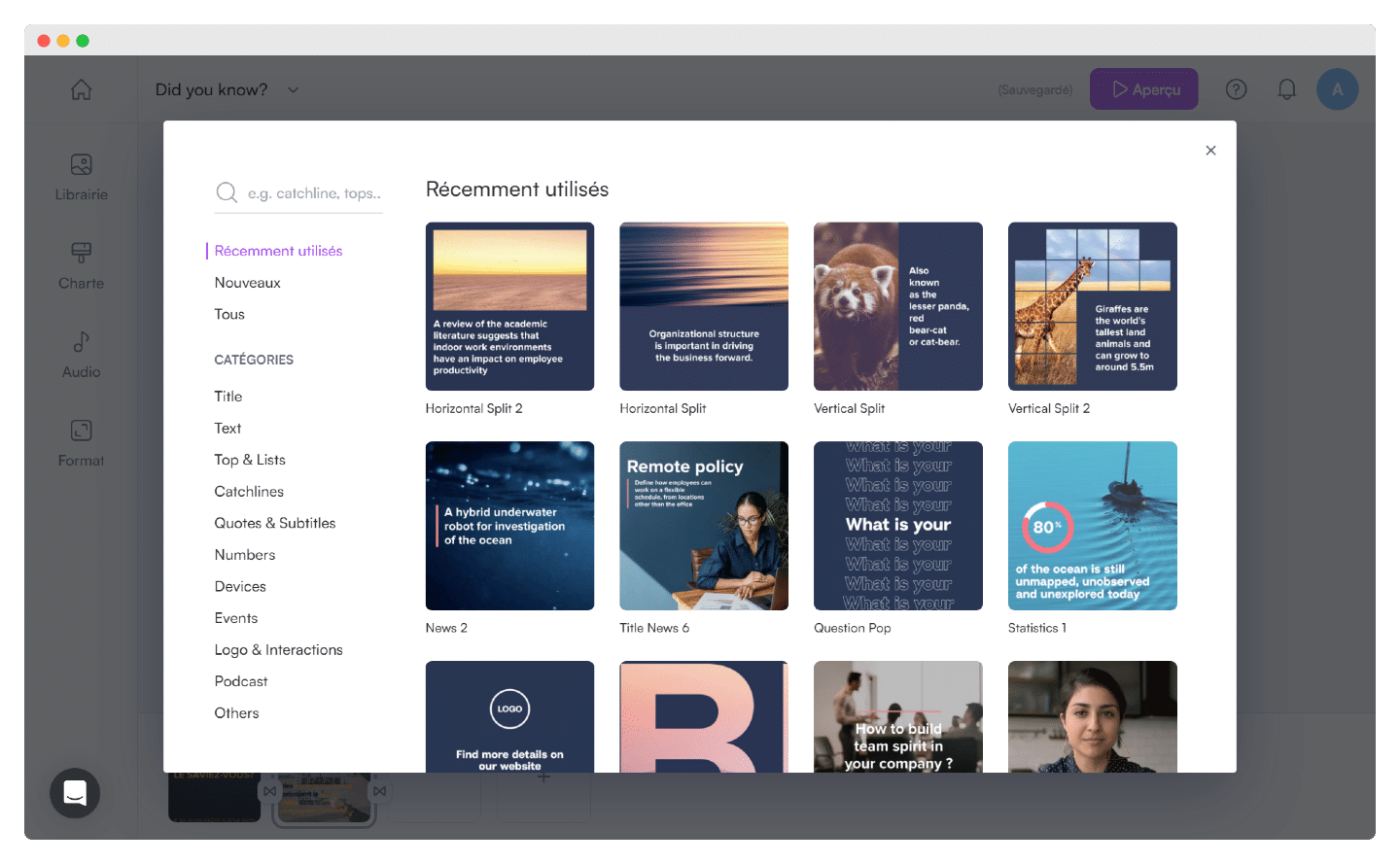
The templates suggest slides and the content to put in them, a question to open the video, statistics to introduce the topic, a contact address at the end, but you’re free to change the structure.
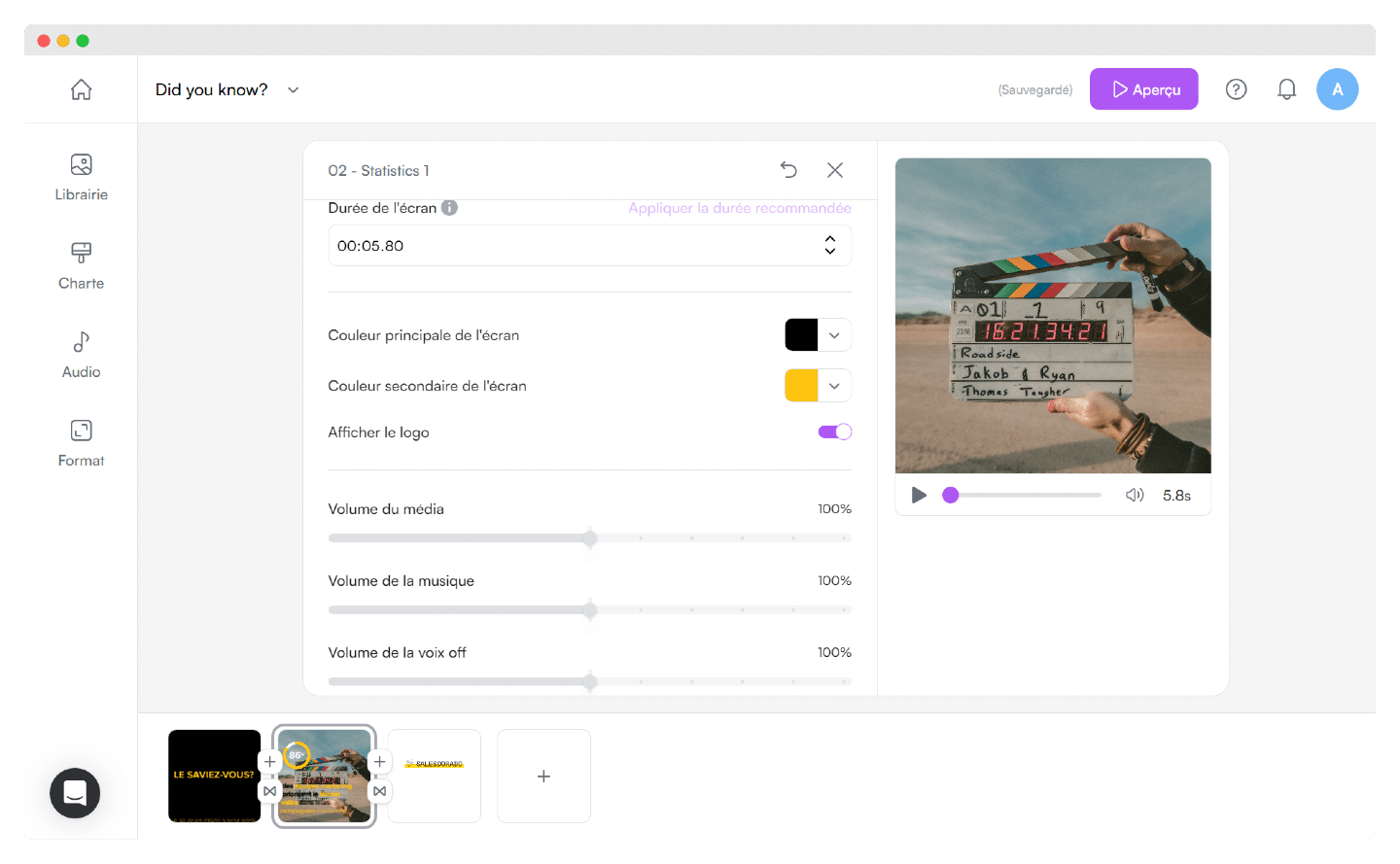
The bonus? Plenty of recommendations, like the screen duration here, so you don’t feel too lost if it’s your first time editing video.
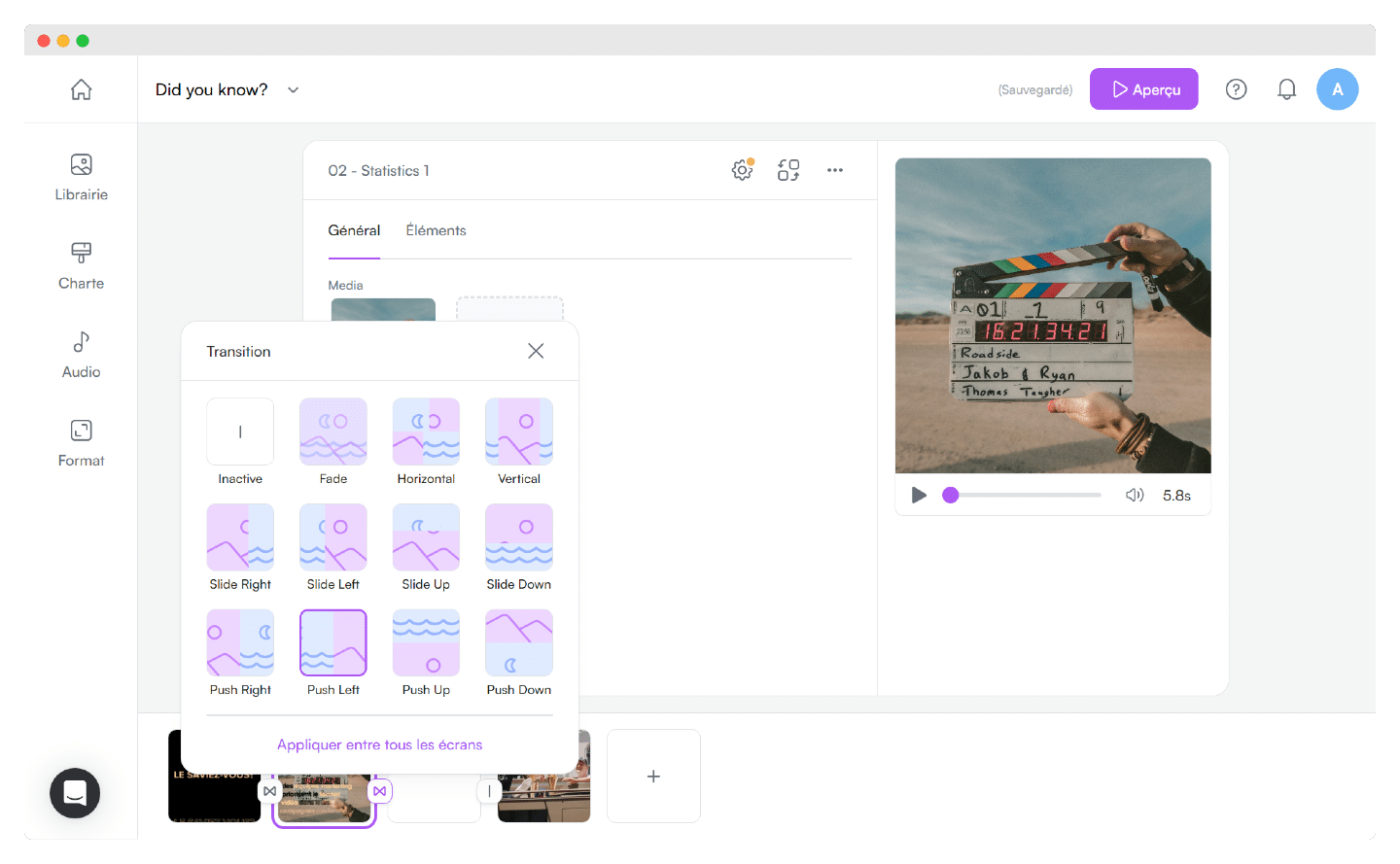
Screen duration, primary and secondary color, logo, media volume: you can change everything. Including picking a transition from the twenty or so available.
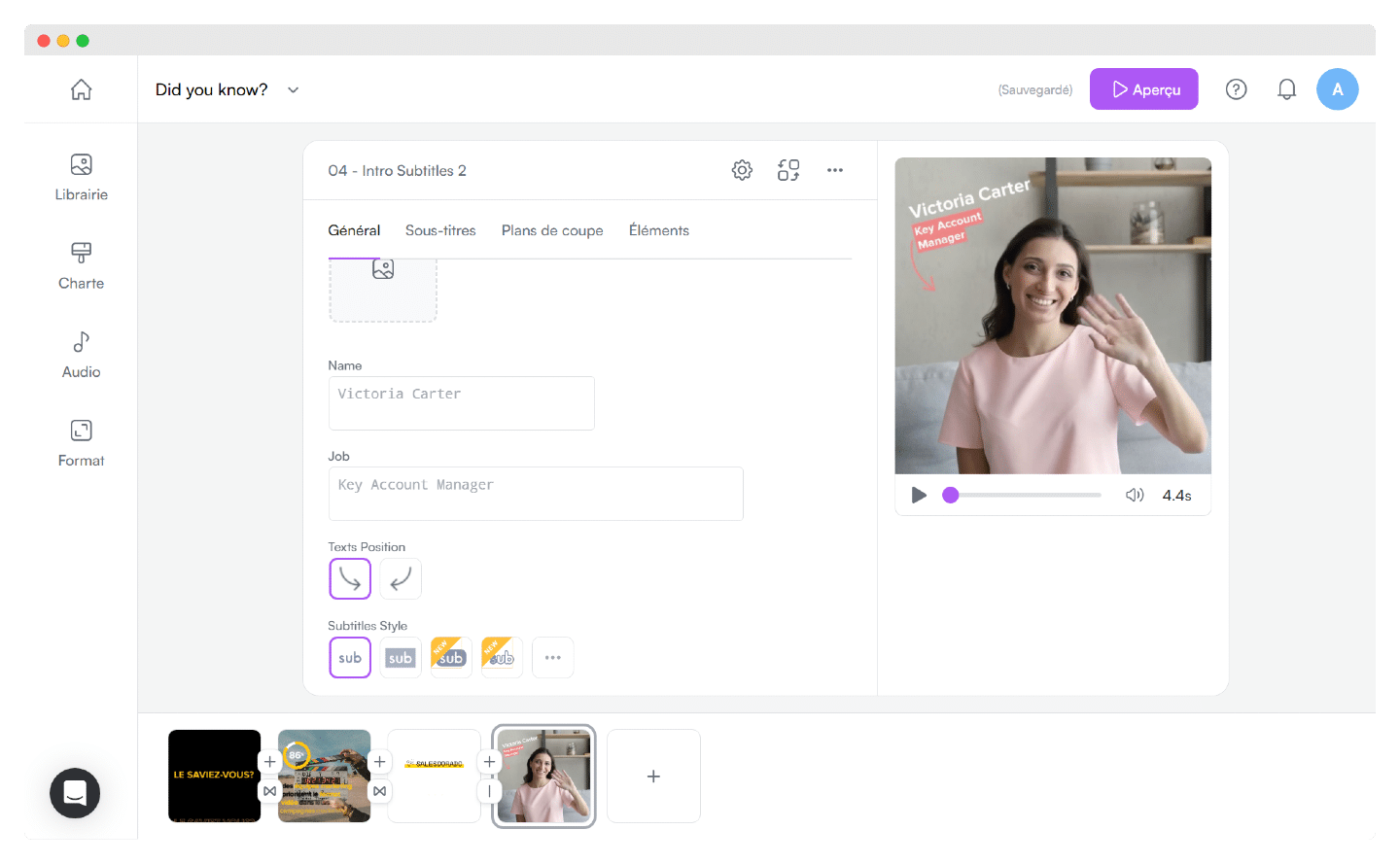
Among the advanced features, you can also automatically subtitle and translate your videos to make them easier to watch, move the text wherever you like and choose your cutaway shots to highlight the most relevant ones.
#3 The image, video and GIF libraries
This is a real plus for PlayPlay: the image, video and GIF library is very comprehensive and lets you enrich your videos well beyond your own imported elements.
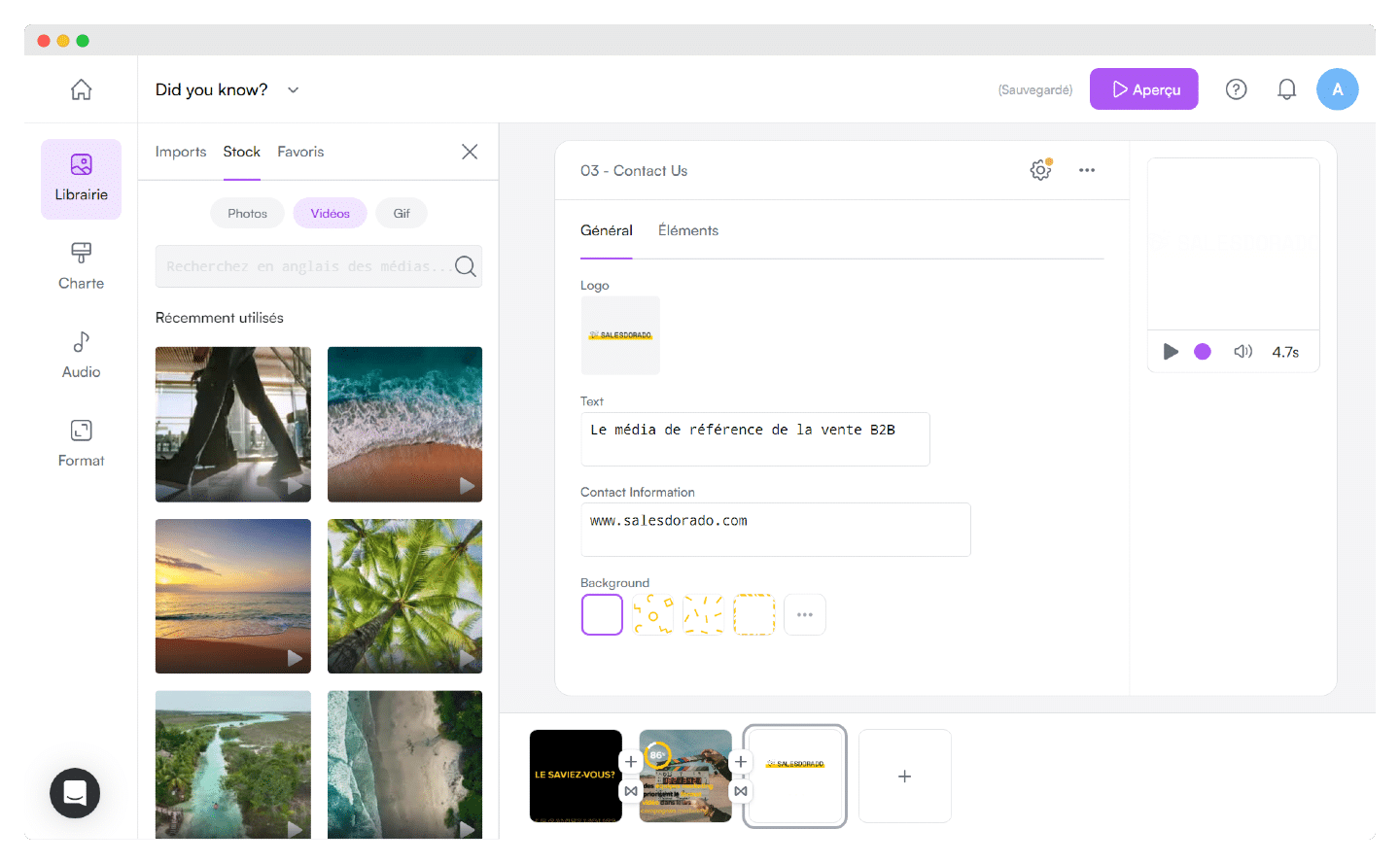
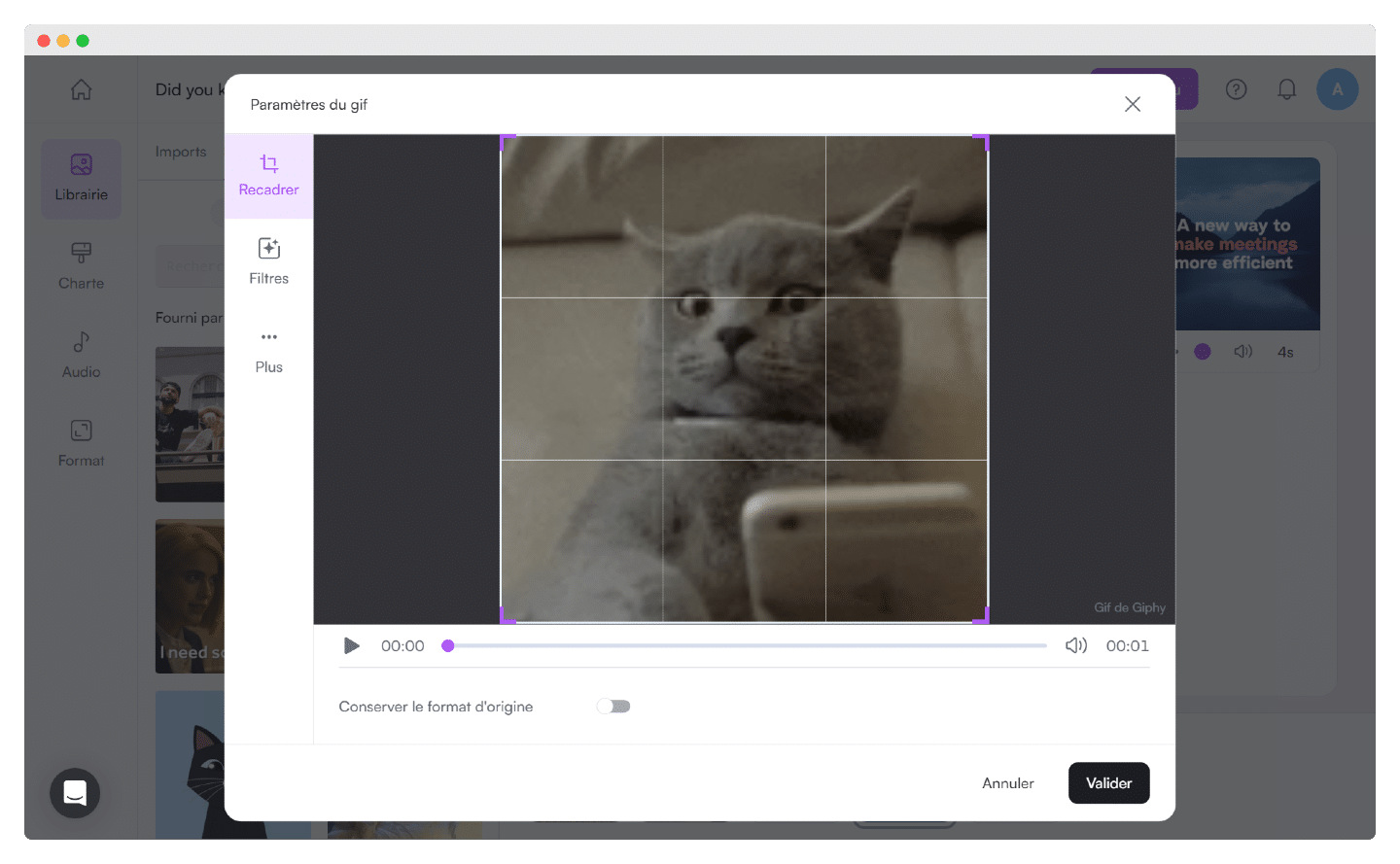
Here again, once you have chosen a GIF for example, you can edit it with filters to get fully customized content.
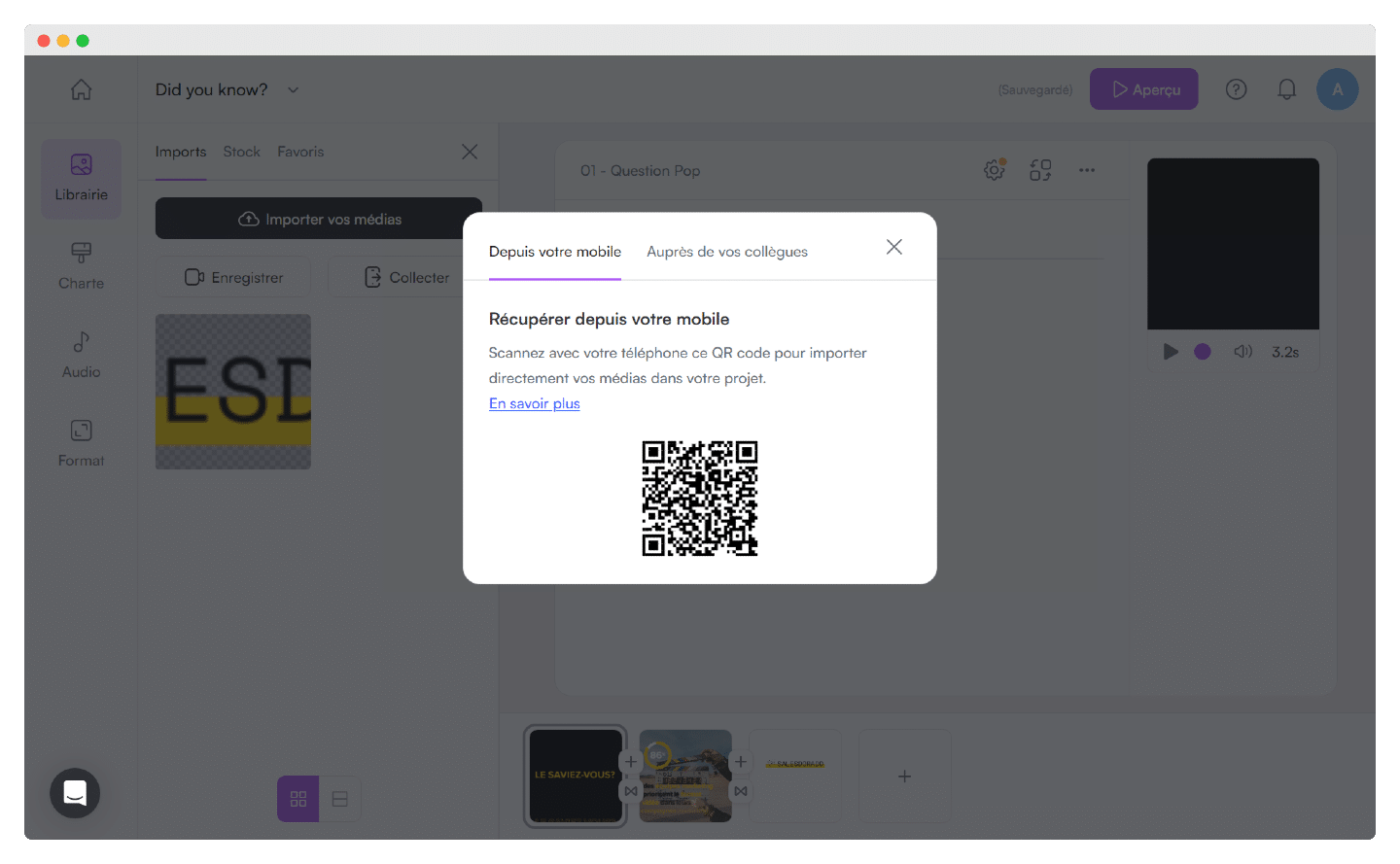
Worth noting: the import options are quite advanced and make it very easy to pull in media from your phone with a QR code, or from your colleagues.
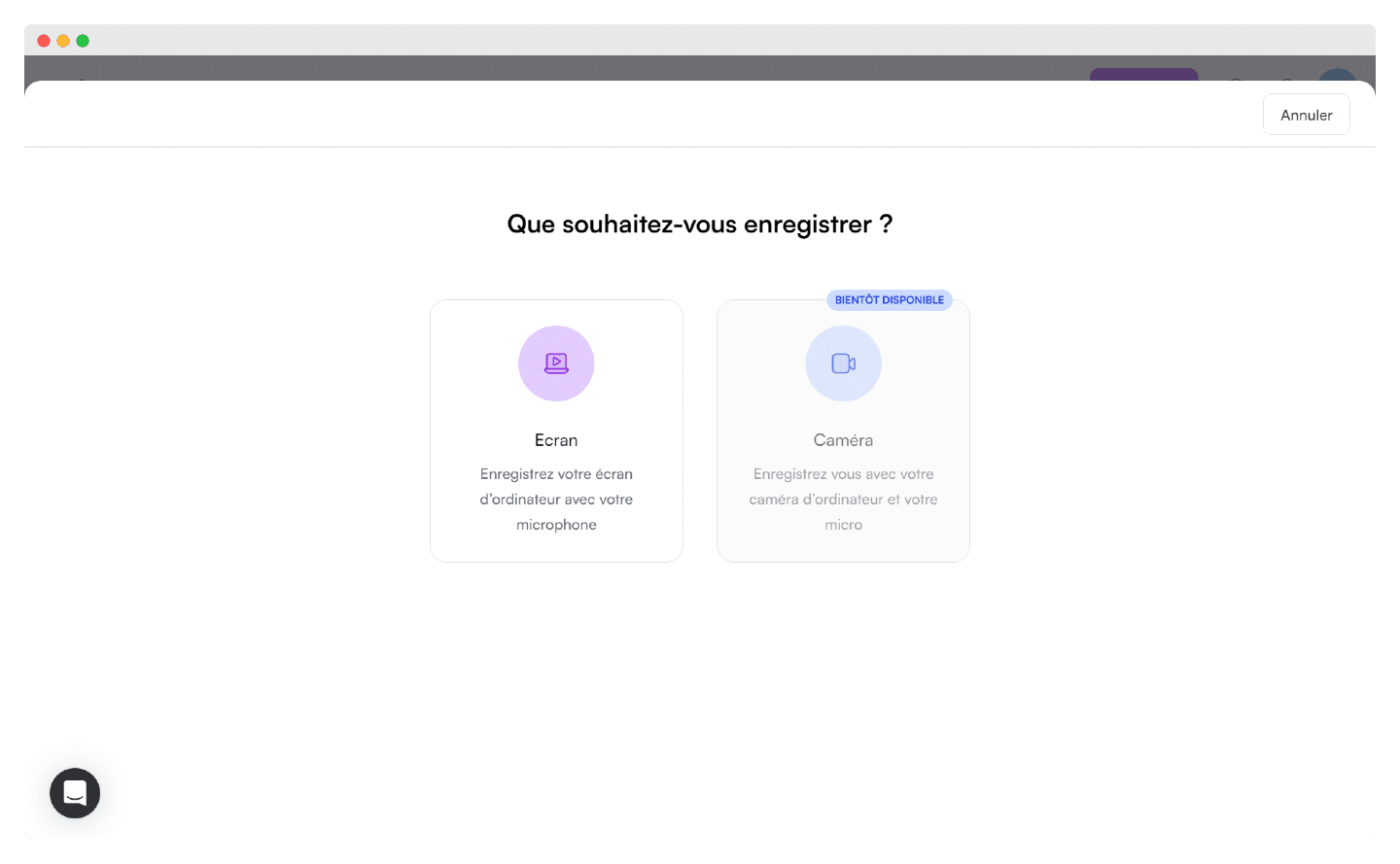
You can also add a video you recorded from your computer: very handy for a tutorial, to show what you’re doing live.
For audio, it’s exactly the same: there are lots of options and different styles, and you can do just about anything you want.
You can pick a track from the catalog or import your own. Here again, categories help you choose, corporate or monthly selection.
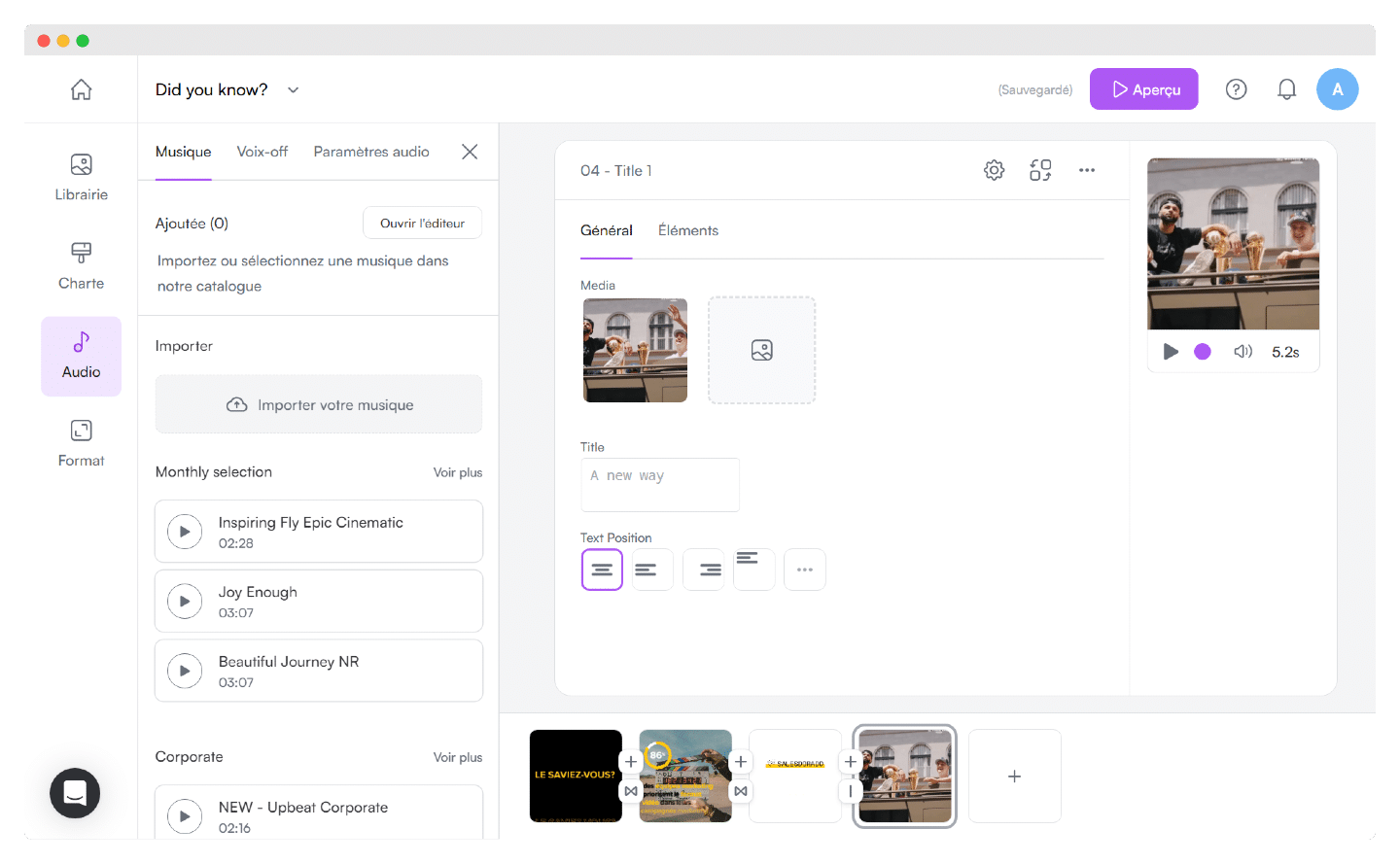
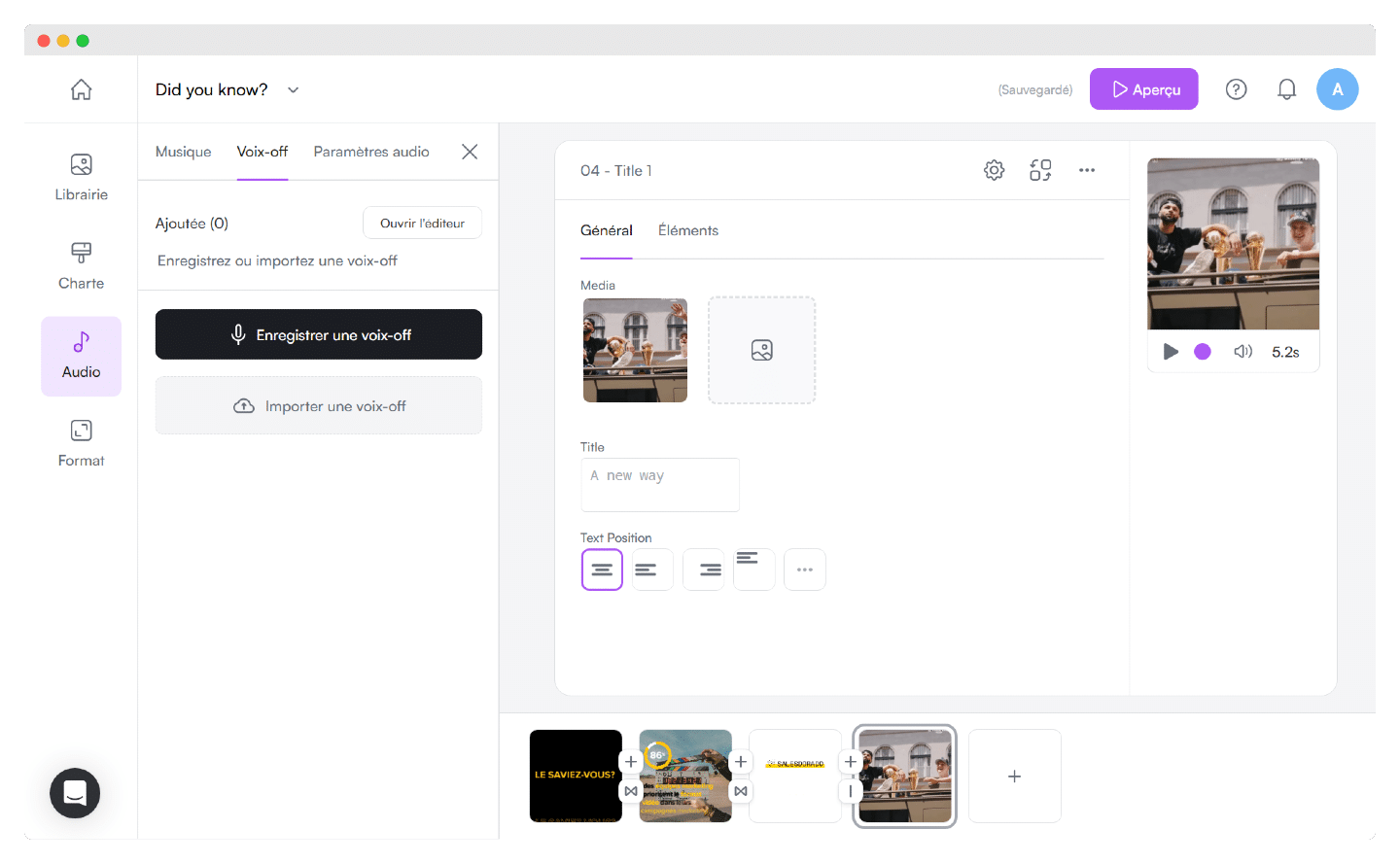
If you need a voiceover, you can add it by importing an audio file or by recording yourself directly.
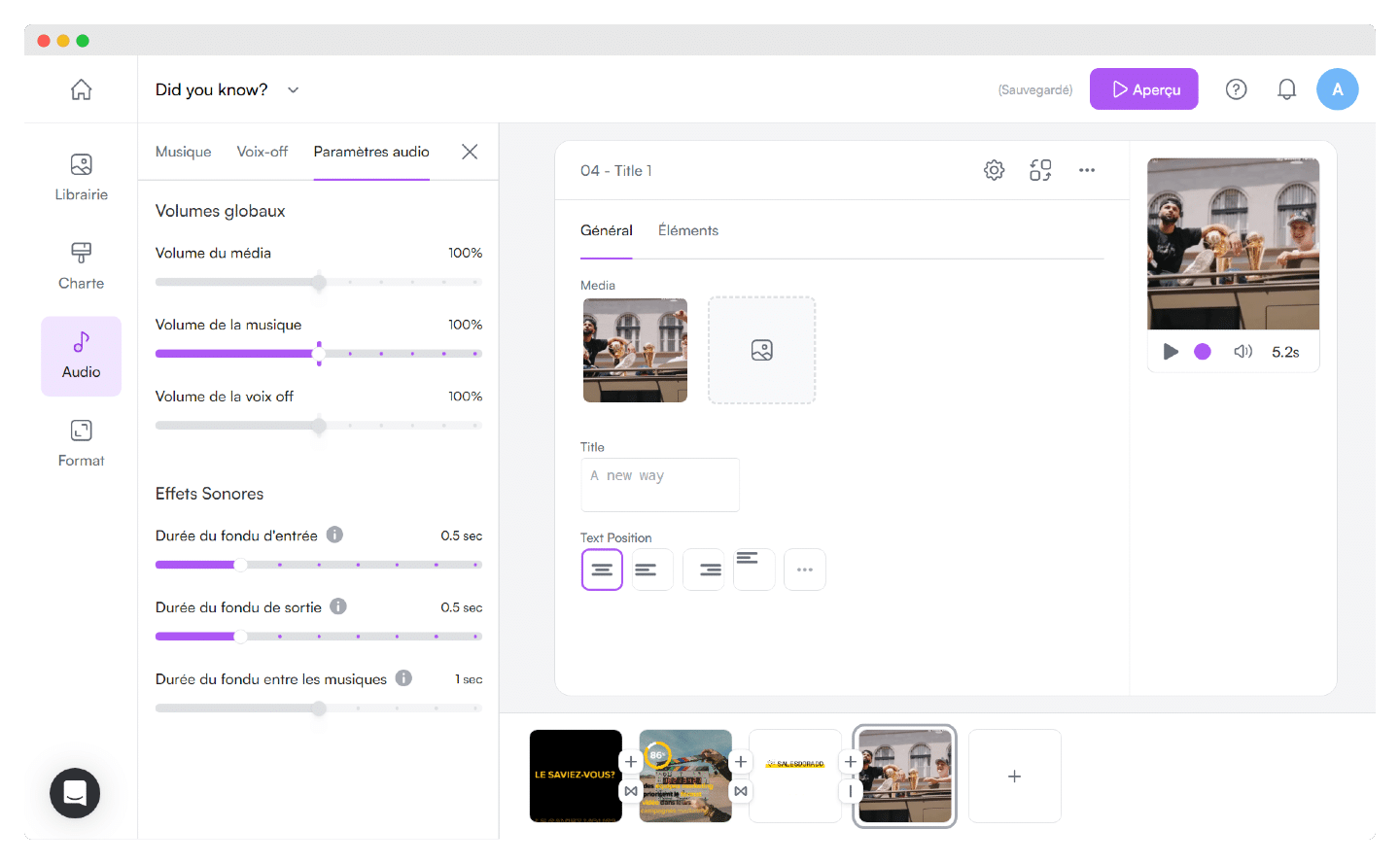
And the audio customization settings are as varied as for video: you play with the volume of the music and the voiceover, but also with the transitions and fades between the different audio tracks. It’s pretty impressive to have a tool this simple to use with so many options.
#4 Setting up your brand guidelines
PlayPlay is aimed at individuals as well as businesses. If you use it in a professional setting, you can add every element of your brand guidelines.
In the editor, you can select colors for the whole video, or for each shot if you’re more comfortable that way.
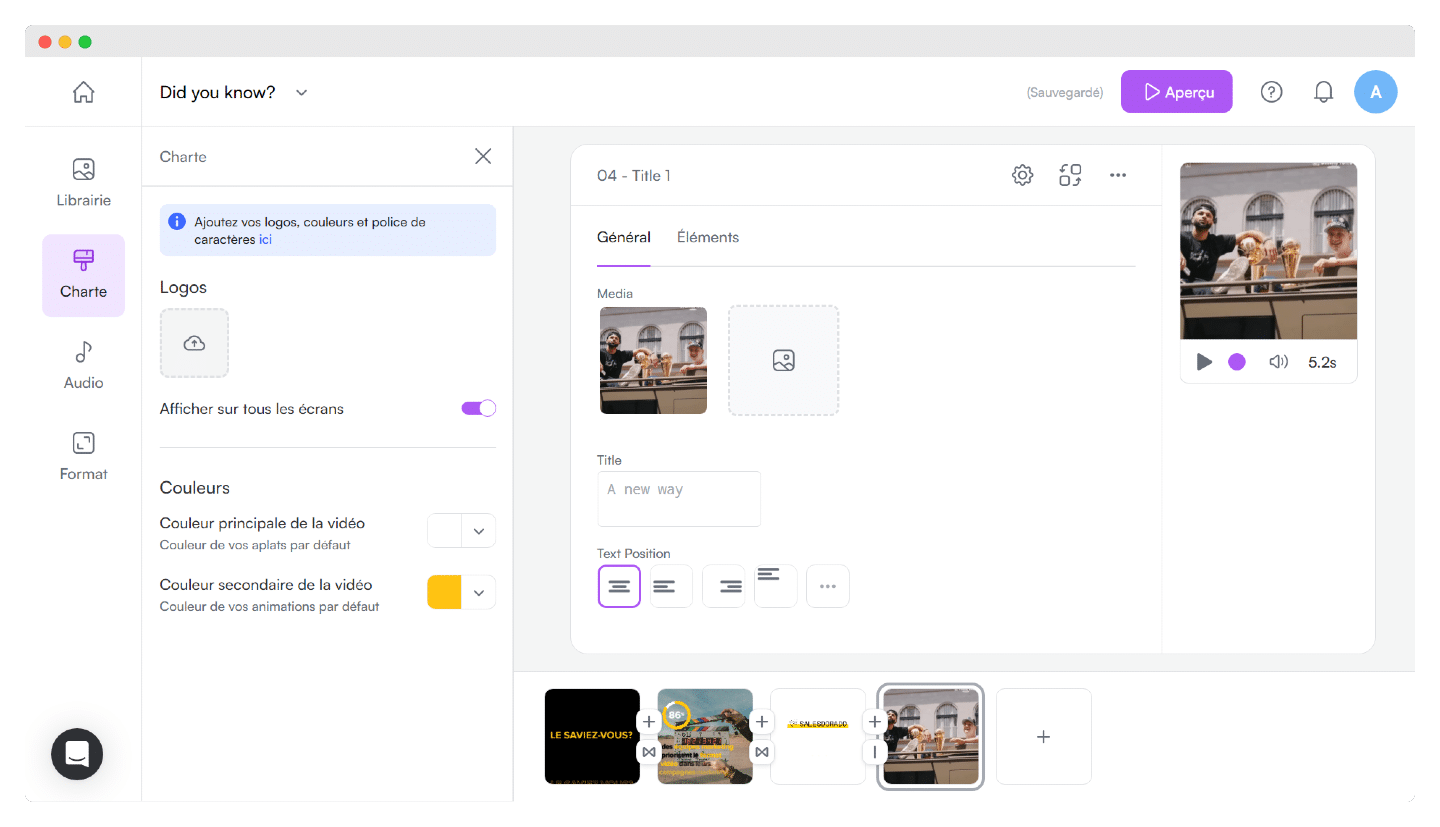
But above all, PlayPlay lets you set these colors for the whole account, so that all your productions follow your brand guidelines. It’s one of the tool’s key features for keeping your videos consistent with your brand. No more hunting for hex codes every time, no room for error, and it makes the creation experience much simpler and faster.
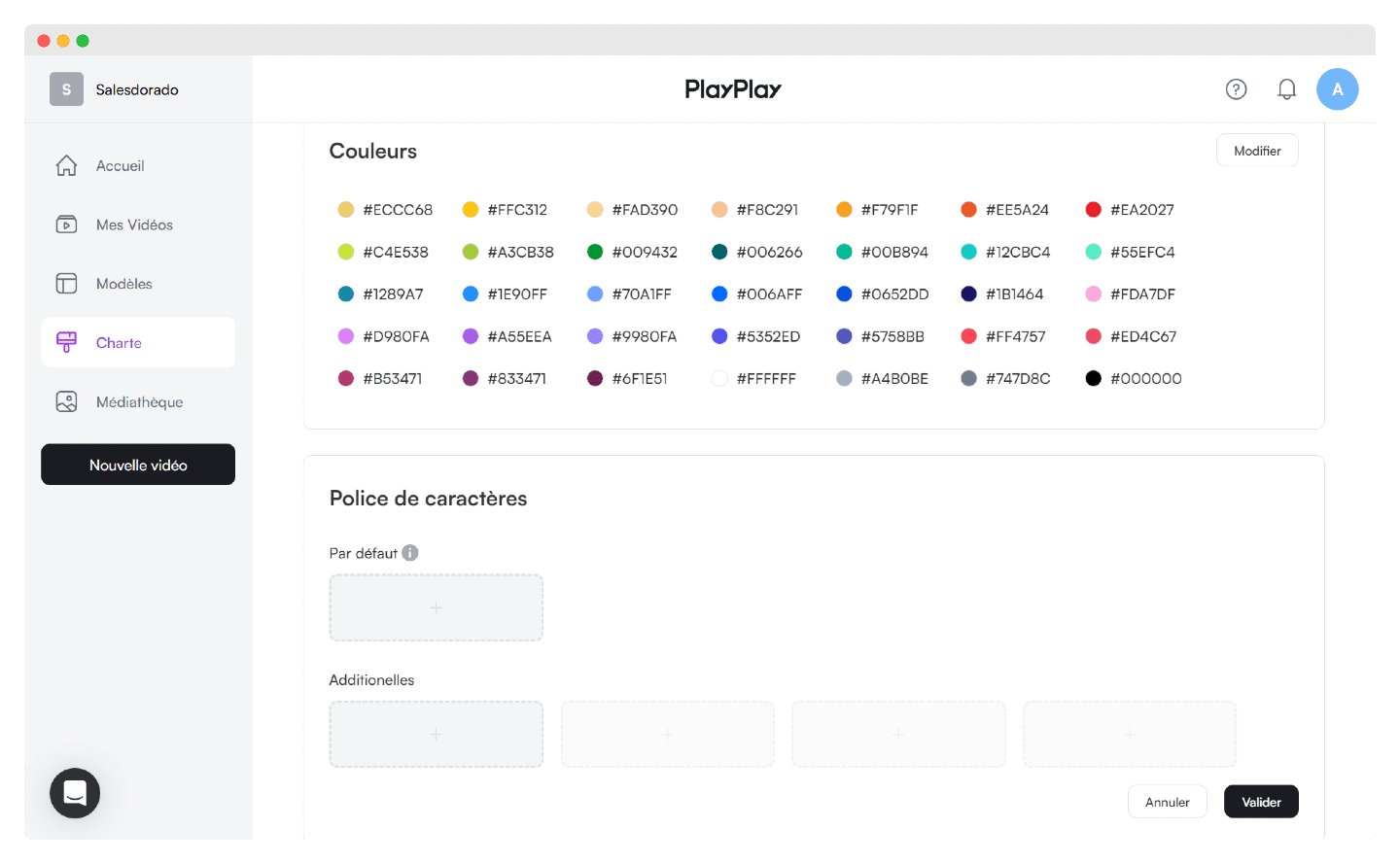
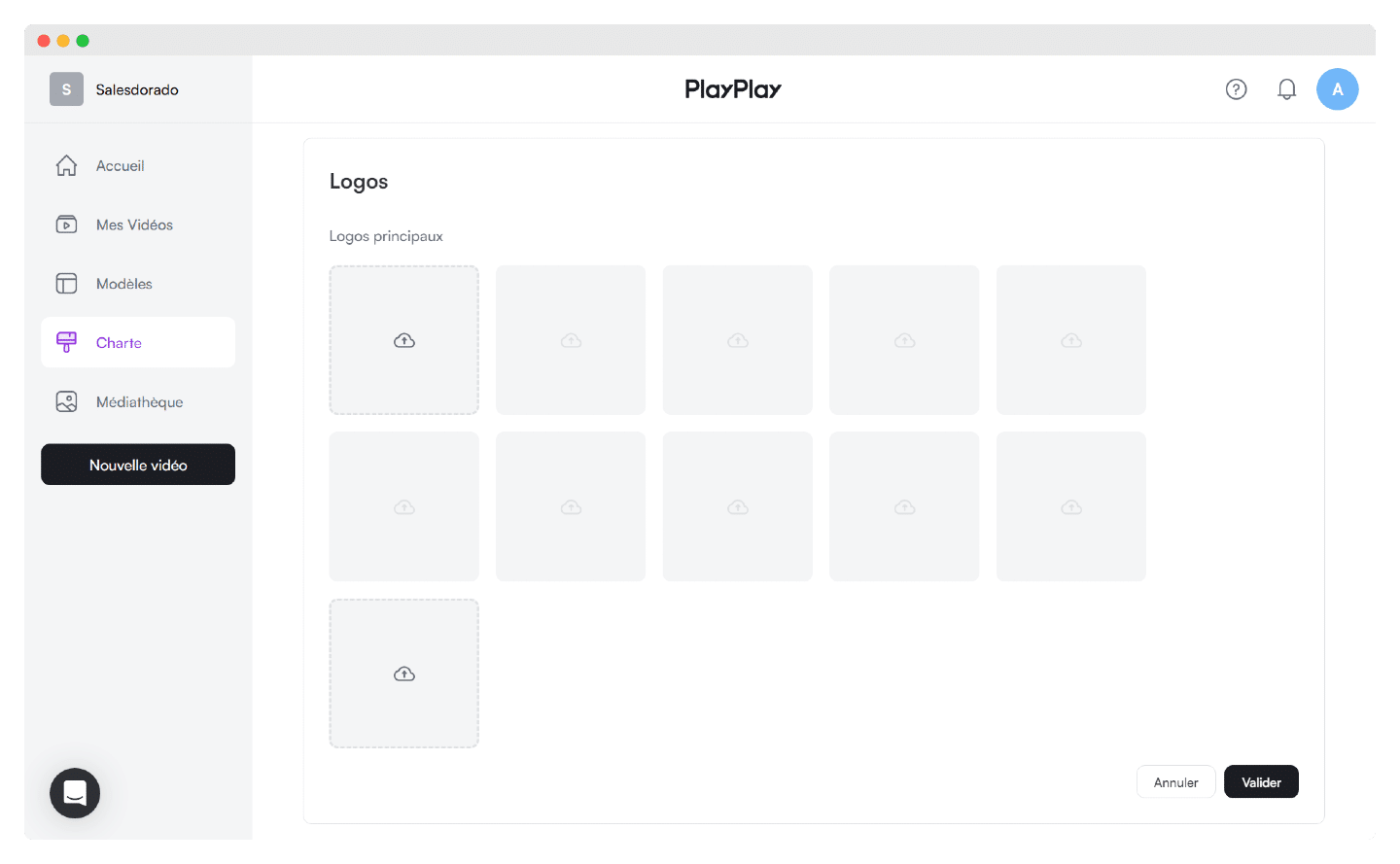
You can define logos in different shapes and colors, a color palette usable in the editor, and the text fonts.
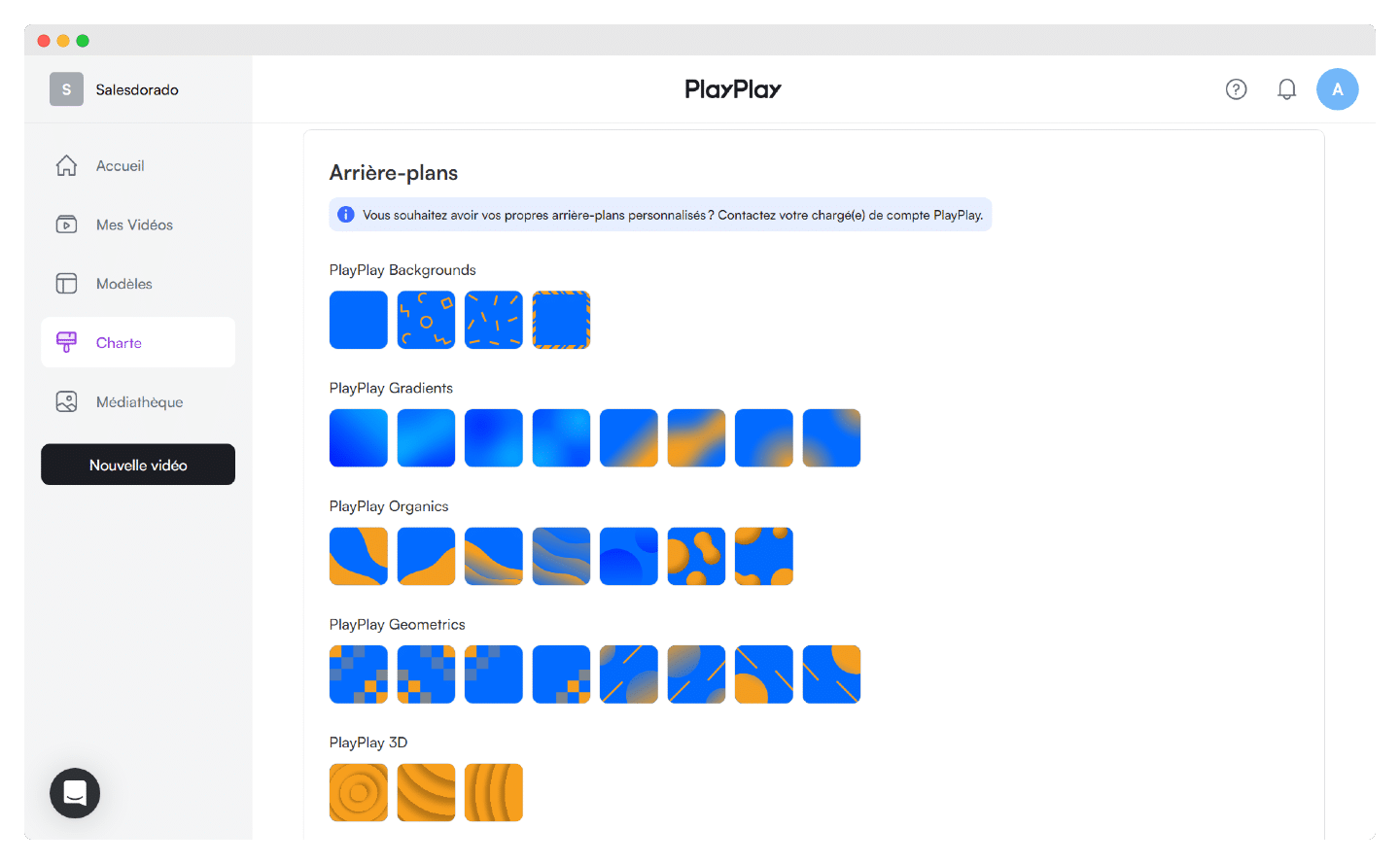
Here too, the software lets more advanced users go further, with custom backgrounds.
#5 The video library and sharing
Once your video is generated, you have several ways to use it: you can download it as an MP4 and then upload it to just about any social network, or to your content scheduling tool. The generated videos are in high definition.
Otherwise, you can generate and download a GIF. It can’t carry sound, but it can loop several times, or endlessly, and it’s noticeably lighter than an MP4 video.
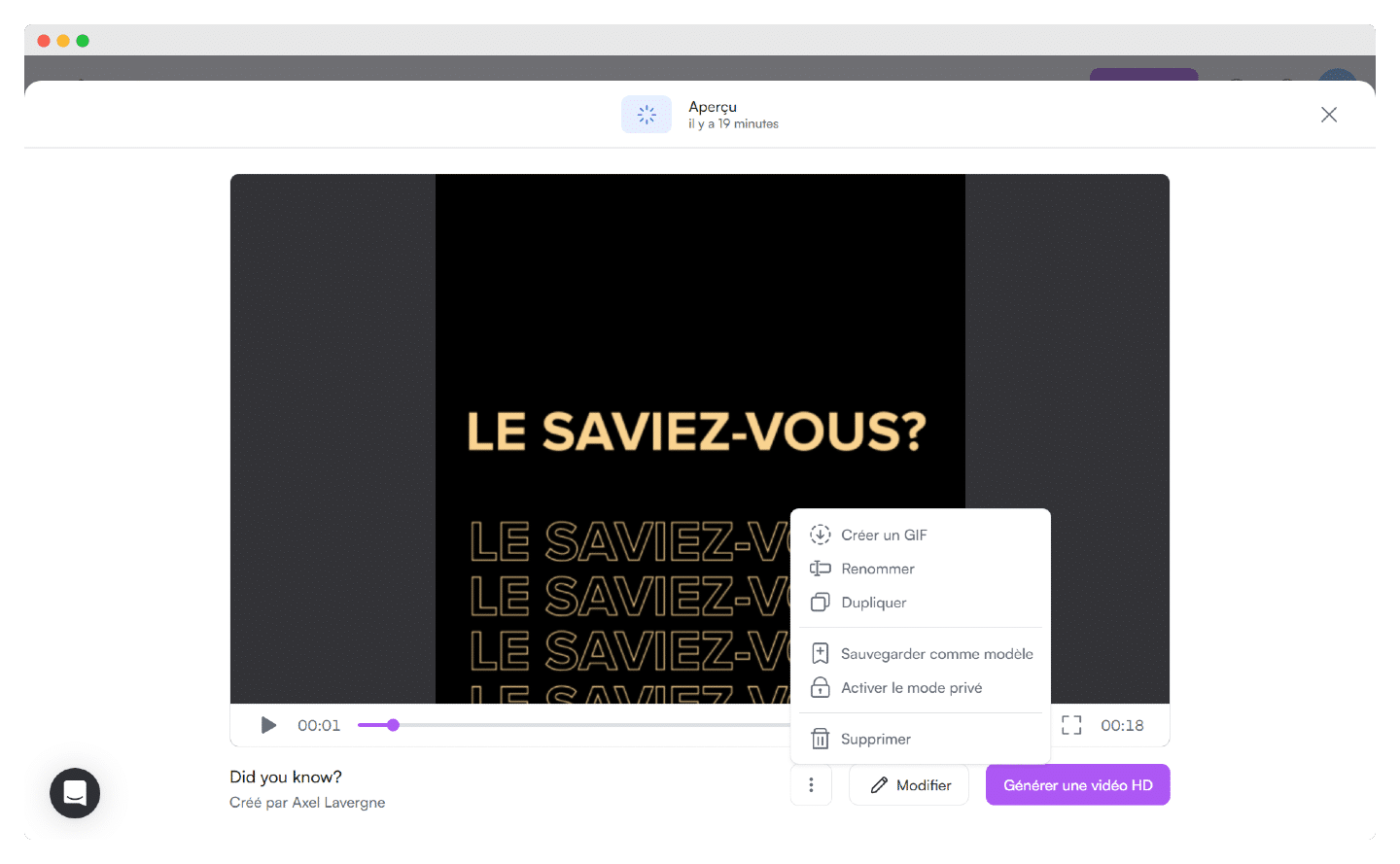
The sharing and collaboration options are very simple to use, so you can discuss your video with your colleagues.
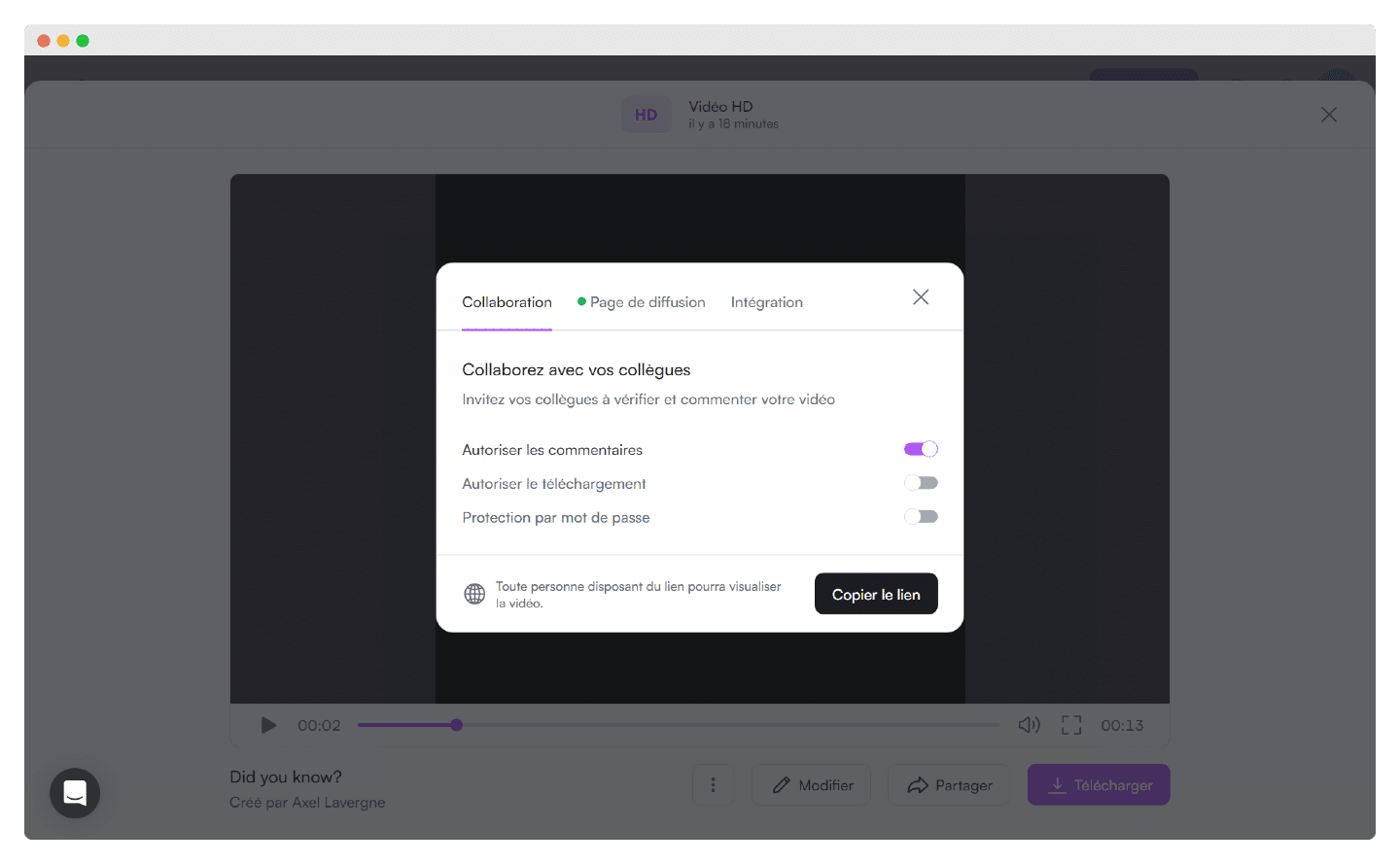
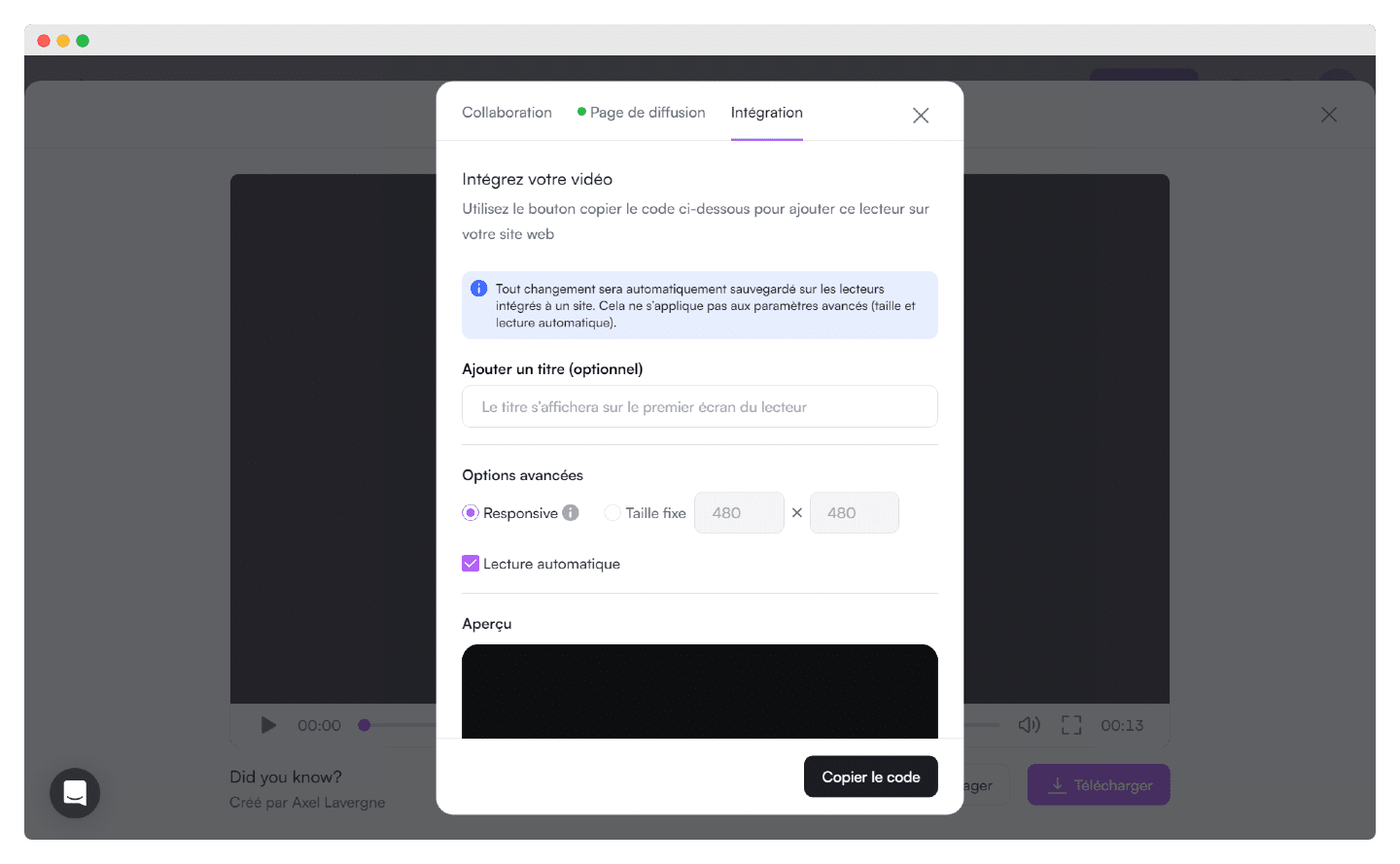
PlayPlay has its own player, so you won’t need to host the video elsewhere, on YouTube or Vimeo, to add it to your landing pages or blog posts. Embedding is child’s play: just copy and paste a snippet of HTML. The player has nothing to envy the video giants: keyboard shortcuts work, the video adapts in real time to the screen and the bandwidth, and all the essential features are there.
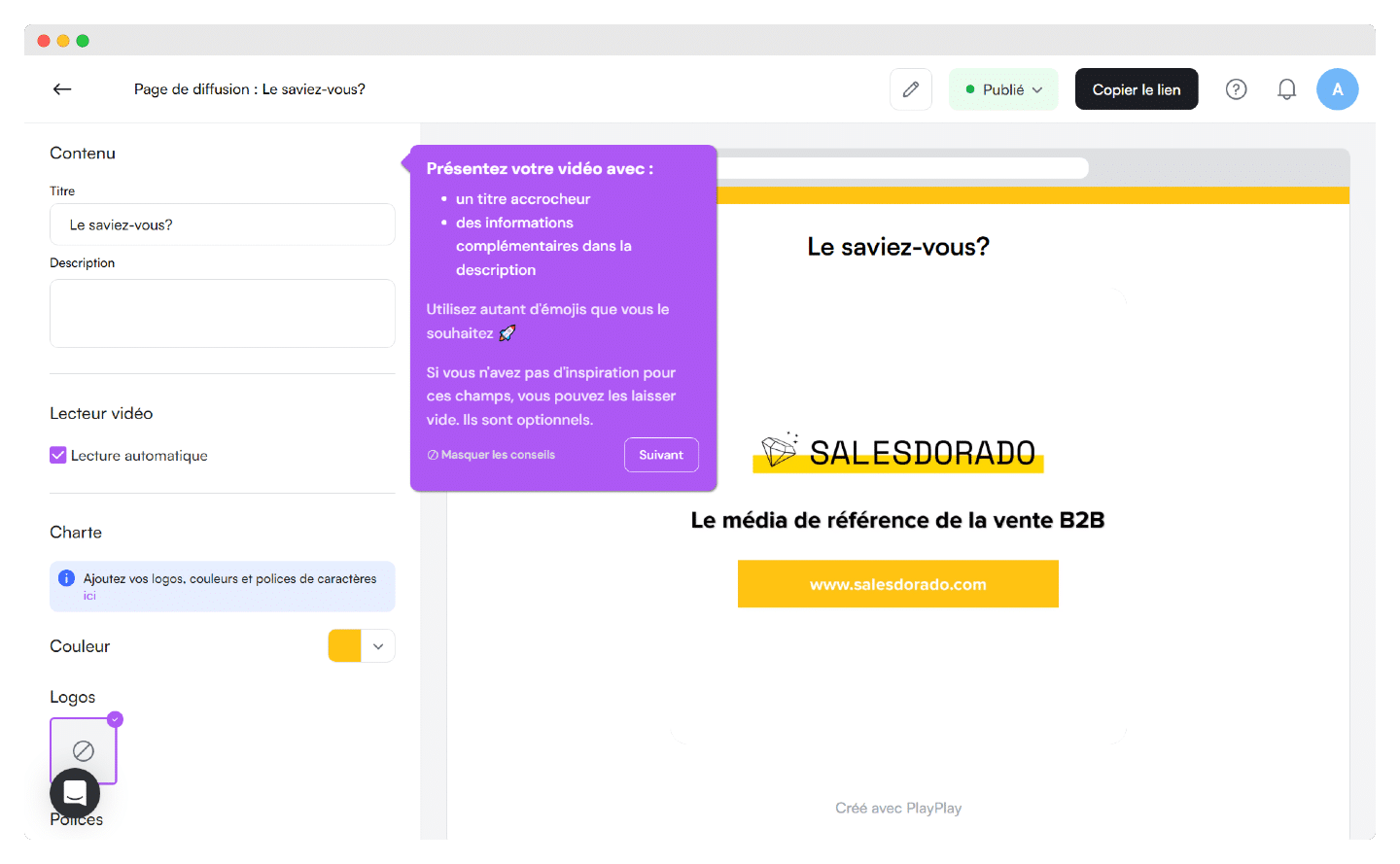
Finally, PlayPlay lets you create a share page, so you can send a simple link to access the video. For longer videos such as tutorials or guides, that can be very handy.
PlayPlay’s AI video creation tool
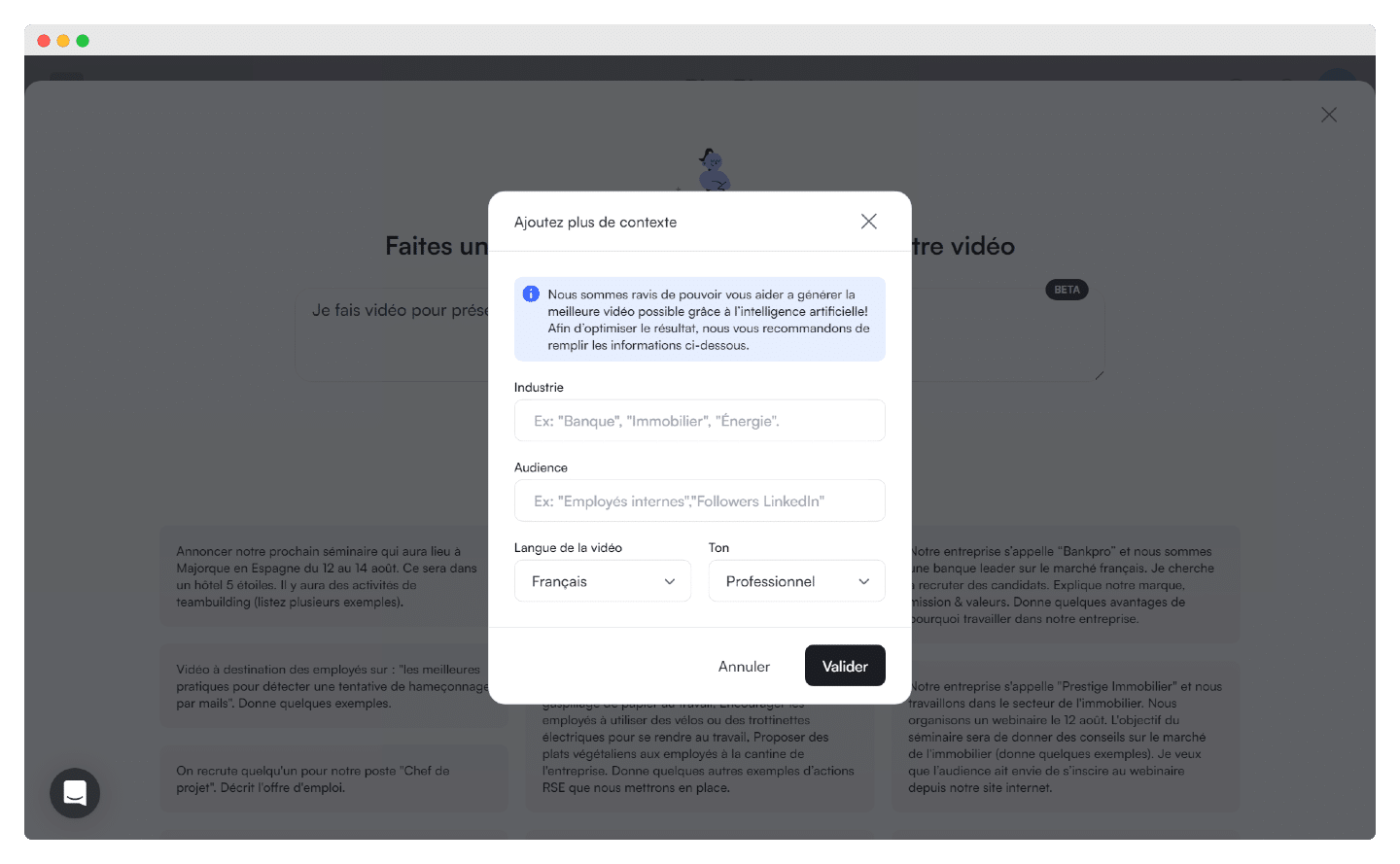
By clicking on the AI Video Assistant, you get access to fairly advanced video generation features based on context sentences you have written, exactly as with any generative AI tool.
PlayPlay relies on AI here. You write a text stating precisely what you want, the goal of your video and the message to get across. Once again, the tool offers ready-made example sentences to show you which elements are worth providing.
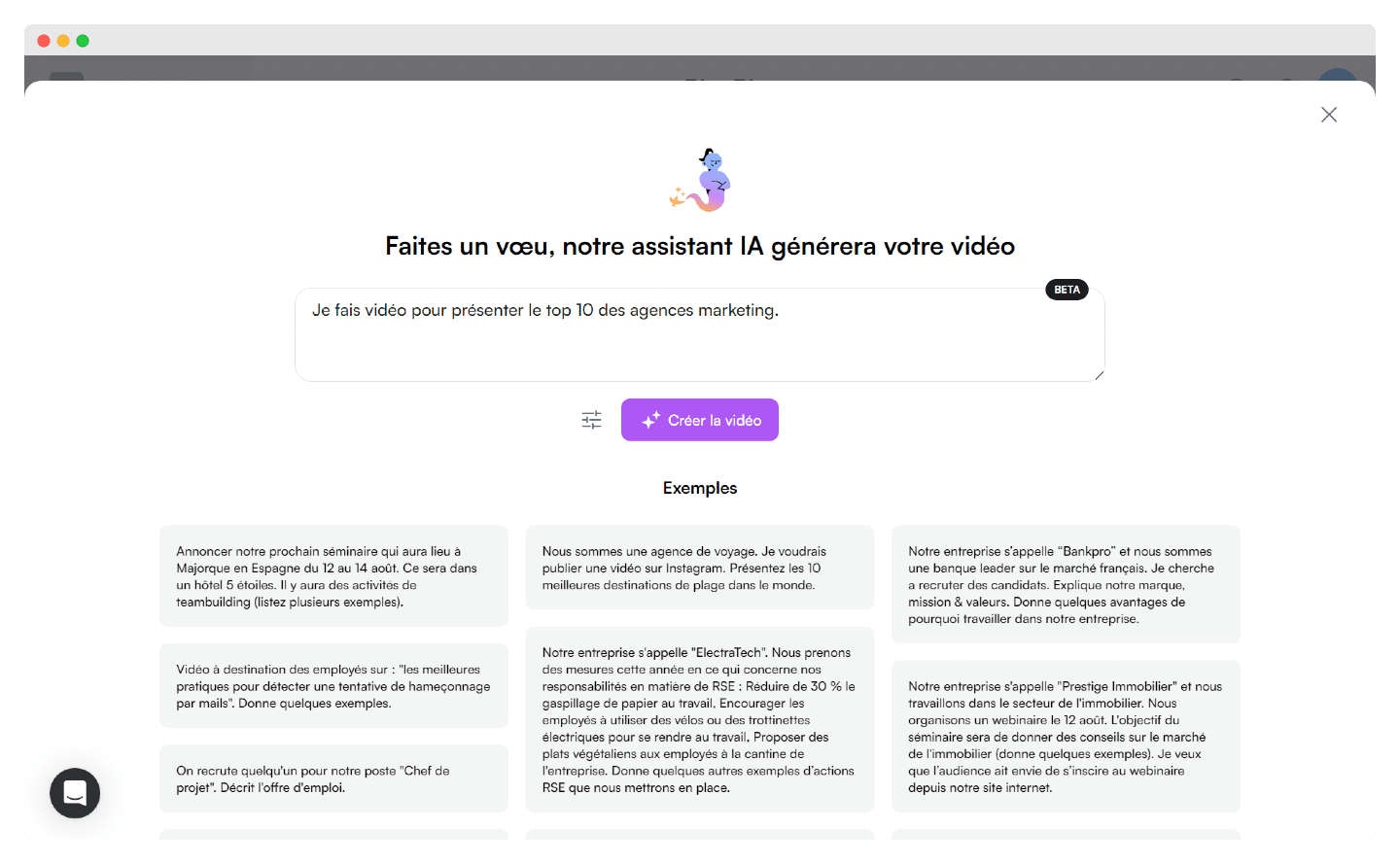
You can add context to your description about your industry and your audience, the language and the tone you’re after.
Since then, PlayPlay has expanded its AI suite considerably: automatically generated voiceovers and subtitles, video translation, AI avatars, short clips taken from a long video, audio cleanup or editing by cutting directly in the transcript. The company has also launched PlayPlay Design, to generate, translate and animate brand visuals.
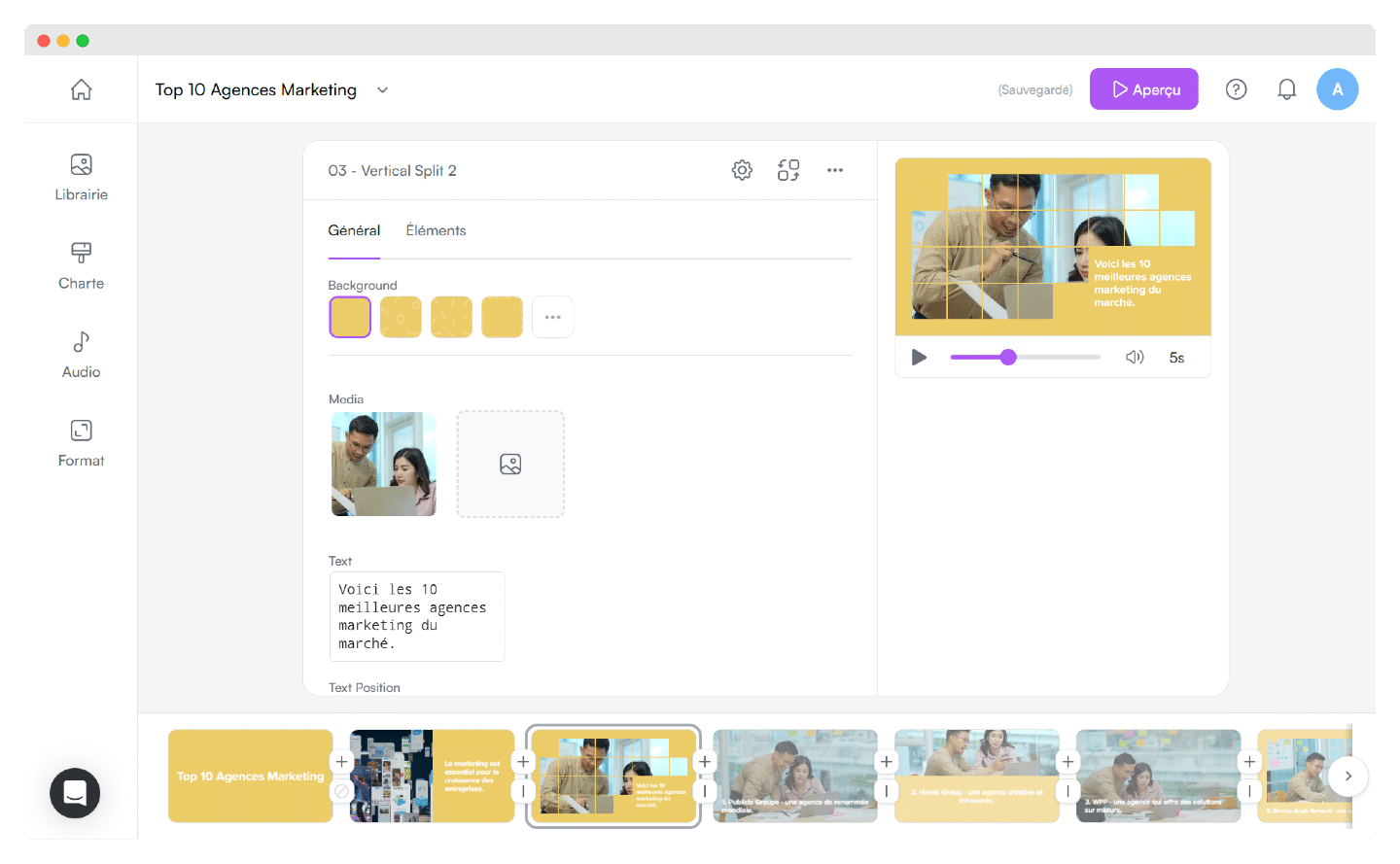
For our test, we wanted to make a video presenting the top 10 marketing agencies. Thanks to AI, PlayPlay comes up with a short video with a context introduction, then the list of agencies.
Customer support at PlayPlay
PlayPlay customers usually have an account manager, a dedicated point of contact for all their questions, whose role is to help them get the most value out of the tool. The team even offers to help you set up your brand guidelines, create custom animations or run workshops.
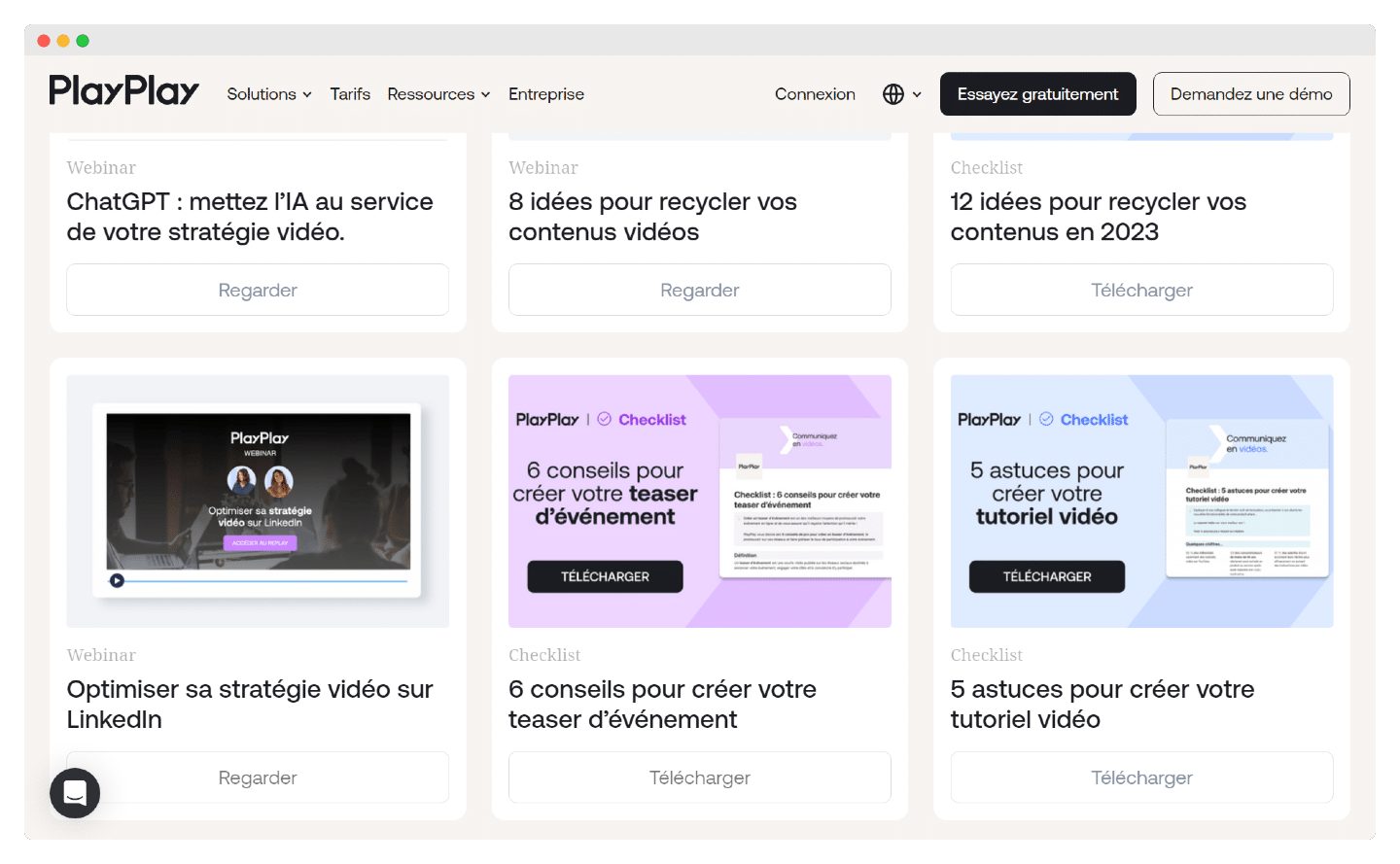
The tool is really very intuitive, with help available at every step of creation and editing. The company also runs a well-stocked blog, with tutorials in the form of webinars or checklists, to guide you through the tool and to give broader advice on content creation.
Their YouTube channel is also a very good resource on certain features, here for example on subtitling videos:
PlayPlay pricing
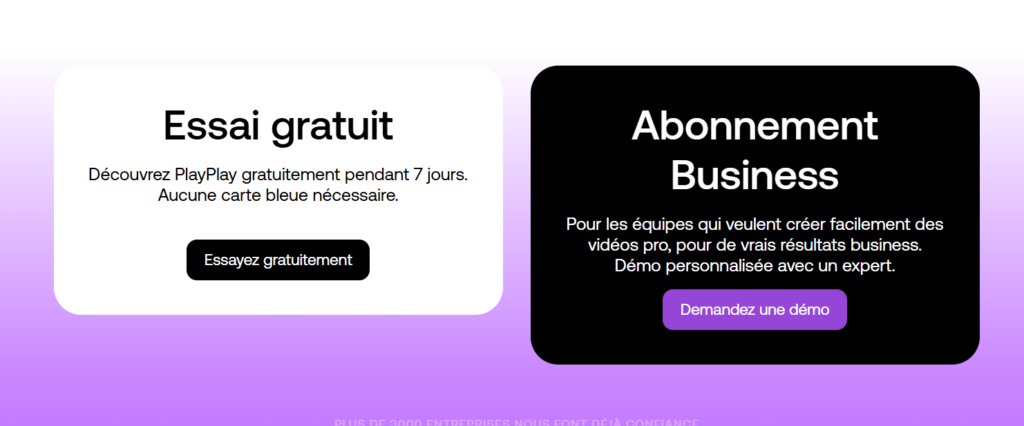
Unfortunately, PlayPlay is still one of the many companies that hide their prices. The company has even simplified its offer: it now has only one paid plan, the Business Subscription.
If you want to get an idea of what the tool can do, you can take a free 7-day trial, with no credit card. But to get a price or to buy, you’ll have to book a meeting with the sales team.
What does this free trial let you do? You can create as many videos as you like, with most of the editing and AI features (subtitles, voiceover, video clips). It is limited on customization, however (2 logos, 40 colors, a single set of brand guidelines), and the videos carry the PlayPlay watermark.
The Business Subscription, for its part, unlocks everything:
- Customization : custom fonts, backgrounds and end screen, unlimited colors, logos and brand guidelines.
- Media : access to the Getty Images and Storyblocks libraries.
- Collaboration : video approval system, team templates, comments on the share page, user and permission management.
- Security : single sign-on (SSO), private videos, password-protected share page.
- Support : priority support with an account manager, training with video experts, video and editorial workshops.
Worth noting: there is no limit on the number of videos.
Try PlayPlay for free
PlayPlay offers a free 7-day trial, with no credit card required and an unlimited number of videos. To subscribe to the Business Subscription, you need to request a demo.