


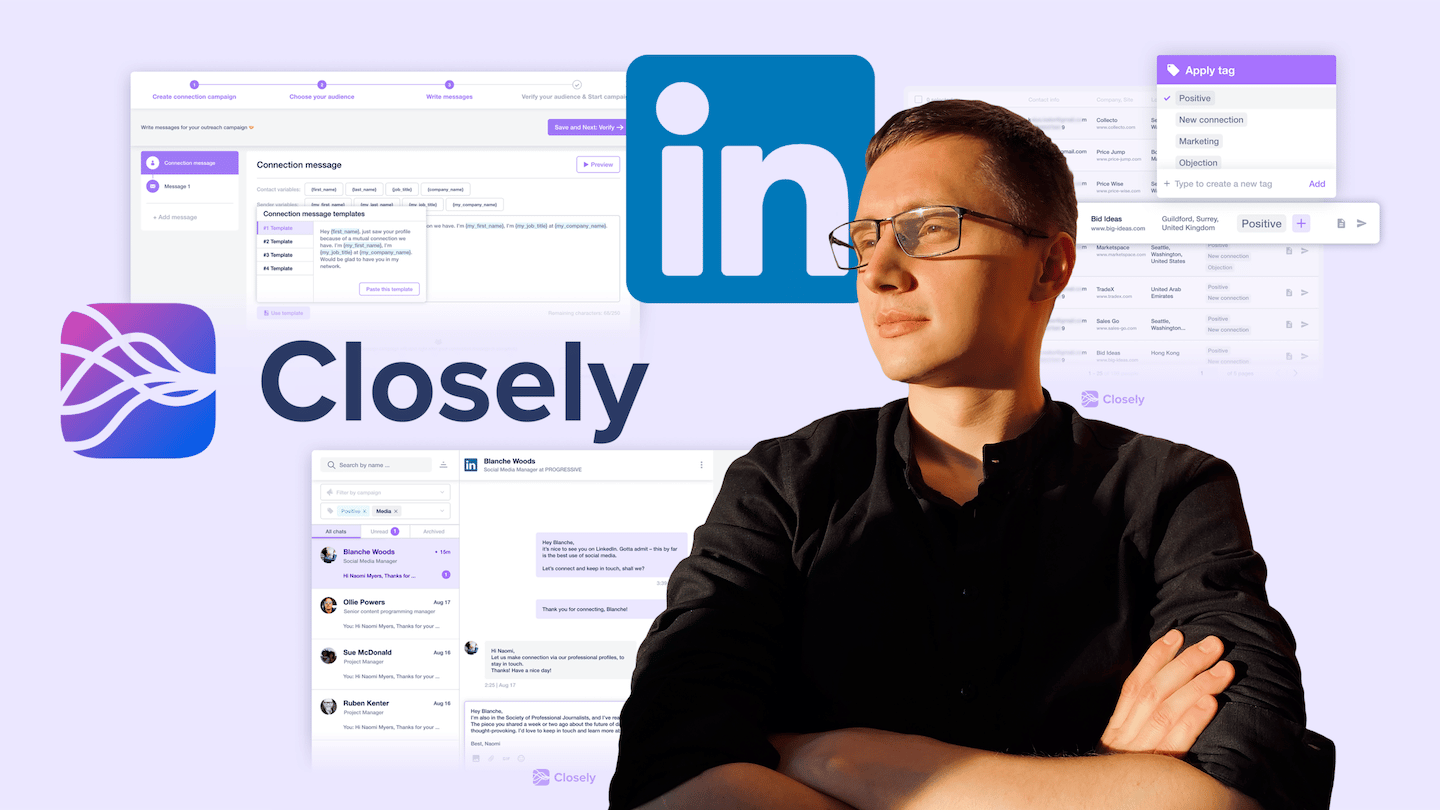
- Segment your LinkedIn contacts by need, by sales funnel stage, by campaign or by event.
- Tags are used to filter conversations, target a group of clients and measure the replies to a campaign (positive, neutral, negative).
- Notes keep personal information and the key points of a conversation so you can pick it up later.
- Closely’s campaigns chain connection requests, LinkedIn messages and emails in a single sequence; enrichment (email, phone) runs in separate workflows.
Your LinkedIn network helps you find plenty of prospects and clients. It also helps you retain your new clients, by keeping them informed of your latest news, for example your recent updates.
To talk to your contacts, you just send them an individual message. Reaching a group of people is harder: LinkedIn doesn’t let you create lists or filters based on your own criteria.
So you have to look for these people manually with the filters LinkedIn offers, then enter them manually into a spreadsheet or a CRM software. All of this weighs down your workflow.
Closely promises to solve this problem by gathering every prospect in your network into specific groups, based on your criteria. The tool then gives you easy access to any group, and lets you contact it directly on LinkedIn, or elsewhere.
In this article, we show you how to turn your LinkedIn account into a CRM with Closely.
Before going furtherCheck out our complete guide to CRMs!
1. Create segments in your LinkedIn network with Closely
The first step to managing your contacts better inevitably goes through creating segments, based on different criteria:
- For example, based on your contacts’ needs: a need for two-factor authentication, a need for a HubSpot integration, etc.
- Based on the stage of the sales funnel they are in: prospects, hot leads, MQLs, SQLs, PQLs, existing clients, satisfied clients, etc.
- Based on the type or name of a campaign: for example, to send new messages to the contacts of an old campaign.
- Based on the events where you may have met new contacts, for example a trade show.
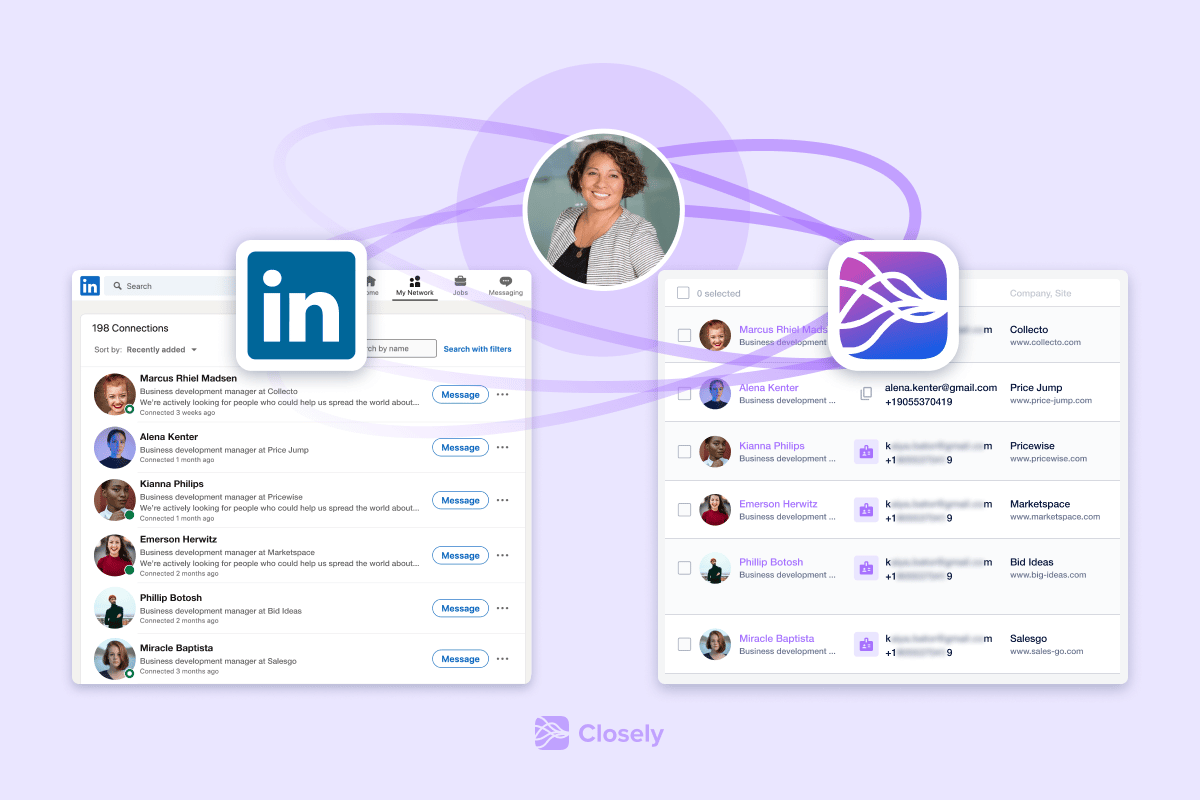
For all the potential clients or prospects segmented this way, you can create an automated campaign in Closely, and so bring them into your sales funnel.
Having a CRM system to manage this network makes the work simpler: this kind of system lets you collect the different profiles and assign them a label, for example “conference name”.
With these labels, you can reach the contacts you want and personalize your message, for example by mentioning the event where you crossed paths. You’ll be both warmer and more effective.
2. Connect LinkedIn to your CRM
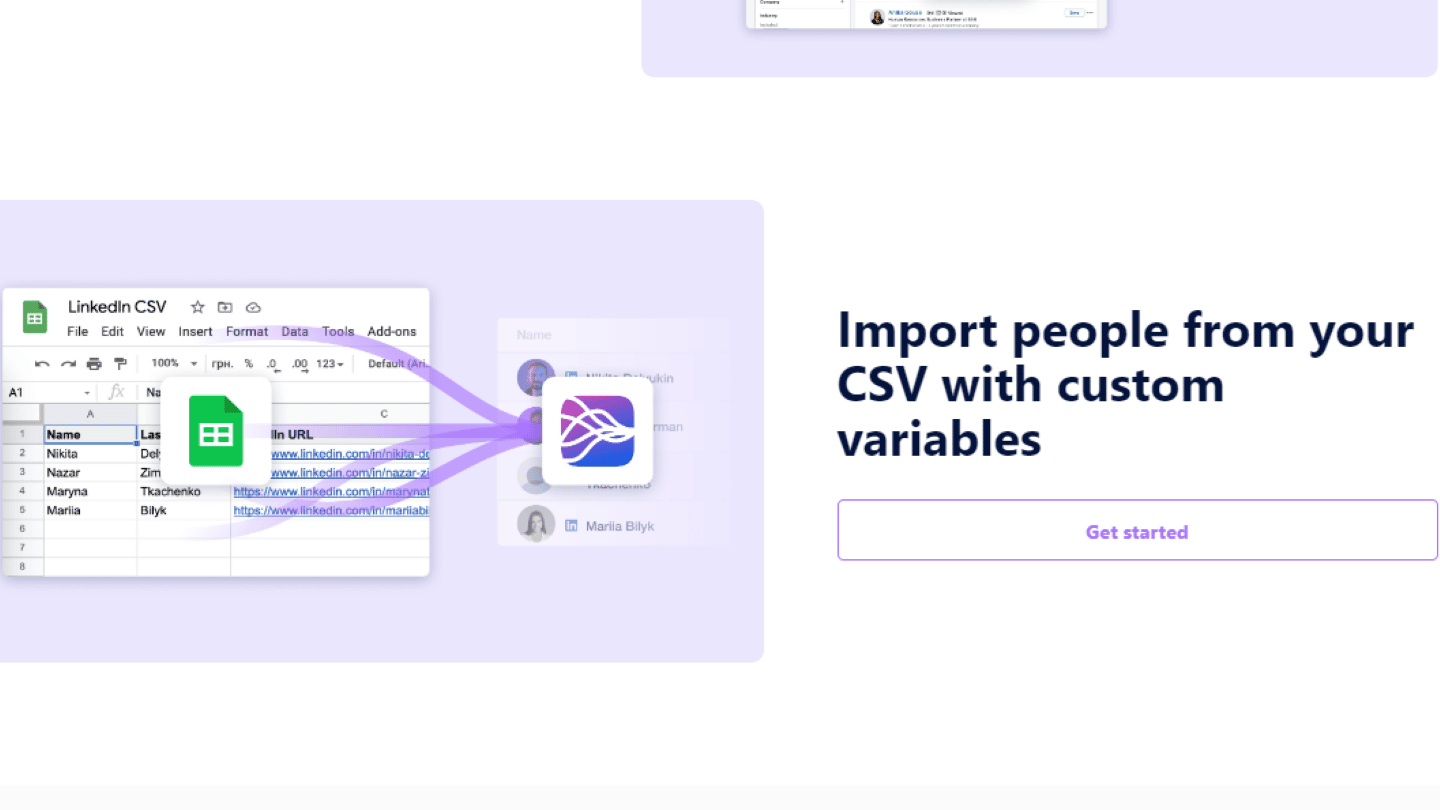
You can of course do all of this in a LinkedIn CRM. But you have to download the members of your network manually.
You also have to update their contact details and information if you don’t want your CRM to keep outdated information. All these repetitive tasks are very time-consuming and not very creative.
Read alsoTop 10 best LinkedIn agencies
3. Keep your CRM and your LinkedIn network alive
Closely offers plenty of features to keep your CRM and your LinkedIn network alive. Closely’s “unread” filter lets you filter unread messages by campaign and by tag.
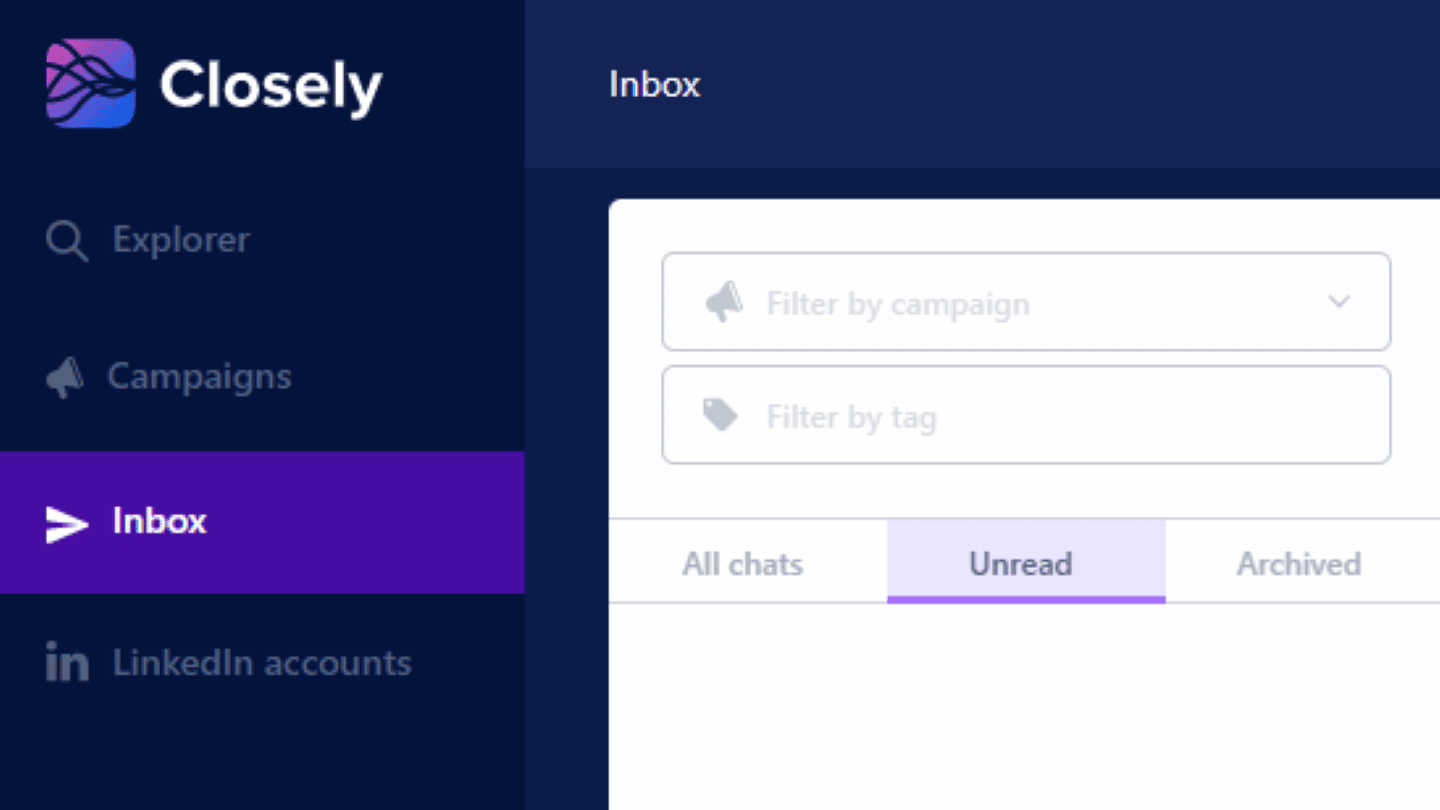
With tags, you can assign specific labels to the different groups of clients or prospects. You can then reach the group you want to talk to more easily, by filtering your contacts by tag.
If you sell software, you can for example add a tag for each client who tells you they need a specific feature. You can then send a message to all these clients when the new feature becomes available.
Tags also help you assess campaign performance. You can add a tag to a prospect or client with the nature of their reply, for example “positive”, “neutral” or “negative”, and generate statistics from these tags.
Tags also let you sort conversations by campaign, which makes it easier to run several campaigns in parallel, and in several different contexts.
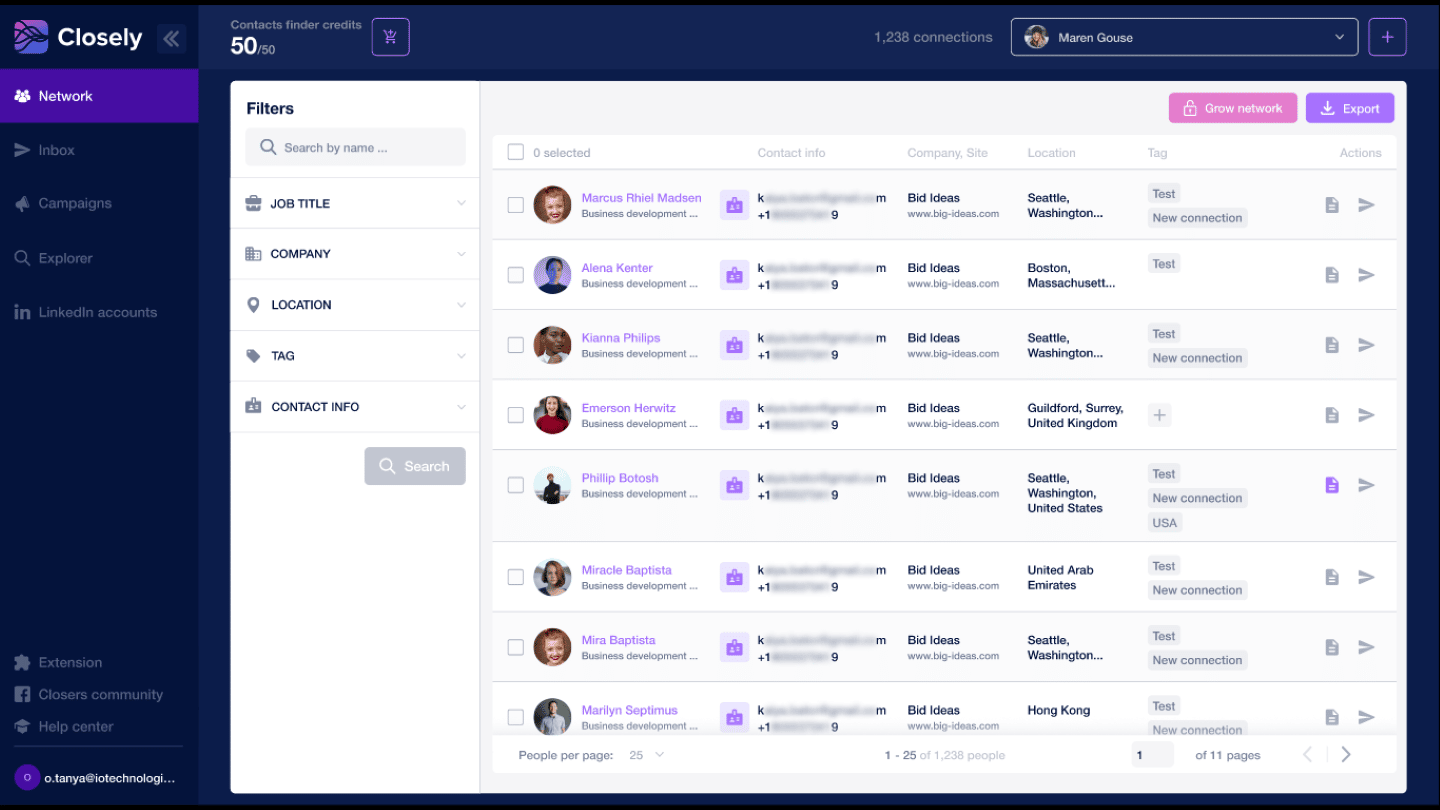
You can also use tags when you look for someone among your contacts. Search in Closely lets you use tags as a filter criterion. This search feature is how you segment your audience.
Closely also offers a “notes” feature tied to contacts. You can use it, for example, to write down personal information about them, so you build rapport faster and more warmly if you get back in touch a few months later.
With notes, you can also gather the important details of a conversation. If you pick up a conversation after a break, you don’t need to reread all of it to find the main points.
Try Closely for freeDiscover all of Closely’s features for free!
Enrichment workflows, to find your prospects’ email and phone number
Need to reach your prospects by email or phone? In the Enrichment tab, Closely works with workflows. You import a CSV file of LinkedIn profile URLs, and a first, mandatory step pulls real-time data from LinkedIn: each person’s name, job title and location, plus their company’s name, size and industry.
You then add the steps you need: a waterfall search for the work email and the phone number across several providers, or AI lead scoring. Each email found costs 2 credits. Run the workflow on the first row first to check the result, then on the whole file, and export everything as a CSV.
Before going furtherCheck out Our complete guide to LinkedIn and Xray search!
Closely’s Chrome extension to scrape LinkedIn in 2 clicks
According to the vendor, Closely’s Chrome extension gets you, in one click, a CSV with all the data of your LinkedIn leads.
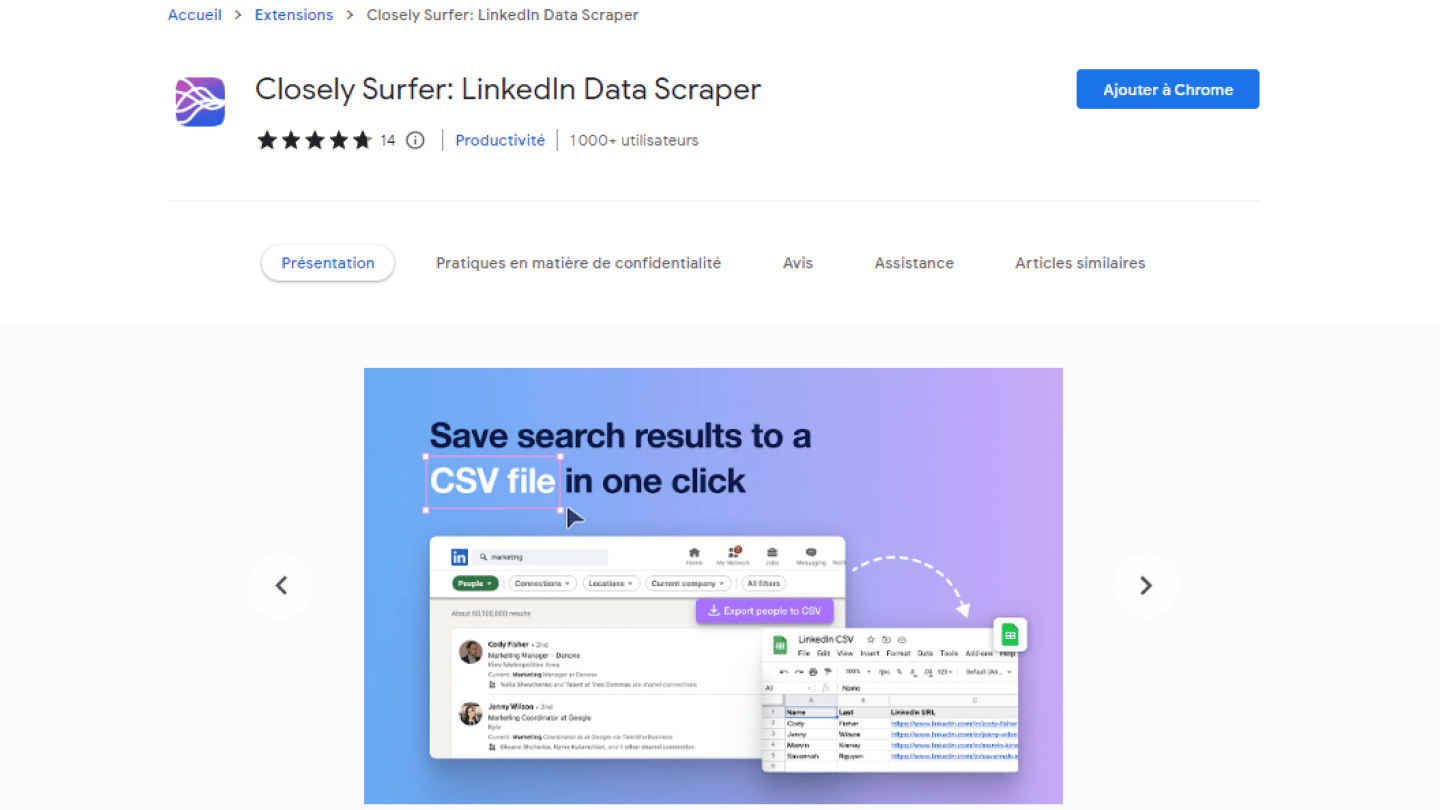
You just run a search on LinkedIn, then click the extension. It gives you a CSV file with the search results.
Grow your network with Closely’s automated sequences
Closely’s campaigns are multichannel: a single sequence can chain LinkedIn actions and emails.
- Multichannel campaigns: you import your prospects from a CSV or from a LinkedIn URL (search, Sales Navigator, post, event, group), then build the sequence: connection request, follow-up message, email finder, email sending, with a delay between each action. Sending emails requires connecting a mailbox on top of the LinkedIn account. The sequence stops for a contact as soon as they reply.
- Message to my network: this campaign writes directly to your first-degree connections, selected in the My Network tab or imported from a CSV. No connection request here, by definition.
Data enrichment is handled separately, in the workflows covered above.
Closely lets you manage several LinkedIn accounts and run several campaigns at the same time on each account to grow your network.
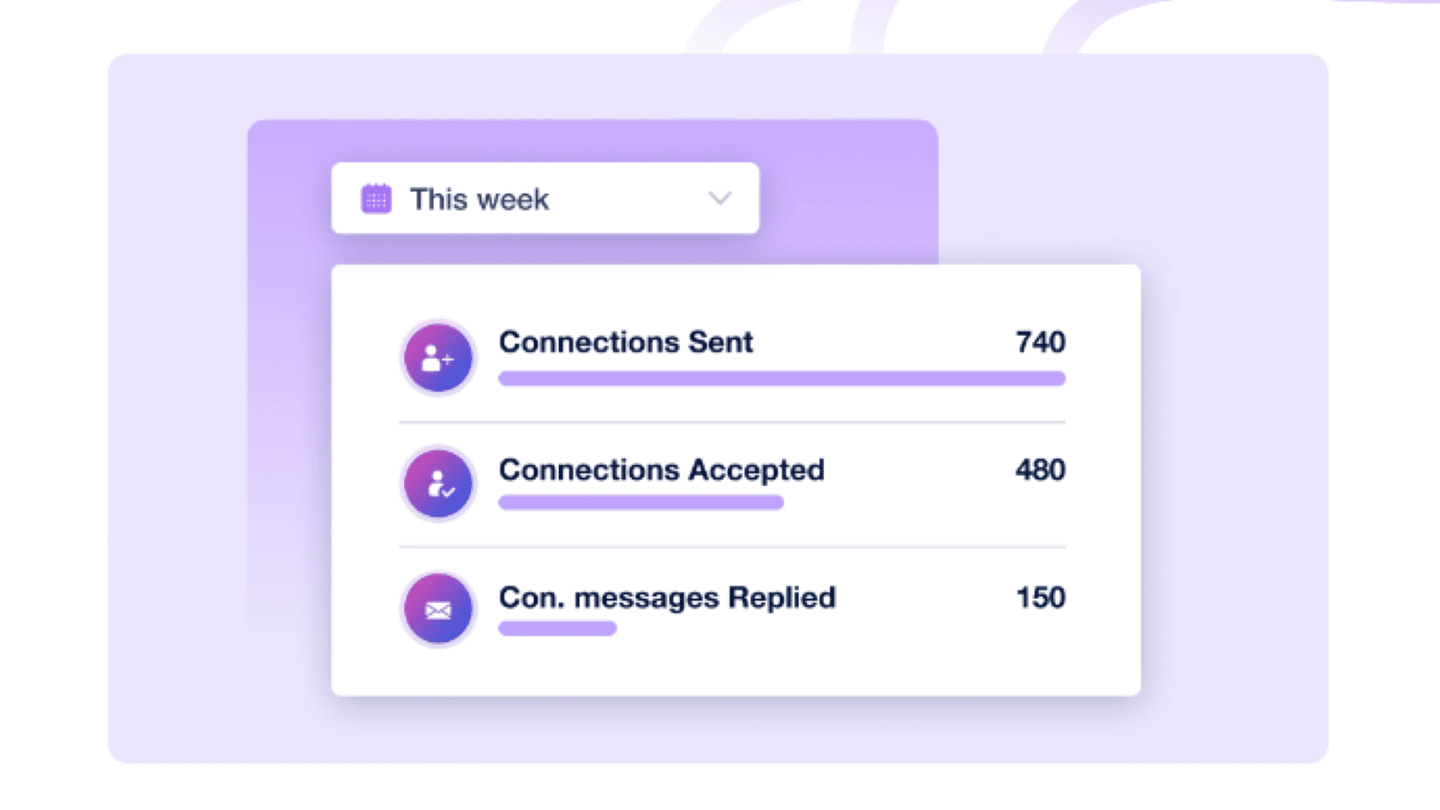
Closely also includes a few reporting features. The campaign creation page gives a few figures on the campaign’s performance.
Try Closely for freeDiscover all of Closely’s features for free!
The questions we get over and over.
Why isn’t LinkedIn enough as a CRM?
LinkedIn doesn’t let you create lists or filters based on your criteria. To reach a group of contacts, you have to look for them by hand with LinkedIn’s filters, then enter them by hand into a spreadsheet or CRM software.
How do you segment your LinkedIn network?
By your contacts’ needs, the sales funnel stage they are in (prospects, MQLs, SQLs, clients), the type or name of a campaign, or the event where you met them, for example a trade show.
What are tags used for in Closely?
To assign labels to groups of clients or prospects, to filter contacts and conversations by campaign, and to assess a campaign’s performance by tagging the nature of each reply.
What types of campaigns does Closely offer?
Multichannel campaigns, which chain connection requests, LinkedIn messages and emails in a single sequence, and Message to my network campaigns, which write to people you are already connected with. Data enrichment is handled separately, in workflows.


What the community says.