



- The query site:linkedin.com inurl:/in firstname lastname almost always gives the right LinkedIn profile on the first line.
- On LinkedIn, NOT, AND and OR are written in capital letters, and only straight quotation marks are recognized.
- To target a position, list its variants with OR (CEO, GM, Chairman, Managing Director), then exclude false positives with NOT.
- Once you have found the right query, no need to type it 50 times: it can be automated to retrieve or enrich data at scale.
About this articleWe wrote this article with the founders of Captain Data, now a B2B data API on people and companies. This article is part of a series on sales automation topics. Take a look at the other articles, they are at least as rich 😇
Xray Search is a search method that lets you combine words and phrases to find specific information about a prospect.
In this article we look at Xray Search, also called “Boolean search”: the term refers to the advanced operators you can use between keywords in a search engine.
What is Xray Search? How do you use it effectively? How do you automate it? We give you all its secrets in this article.
Xray – Search: Principles & definition
Xray Search for dummies
Generally speaking, Xray, X-rays or laser beam refers to an instrument that lets you run extremely precise searches.
Yes, exactly like this:

We generally talk about:
- Google Xray Search: Google’s syntax is very rich, and lets you go very far in collecting information about prospects.
- LinkedIn Xray Search: Boolean operators give you much more precise results.
But the principle can in theory be applied to every search engine out there. Whether you are on Amazon, on a marketplace like the WordPress plugin directory, or on X, advanced search operators are a hugely powerful tool.
Xray Search 2.0
That’s already not bad, but that’s not all.
You can go even (much) further.
If you refine a query enough, you reach such a level of detail that you know at 90, 95 or 99% that you will get a good result. For example, to get the LinkedIn profile of all your new sign-ups.
Run the right Google search, and you will almost always get the right result on the first line.
Spoiler alert: it will look more or less like this:
site:linkedin.com inurl:/in firstname lastnameThat is the strength, and the whole point, of Xray Search: finding sets of conditions that give you a consistent and accurate result 99% of the time.
You can use it to find the LinkedIn profile of your leads, to know whether a French blog exists on a given site, to find email addresses, phone numbers, Facebook pages, etc. You can go very, very far.
And once you have found the right query, you no longer need to type it into Google yourself 50 times, you can do it in a fully automated way.
It’s a hugely effective way to retrieve or enrich data at scale.
Going furtherIn this article, we present a lot of methods specific to the LinkedIn & Google platforms. Historically, they are not the easiest to scrape automatically. If you are just starting out you have two options: go through fairly heavy-duty solutions that handle the problems for you (like Captain Data for example), or go through “easier” platforms like Bing, DuckDuckGo, etc.
We explain all of this in detail.
Google Xray Search: use cases & how it works
Google’s advanced syntax
There are already a few basics of Google advanced search. Here are some of them:
- “search term”: to find the exact match. This option refines the results if the search is ambiguous and excludes synonyms of the searched word.
"Steve Jobs" - OR: if you are searching for X or Y, so as to get results related to X or to Y or to both. Note that the pipe operator (|) can also be used instead of “OR”.
jobs OR gates / jobs | gates - AND: to get only results related to X and Y. Note: it doesn’t really make a difference for ordinary searches, since Google uses “AND” by default anyway. But this operator is very useful combined with other operators.
jobs AND gates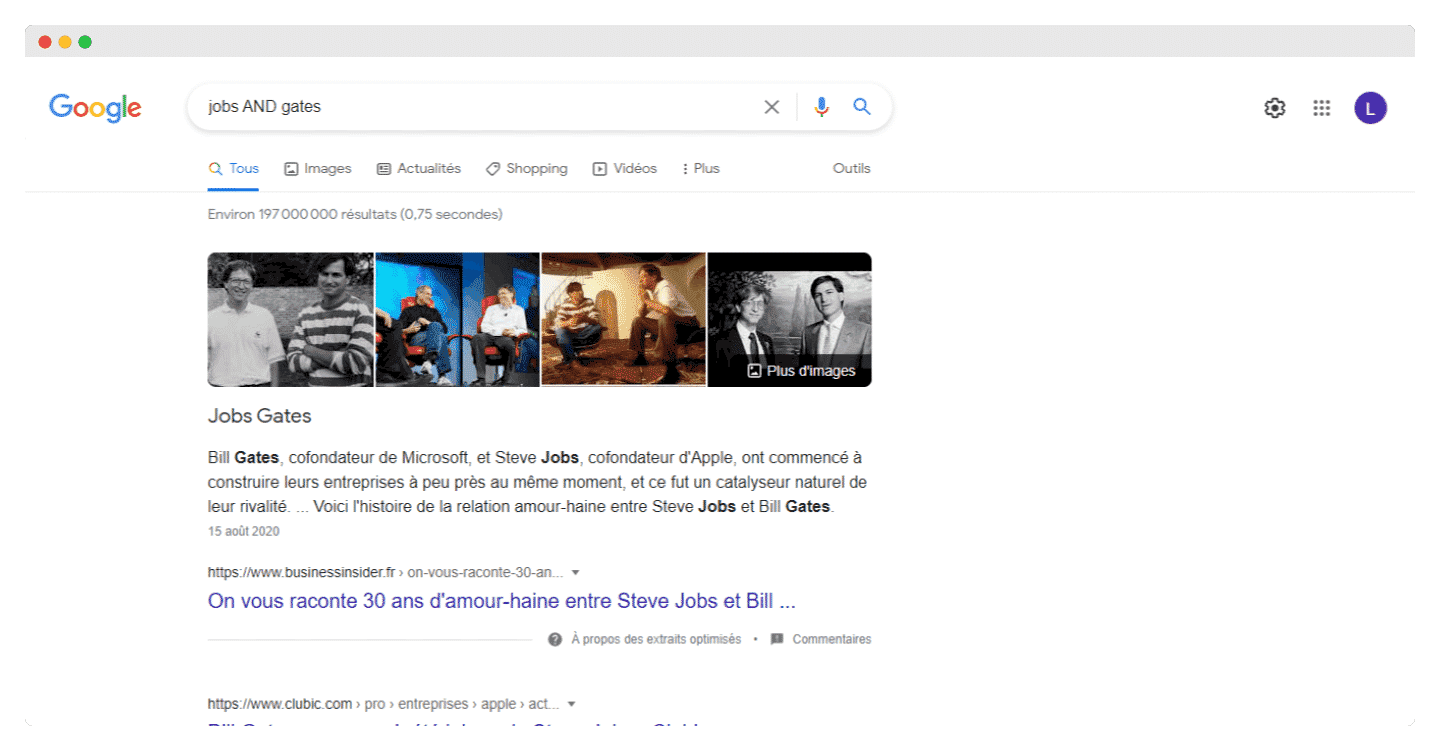
- –: to exclude a term or a phrase.
jobs -apple.All the pages returned will be related to jobs but not to Apple (the company).
- *: acts as a wildcard and matches any word or phrase.
steve * apple - ( ): you can group several terms or search operators to control how the search is run.
(ipad OR iphone) apple - $: price search. Also works for euros (€), but not for pounds sterling (£).
ipad $329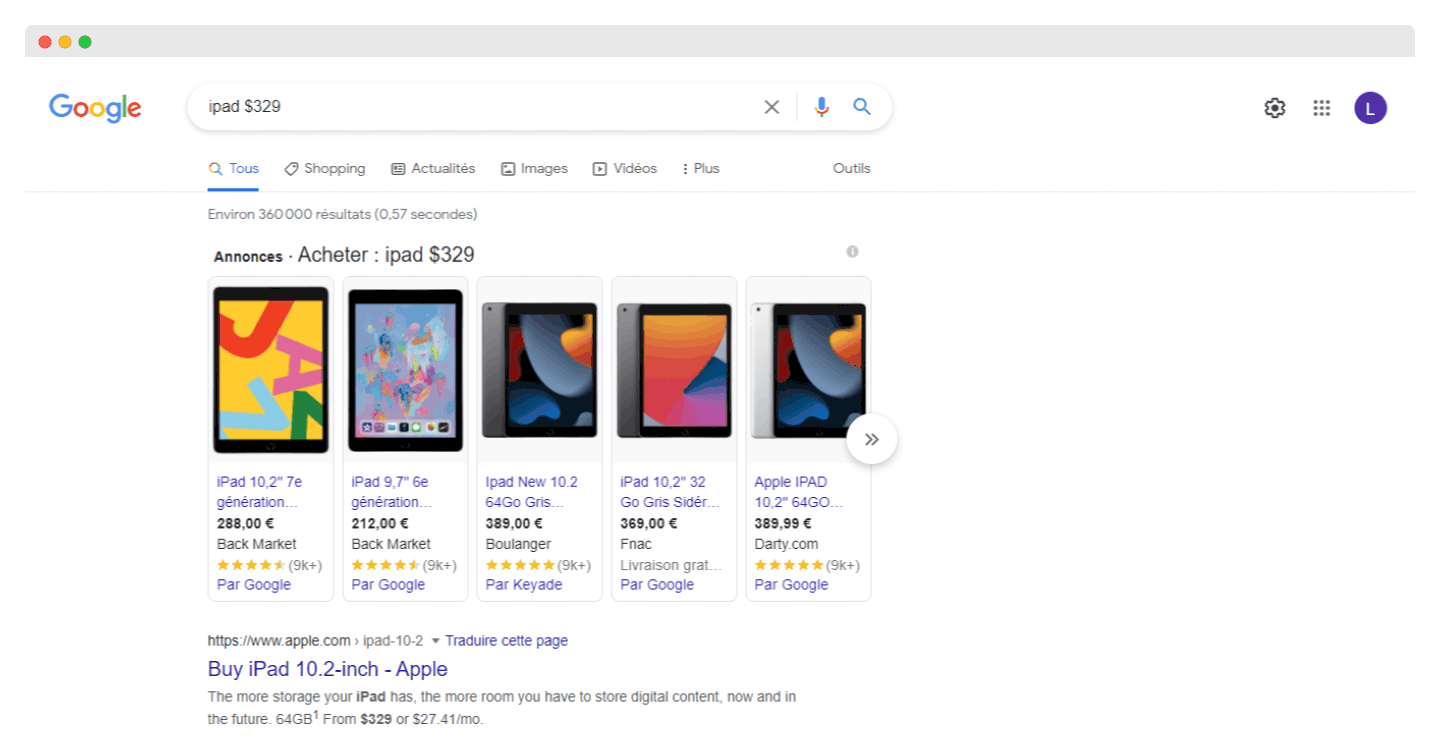
- define: basically a dictionary built into Google. It shows the meaning of a word in a card-type result in the SERPs.
define:entrepreneur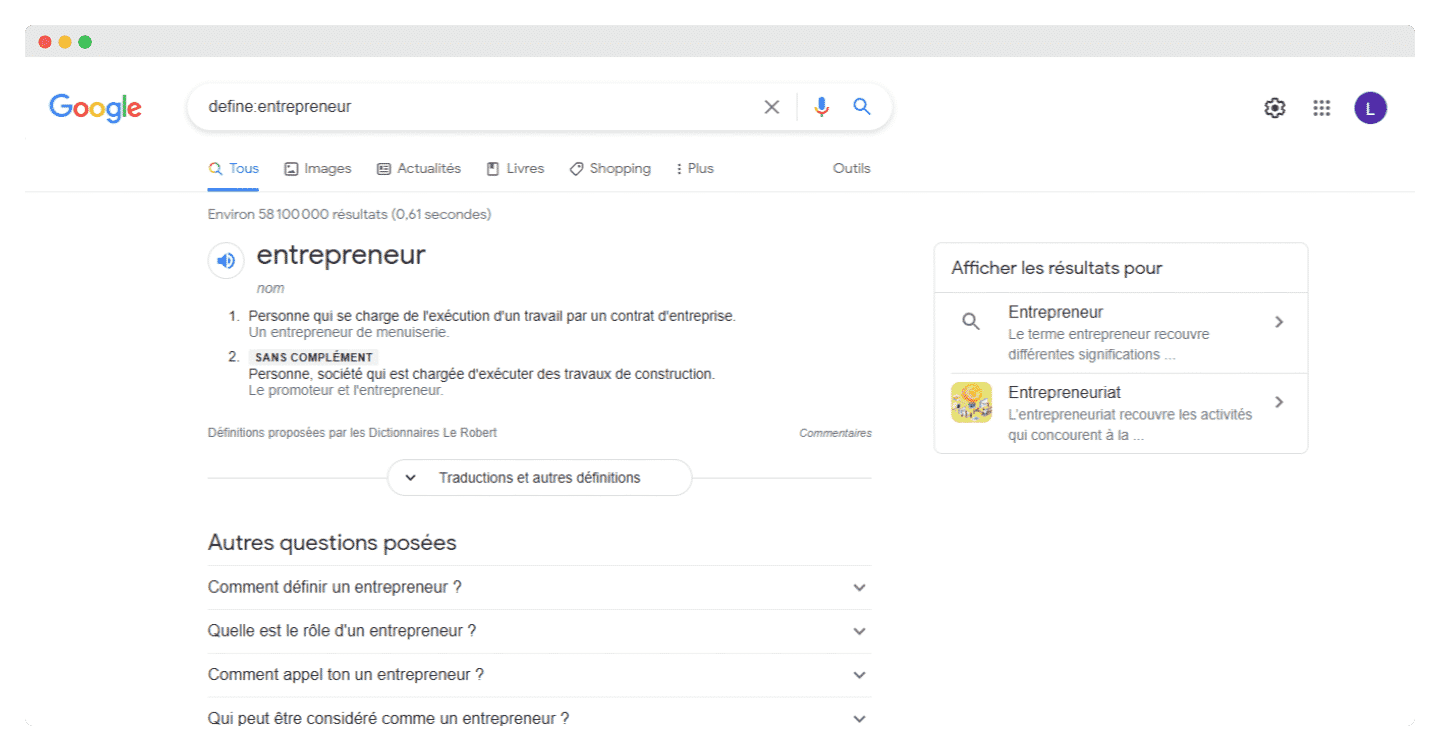
- cache: returned the most recent cached version of a web page (provided the page is indexed, of course). Google retired this operator in 2024, it no longer works.
cache:apple.com - filetype: restricts results to a certain file type. For example, PDF, DOCX, TXT, PPT, etc. Note: the “ext :” operator can also be used, the results are identical.
apple filetype:pdf / apple ext:pdf - site: limits results to those from a specific website.
site:apple.com - intitle: finds pages with a certain word (or words) in the title.
intitle:appleShows all results containing the word “apple” in the title tag.
- allintitle: similar to “intitle”, but only results containing all the specified words in the title tag will be shown.
allintitle:apple iphone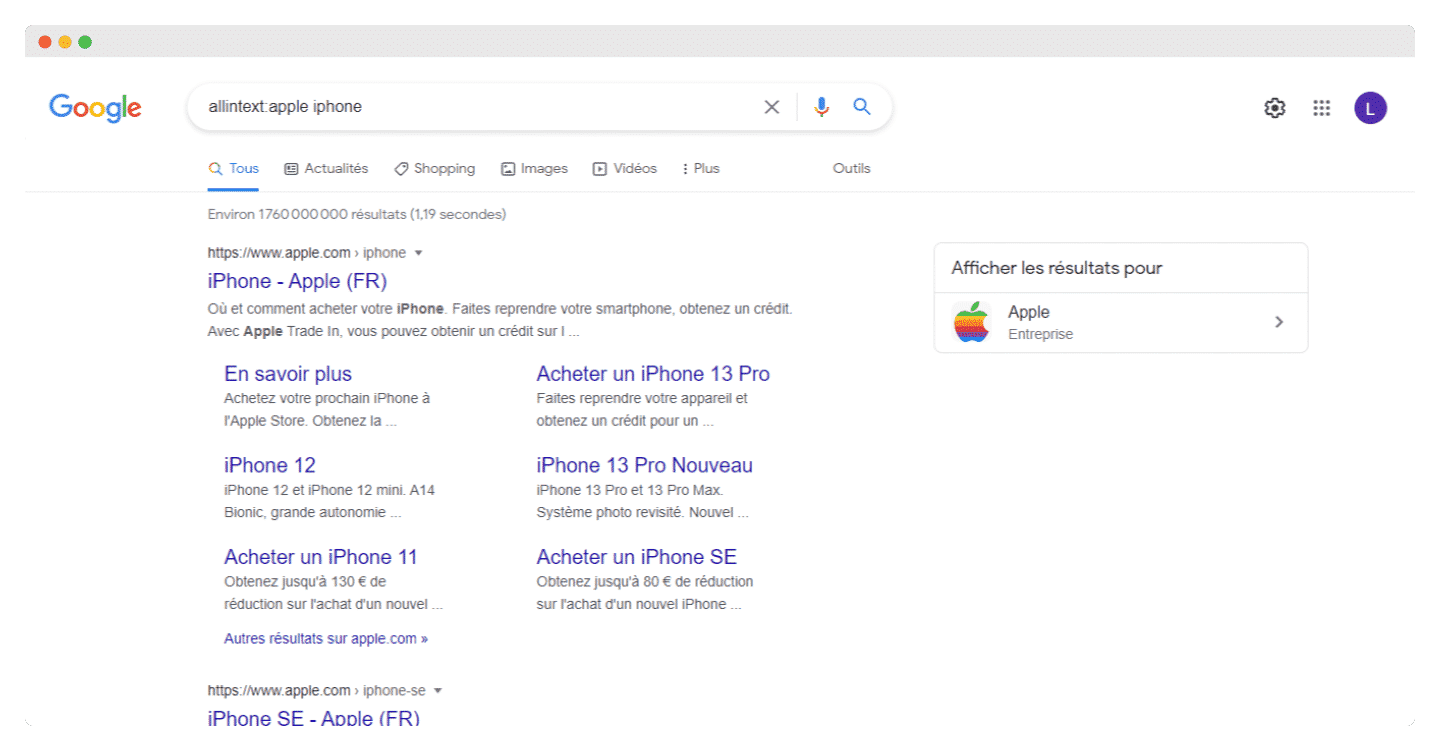
- inurl: searches for pages containing one or more specific words in the URL.
inurl:appleShows all results containing the word “apple” in the URL.
- allinurl: similar to “inurl”, but only results containing all the specified words in the URL will be shown.
allinurl:apple iphone - intext: finds pages containing a certain word (or several words) somewhere in the content.
intext:appleShows all results containing the word “apple” in the page content.
- allintext: Similar to “intext”, but only results containing all the specified words somewhere on the page will be returned.
allintext:apple iphone - AROUND(X): proximity search. Finds pages containing two words or phrases within X words of each other.
apple AROUND(4) iphoneThe words “apple” and “iphone” must be present in the content and not be separated by more than four words.
- source: finds news results from a certain source in Google News.
apple source:the_verge
Using advanced operators with LinkedIn

It’s very useful for lead generation because you can retrieve all the information about a competitor, a prospect or a future hire via Facebook, Instagram, YouTube. We start from the basic operator:
site:linkedin.com John WilliamsWatch outThe problem with this operator is that you don’t know exactly what you are getting back: companies, etc. So it’s hard to automate.
This is where another type of operator comes in, inurl:linkedin.com, which we will pair with the operators listed above.
- Get specific info about a person
You can search for their job title:site:linkedin.com inurl:linkedin.com/in/ Marketing DirectorBut also their name directly:
site:linkedin.com inurl:linkedin.com/in/ john williams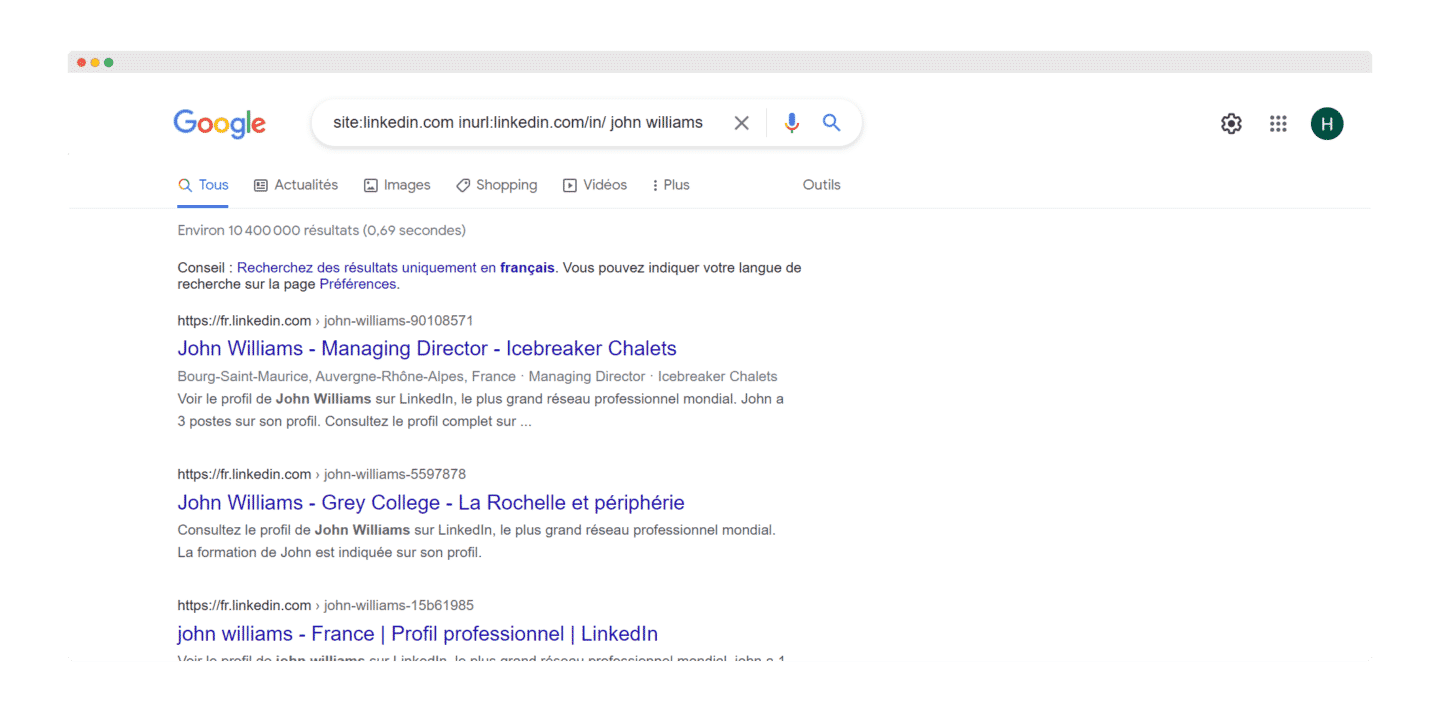
- Find everyone who works for a company
site:linkedin.com inurl:linkedin.com/in/ salesdorado
Going furtherSee our list of the best tools for prospecting on LinkedIn.
Finding your prospects’ contact details on Google
CEO Paris site:linkedin.com inurl:linkedin.com/in/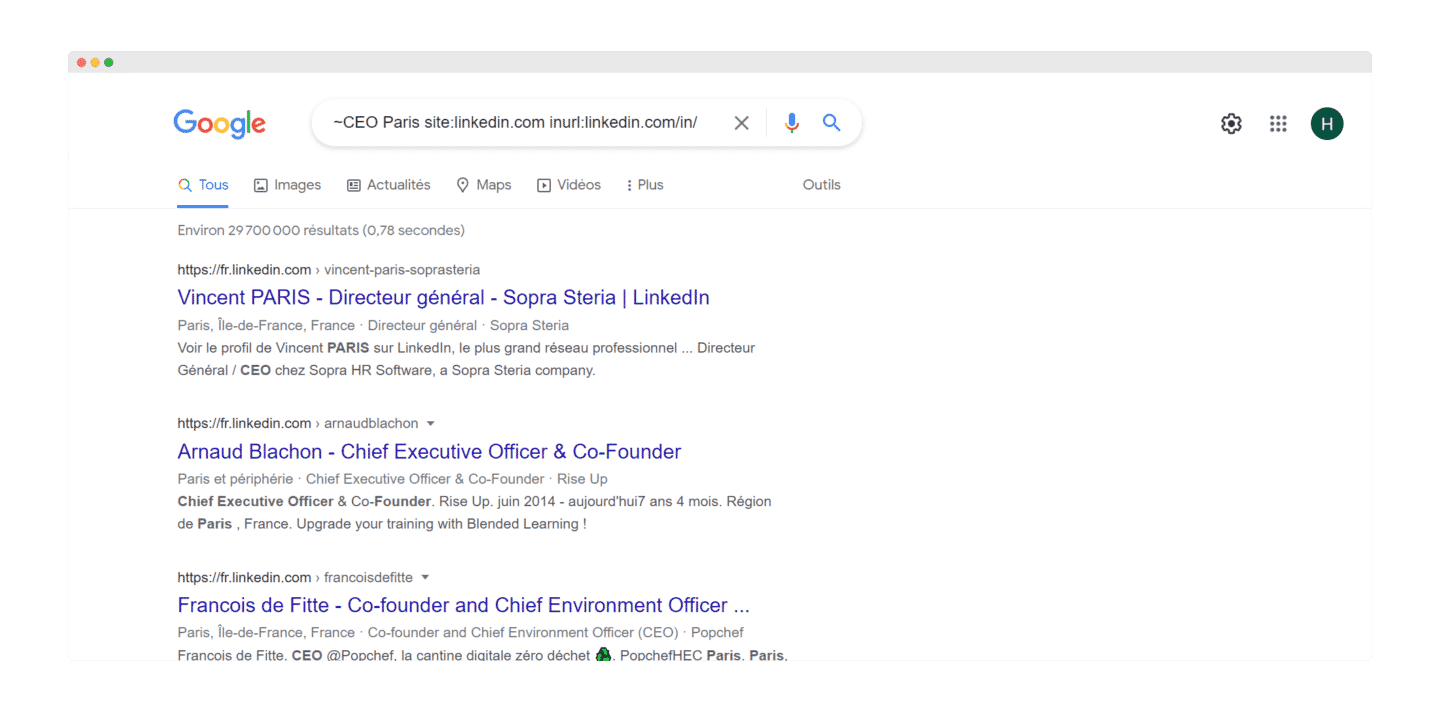
- Find a person’s phone number (still by looking for the info in the snippet):
CEO AND "@gmail.com" AND "+33" site:linkedin.com inurl:linkedin.com/in/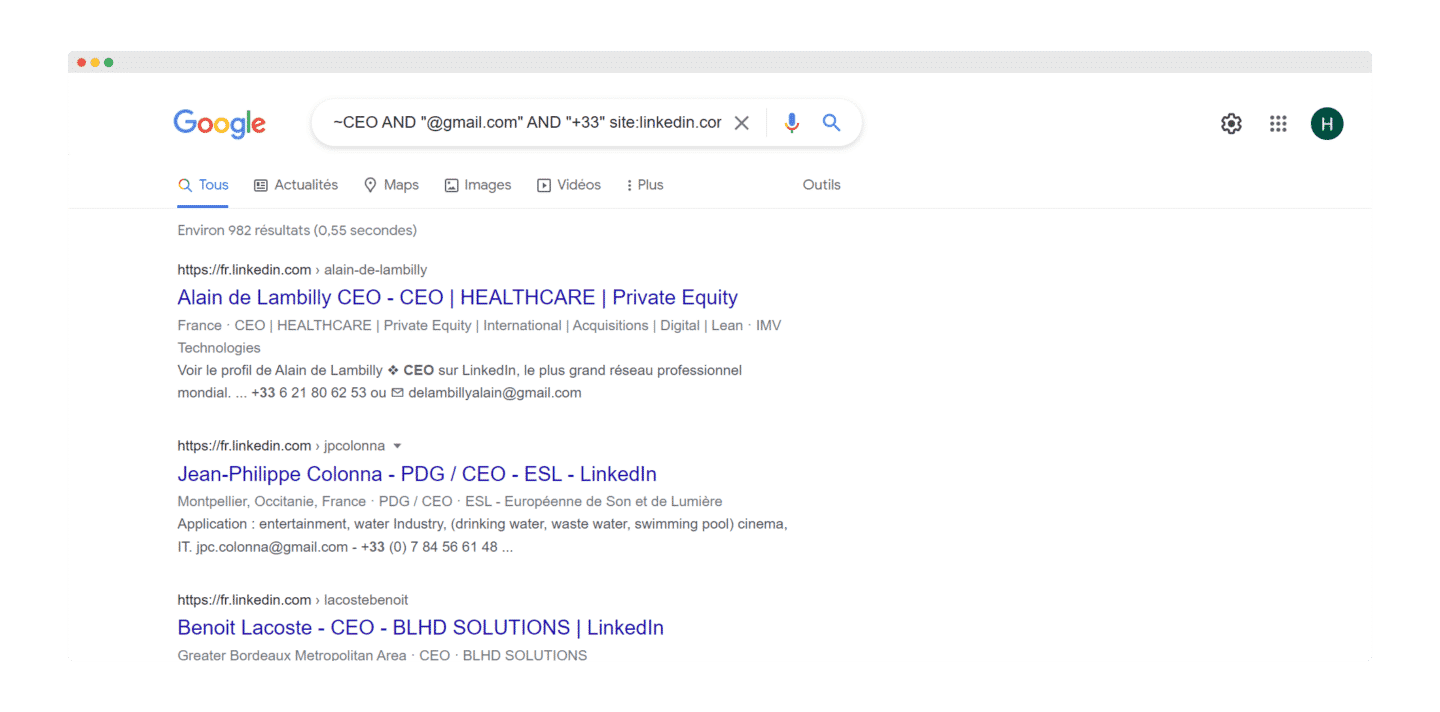
Going furtherTo avoid picking the info out of the snippet by hand, retrieve the results pages with a scraping tool, then isolate emails and phone numbers with a regular expression.
Other use cases
If you want to go further, Xray Search lets you get plenty more information about your prospects.
- Find a company’s profile on a directory or a platform
site:directory.com company-name - Identify a prospect’s social accounts
Have a specific person in mind that you want to contact? You can try this trick to find their contact details: BINGO. You can then contact them directly via social networks. Of course you need to know their name for that, but it’s usually easy to find on most websites. It’s just the contact details that can be a bit hard to find.
- Find Airtable databases that contain “investors” in their URL
site:airtable.com inurl:investors
Airtable has created tons of content with relevant lists that can help you access more information about companies. For example, here you can find lists of investors that may be relevant to your fundraising needs or that match your ICP. These lists don’t just give the investors’ names, they also share relevant information about each of them.
- Build prospect lists via Instagram
site:instagram.com ("hairdresser") ("Lyon")The idea is to use Google search operators on Instagram to identify targets in a given geographic area (here in Lyon). You can start building a prospect list using a tool like Linkclump for example.

Salesdorado’s tipBy adding the “@gmail.com” attribute, you can identify email addresses directly. Example: site:instagram.com (“hairdresser”) (“Lyon”) (“@gmail.com”).
LinkedIn Xray search: use cases & how it works

LinkedIn Boolean operators
Boolean search works in the keyword field of Recruiter and LinkedIn.com, and works in the company, title and keyword fields in Sales Navigator.
You can run a Boolean search on LinkedIn by combining keywords with operators such as AND, NOT and OR during your search.
Here are a few ways to use Boolean logic and build your searches:
- Searching for an exact phrase: to find an exact phrase, put the phrase in quotation marks. For example, type “product manager”. You can also use quotation marks if you want to find someone whose title has several words.
product managerWatch outLinkedIn search only supports standard straight quotation marks (« ). Other software or websites may use special symbols that our system does not recognize, such as curly quotation marks (“), also called smart quotes or typographic quotes.
To optimize overall site performance, stop words such as “by”, “in”, “with”, etc. should not be used.
- NOT searches: to narrow your results.
programmer NOT manager - OR searches: to broaden your results.
sales OR marketing OR advertising - AND searches: here again, this limits your results to the items in your list.
accountant AND finance AND CPA
NoteYou don’t have to use the word AND. If your search has two or more terms, you automatically get results that include all of them.
Watch outWhen you use the NOT, AND or OR operators, you must type them in capital letters.
- Parenthetical searches: to run a complex search, you can combine terms using parentheses. For example, to find people whose profile contains the term “VP”, but exclude “assistant to VP” or SVP:
VP NOT (assistant OR SVP)When handling searches, the general order of precedence is as follows:
- quotation marks [“”]
- Parentheses [()]
- NOT
- AND
- OR
Watch outThe “+” and “-” operators are not officially supported by LinkedIn. Using AND instead of “+” and NOT instead of “-” makes a query much easier to read and ensures the search is processed correctly.
Going furtherIf that’s not enough for you, we also give you the best tools for prospecting on LinkedIn.
Using Boolean search operators on job titles
Since LinkedIn is self-reported, people only put the “job titles” they care about.
For example, “CEO” on LinkedIn suggests Chief Executive Officer, but someone may put “GM” if they prefer.
To do Xray Search on LinkedIn, you need a lot of inclusion and exclusion.
If you say “GM” to LinkedIn, it will interpret it as “General Manager” but not only that, it will also look for “GM” in every “job title”: so the search is not precise enough.
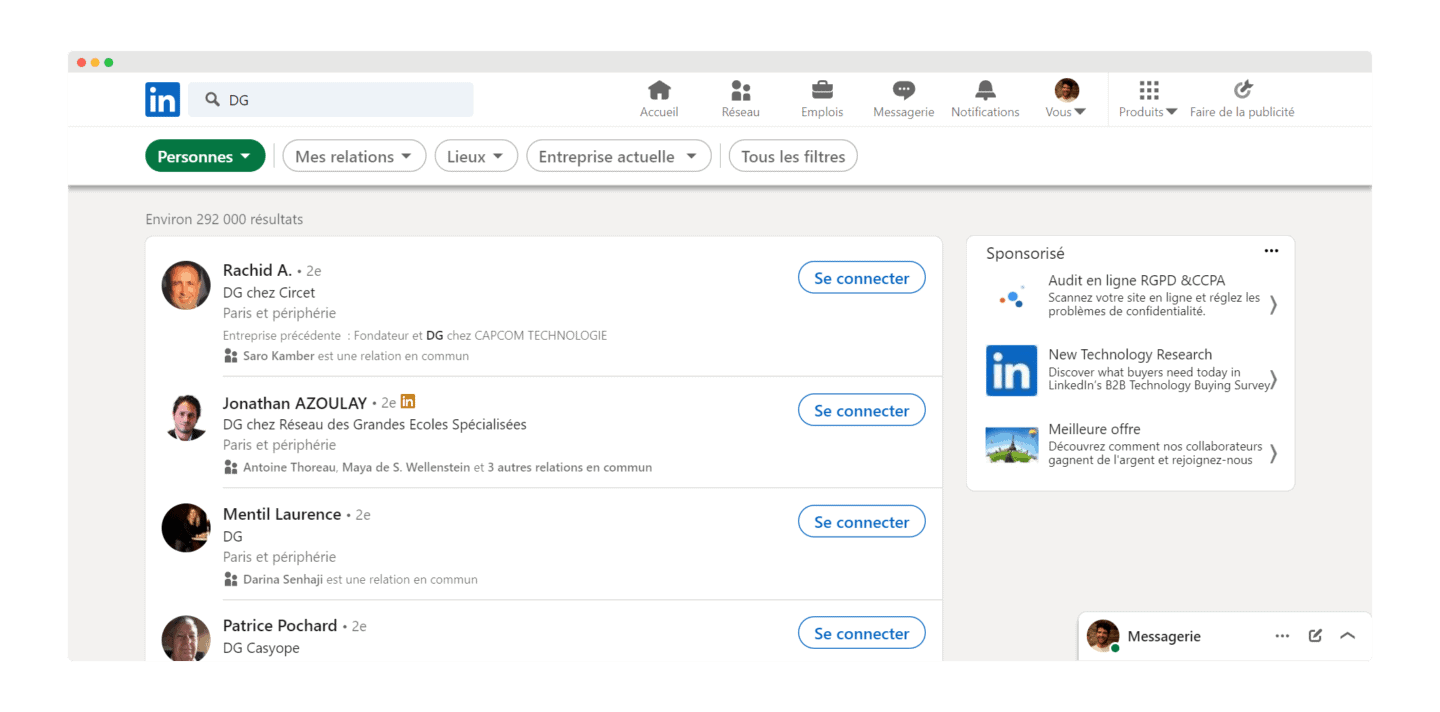
So you quickly land on irrelevant results that include “GM” somewhere. That gives a lot of false positives and shuts you out of many profiles.
So you need to be at least sure of what you want in order to narrow the search. Here is what you can type:
"CEO" OR "Chief Executive Officer" OR "General Manager" OR "GM" OR "Chairman" OR "President" OR "Managing Director"Now the problem is that you land on people who present themselves as GM Sales or GM Marketing: so you need to try to exclude them.
To do that, we will narrow the search:
"CEO" OR "Chief Executive Officer" OR "General Manager" OR "GM" OR "Chairman" OR "President" NOT (Republic OR Sales OR Marketing)How do you run successful advanced searches on LinkedIn with keywords?
Searching in the “job title” field only runs the search on positions: here we will search the whole profile.
It’s when you combine it with the previous search that it gets interesting: you will find interests.
Example: I do competitive intelligence: I am going to look for marketing directors because they are my target on this topic.
So we will use:
- The previous search on the position: Marketing Director OR Digital Marketing Manager OR Head of Marketing OR VP of Marketing
- The search on the keyword “competitive intelligence”
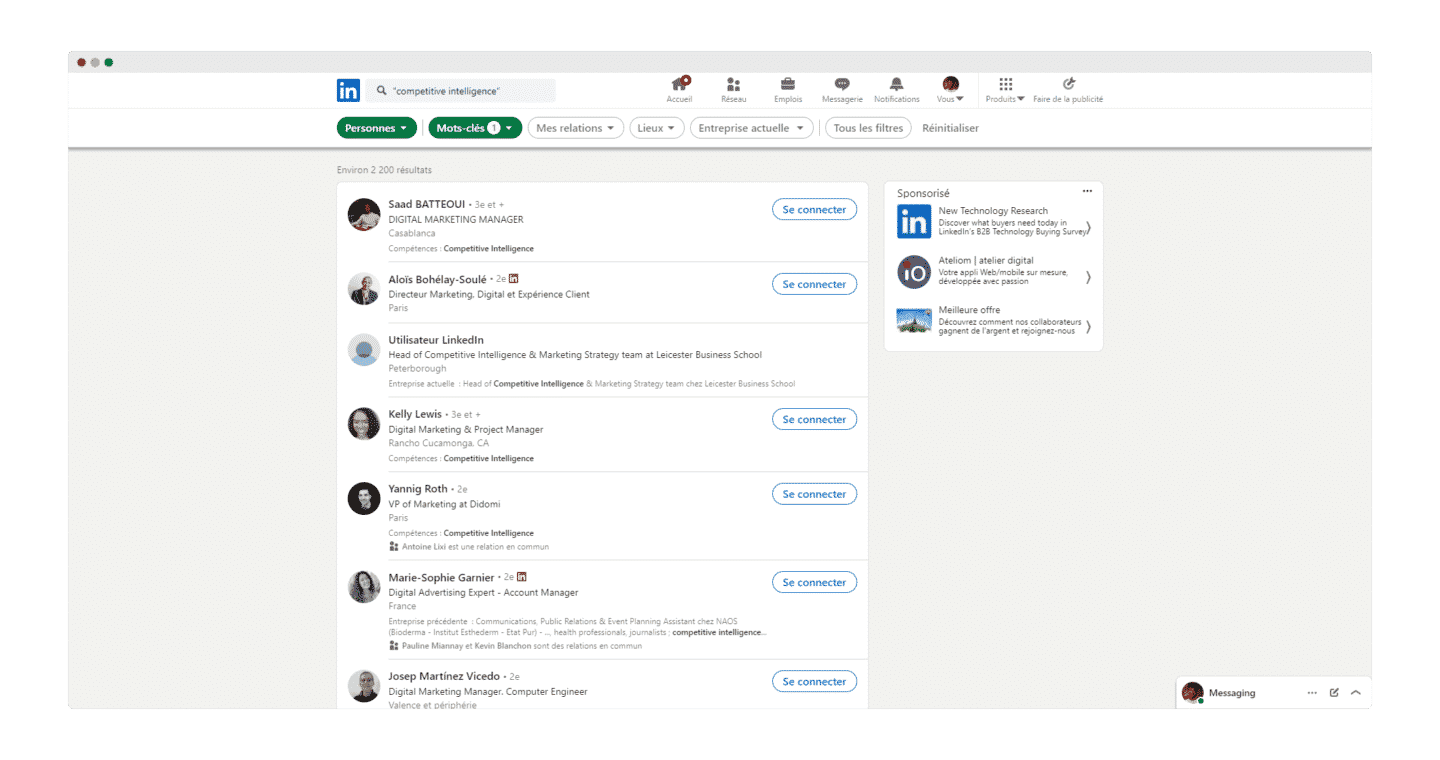
What we actually get: only people who are in marketing (my target) and who, in their profile, wrote “competitive intelligence” somewhere
Watch outWe use quotation marks to be sure we find “competitive intelligence” in one go and not “competitive” and then, further on, “intelligence”!
Going furtherOnce you have found the profiles you are interested in, see our complete guide on how to recruit on LinkedIn.
Xray search on other platforms
Xray search on Indeed
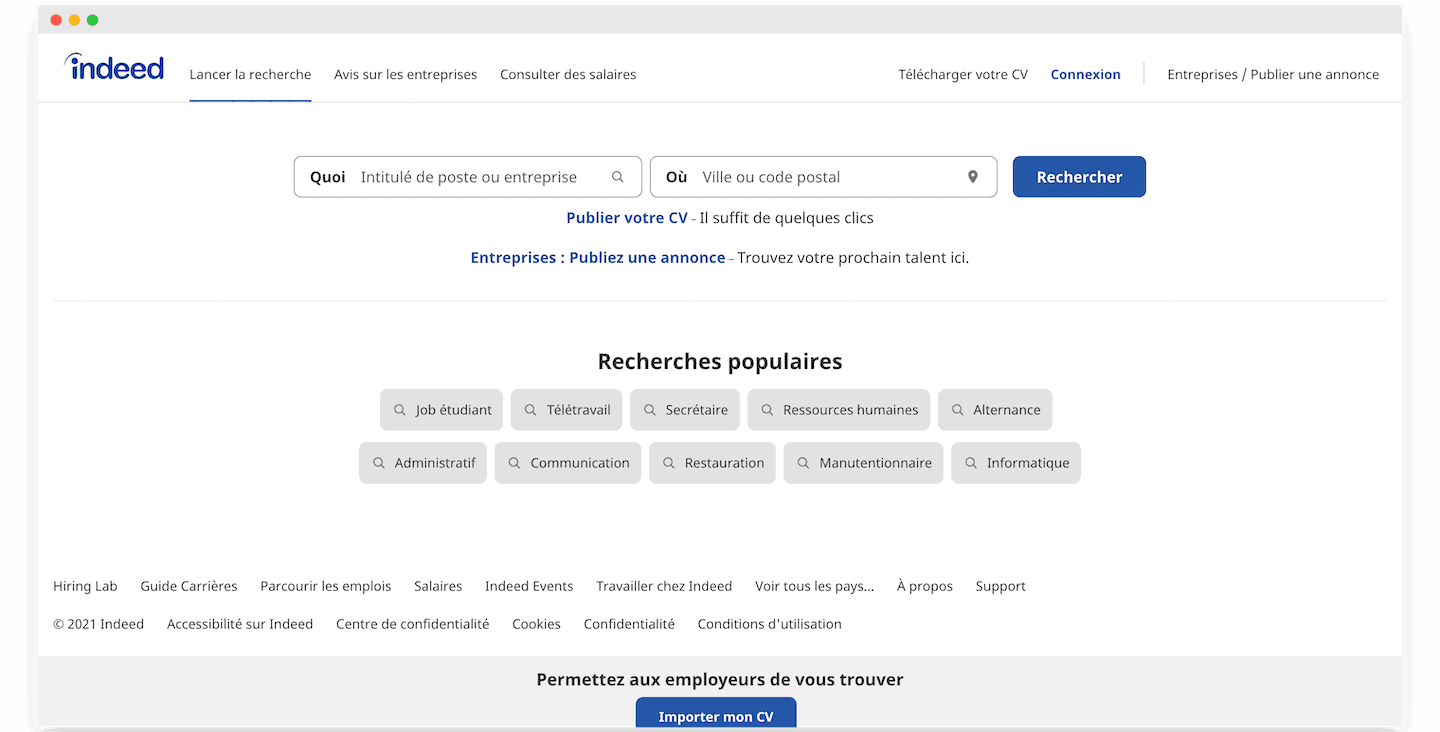
To do Xray Search on Indeed, here are the main operators that may be useful to you:
- AND or +: the result contains all the keywords.
- OR: the result contains one of the keywords.
- NOT or –: the result does not contain the words that follow this operator.
- “ ”: the result contains the exact words in quotation marks.
- ( ): parentheses let you group searches.
Example: We are looking for a Marketing/content profile.
marketing manager AND content OR - cultureOur query also excludes culture-oriented profiles at the same time.
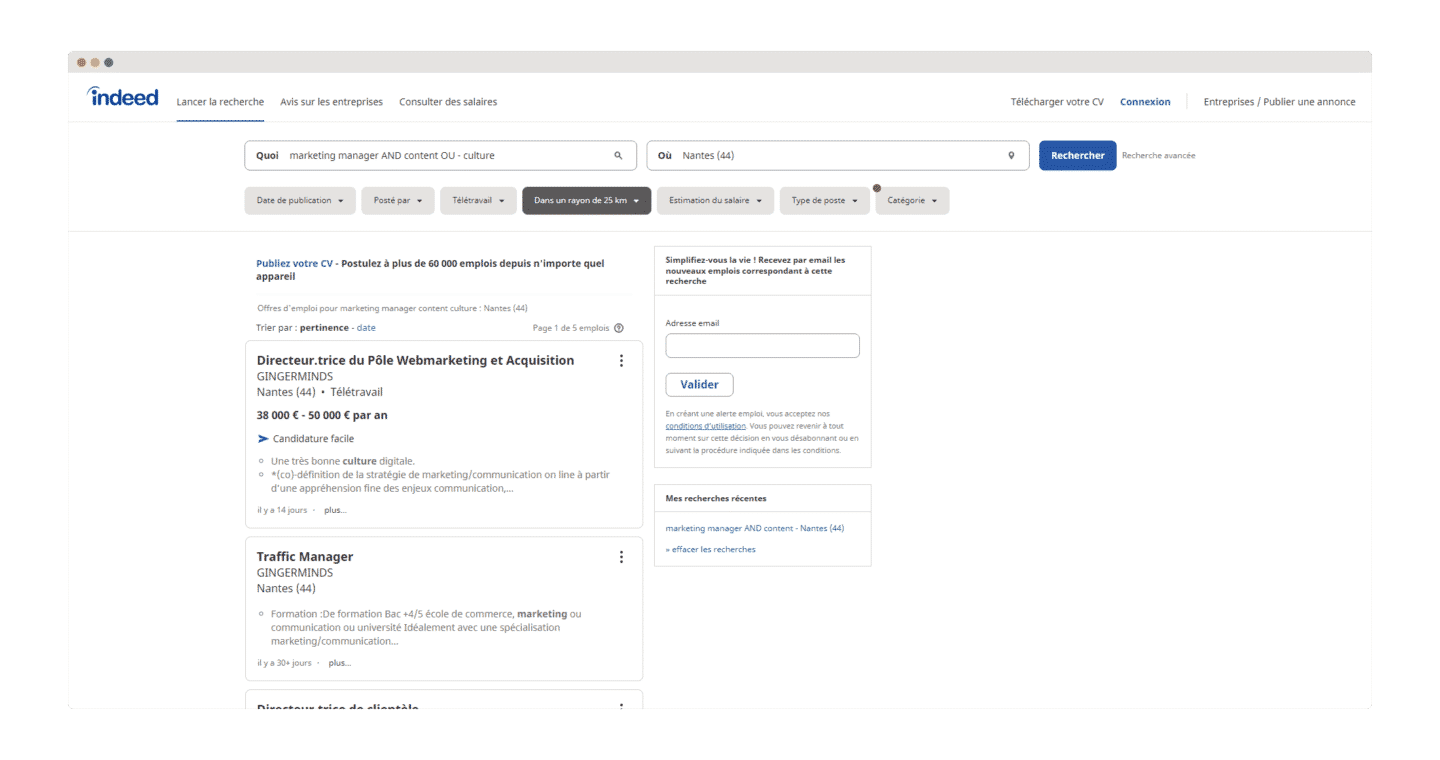
Why?It lets you identify business signals. In our case, a company looking for a content manager will have product needs revolving around content, publishing and design to equip its teams. That’s a buying signal.
Xray search on Instagram
Instagram sourcing lets you target the right set of people, even though Instagram does not let you run a Boolean search in the people section or on its website.
But here are a few tips to target prospects well:
- Hashtags
In the mobile app, you can use hashtags as shown below to target specific prospects. Here, we use the hashtags “Android Developer” and “Full Stack” as keywords. But unfortunately, you can only search using one keyword at a time. - Find an email address:
site:instagram.com developer ("@gmail.com") paris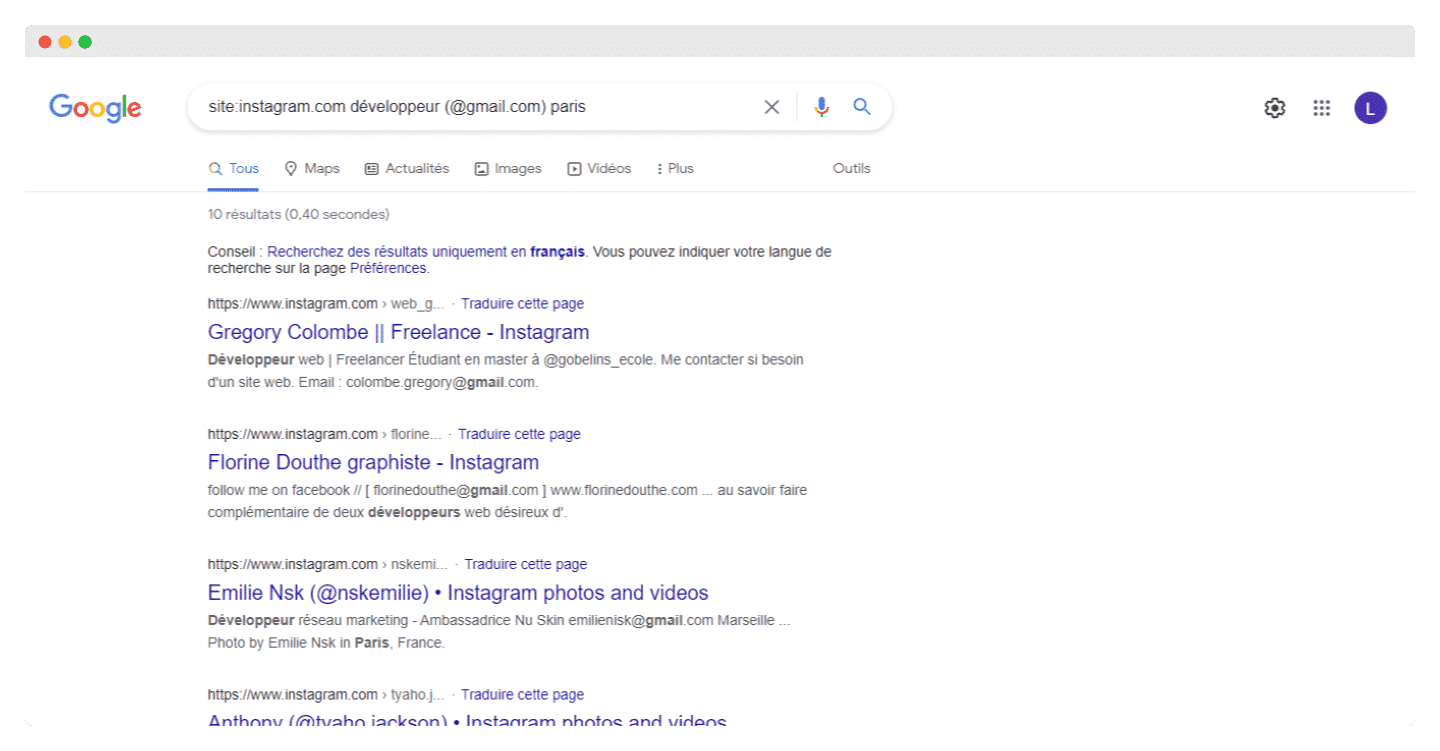
- Find the number of followers:
You can also search for followers using the options below:"k followers" site:instagram.com influencers
"m followers" site:instagram.com influencers - Use emojis:
This is the most fun part of prospect research: you can find prospects by searching for the emojis in their profile. Emojis help express an idea or an emotion: here is how you can use them in your prospecting. For example, to find a developer/programmer, run the following search:site:instagram.com 💻 developer
Instagram then suggests the people who mentioned 💻 in their bio.
More ideas for finding a developer: get creative!
site:instagram.com 📱 developersite:instagram.com 🐍💻 programmerXray search on X (formerly Twitter)
As with Instagram, you can use Xray Search on X, formerly Twitter, to get information about prospects. The site has moved: twitter.com now redirects to x.com.
- Search for email addresses
People often share their email address in their tweets but they have to hide it from bots: they replace the “.” and “@” symbols with the words “dot” and “at”.
Have you already guessed the next step?
By going into X’s advanced search (available once logged in to x.com), you can search for the words “at” and “dot” in your target person’s posts. You can also include words such as “email”, “contact” or “reach” in your search to narrow the results.
An example:

Bingo again.
Some people don’t even bother to encode their email address in their tweets.

Going furtherThere are plenty of ways to easily find a prospect’s email address. We help you find anyone’s email address for free here.
- Search a person’s posts
The site:twitter.com Google queries we used to dig through bios (“Tweets and replies” tab, follower count or join date read in the snippet) targeted the old Twitter. Since the move to x.com, they are no longer reliable.
The simplest way is to use X’s advanced search. It filters by words (all of them, exact phrase, any of them, excluded words), by account (posts from an account, replies to an account, mentions) and by dates. For example, to find what Jim Stroud has posted about sourcing, put “sourcing” in the words and @jimstroud in the accounts.
Xray search on Amazon
Helium 10 X Ray is an extension that helps you find the products on Amazon that will grow your business.
It imports data directly from Amazon and gives you a detailed report on your product. A product’s BSR estimates are used to predict its sales and revenue. It provides information such as Amazon fees, profit margins, etc.
You need to download the Chrome extension and then go to the Amazon website to use the new Amazon product research tool.

Why use it?Helium 10 X Ray analyzes the items that sell well on the Amazon marketplace and suggests a list of products based on your specific needs. It is aimed at Amazon sellers who are starting out and don’t know which product to sell, but also at experienced Amazon FBA sellers. According to the publisher, the estimates are very close to actual sales.
The best tools to make the most of Xray search
1. The Salesdorado & Captain Data documentation
2. Captain Data
As mentioned above, Xray Searches let you get valuable information about your prospects: email, phone number, location, etc.
Extracting this information by hand for large search volumes can be long and tedious.
Captain Data no longer presents itself as an automation platform: the tool has refocused on a B2B data API (“People & Company Data API”). You send it a LinkedIn URL, a name or a domain, and it returns the profile or the company record. When you already know who you are looking for, it saves you an Xray query on Google.
To automate the Google queries themselves, keep in mind that the Google Custom Search API is closed to new customers, and existing customers have until January 1, 2027 to move to another solution.
Free trialGet 100 free credits, no credit card required.
3. eMiner
The eMiner Google Chrome extension automates the prospecting process using Google’s search engine but also Bing and AOL. Huge wow effect, consider yourself warned.
Unfortunately it stays a bit stuck at the wow effect, and is fairly hard to use properly at scale.
The positives are the speed of this extension, the quantity (since it works with 3 different search engines) and its quality: eMiner promises search accuracy of up to 92%.

Try the free versionTry the free version, before upgrading if you are happy with it.
4. RecruitEm (formerly Recruit’in)
RecruitEm, formerly Recruit’in, is a tool that makes Xray search easier for you: originally designed for recruiting, it lets you do Xray search on several platforms.
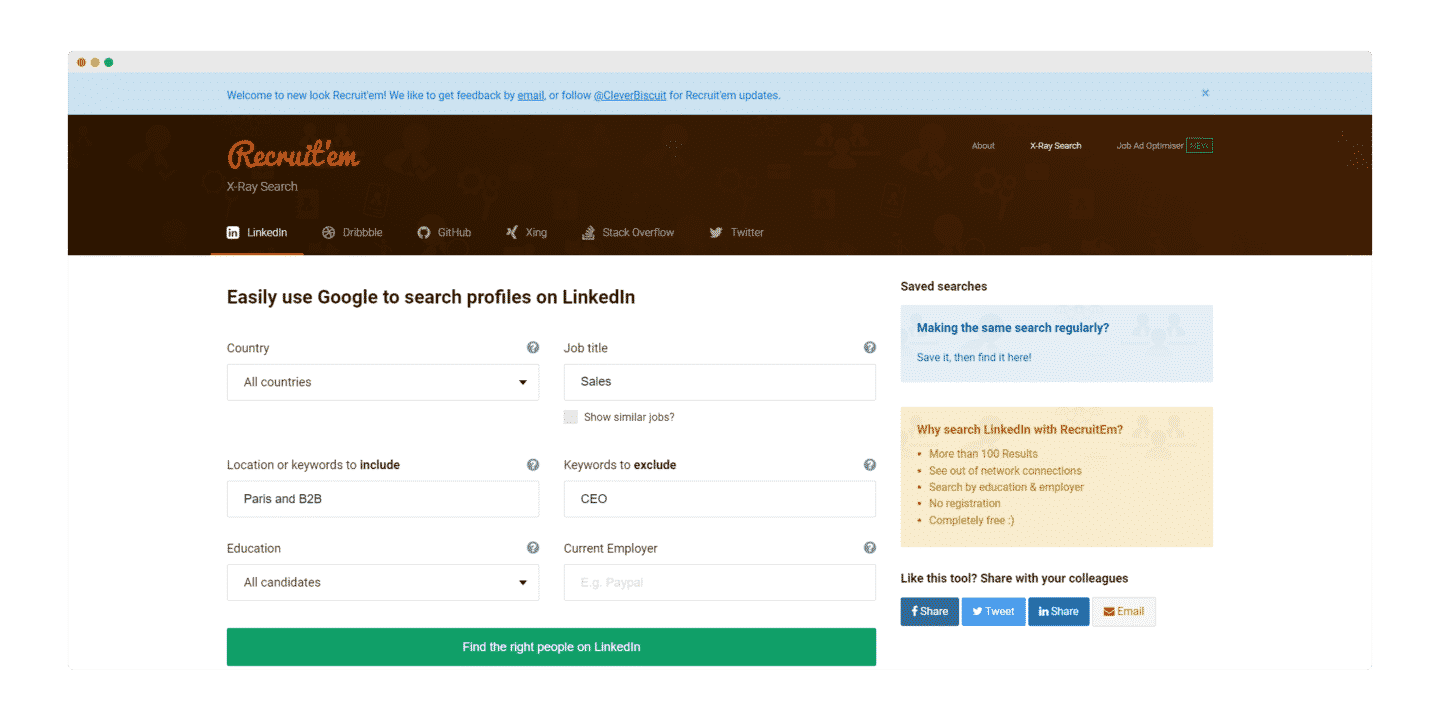
Here is how to proceed at first:
- Choose the platform you are interested in at the top (LinkedIn, Dribbble…)
- In include, you add “AND” Boolean operators. For example “Paris” AND “B2B”
- In exclude, what you don’t want. “CEO” for example
- Finally, click the green “find the right people on LinkedIn” button.
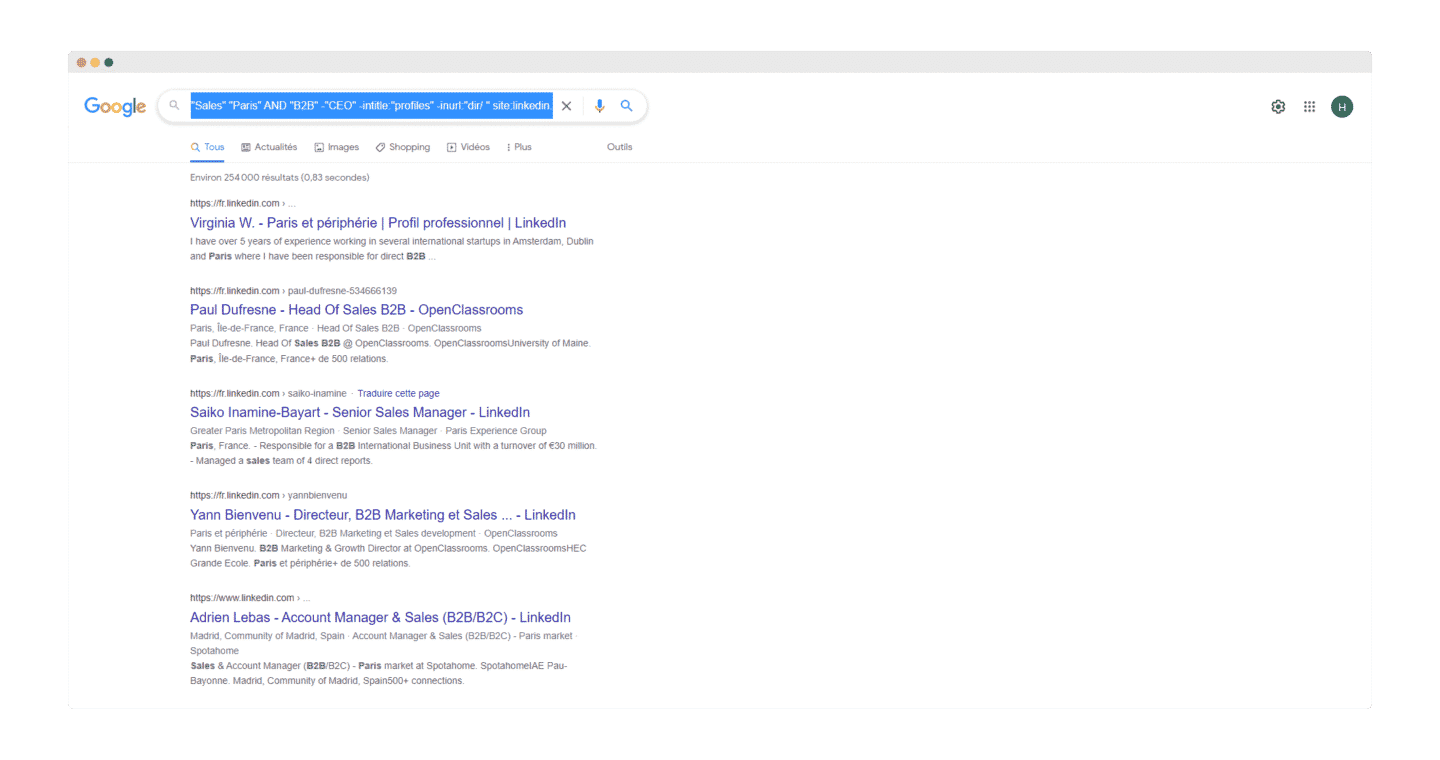
It’s a fairly interesting tool because:
- There is no search limit on Google
- You can see connections outside your network.
- Free, no sign-up required
Try RecruitEm
The questions we get over and over.
What is Xray search?
A search method that combines words and phrases to find specific information about a prospect. It is also called Boolean search: the term refers to the advanced operators you can use between keywords in a search engine.
How do you find someone's LinkedIn profile with Google?
With a query like site:linkedin.com inurl:/in firstname lastname. It almost always gives the right result on the first line. To target a position, replace the name with the job title, for example site:linkedin.com inurl:linkedin.com/in/ Marketing Director.
Which Boolean operators work in LinkedIn search?
Straight quotation marks for an exact phrase, NOT to narrow results, OR to broaden them, AND to restrict them, and parentheses to combine terms. NOT, AND and OR are typed in capital letters. The + and - operators are not officially supported.
In what order does LinkedIn process operators?
Quotation marks first, then parentheses, NOT, AND and finally OR.
Can you do Xray search somewhere other than Google and LinkedIn?
Yes. Indeed accepts AND or +, OR, NOT or -, quotation marks and parentheses. Instagram can be searched through Google search, with site:instagram.com. For X (formerly Twitter), use the advanced search on x.com, which filters by words, accounts and dates. On Amazon, the Helium 10 X Ray extension analyzes products that sell well.


What the community says.