



- The basic format: first and last name, job title (optional), company with a link to the website, phone number.
- Pick one or two enrichment options: social accounts, a product or content to share, a call-to-action.
- The more links a signature has, the less recipients click: that is the paradox of choice.
- No need to add your email address, it is already displayed and the recipient only has to click “Reply”.
- A color photo of you, the same one as on LinkedIn, is remembered better than a landscape.
Leaving a good last impression is always hard. Doing it at the end of an email is even harder. That is why we keep trying to improve our email signature, especially when we change jobs, get a promotion or have doubts about the quality of our current signature.
A quality email signature catches your recipients’ attention and looks more professional. If you want to improve your email signature, this article is for you. We will show you a few examples of successful signatures to illustrate what to do and what to avoid. At the end, we will give you a few tools to easily customize and optimize your professional email signature.
Here are all our tips.
1. Keep the email signature to 3 or 4 lines of text
Don’t overthink it, don’t make it complicated. Your email signature must contain three must-have elements: your first and last name, your job title (optional) and your company (with a link to the website), and finally your phone number. Not that complicated after all. Here is an example:
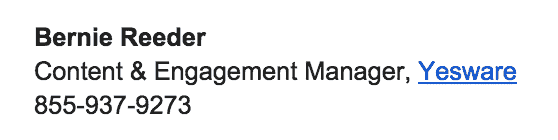
Once you have this basic format, you have several options to enrich it. You can pick one or two of them to give your email signature more personality. We will walk you through them.
Also worth readingDiscover 40+ punchy email subject lines you need to succeed at email prospecting.
How to customize your professional email signature: 3 examples
Here are three ways to enrich the basic email signature above.
1. Links to your professional social accounts
You can add your LinkedIn profile to your signature, or your Twitter profile. Here is an example from Loren Boyce, Director of Talent at Yesware. She highlights several social accounts to maximize her chances of connecting with the best candidates. Given her role in the company, it makes sense to turn all her social networks into points of contact.

2. Share a product or content
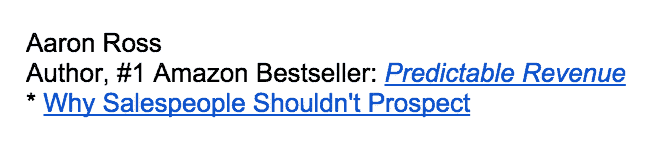
You have built a product you are proud of and want to share with the whole world? You have published a blog post that showcases your expertise and skills? Why not share it in your email signature, as Aaron Ross does in this example:
Also worth readingDiscover the art of personalizing your prospecting emails without being creepy.
3. A call-to-action
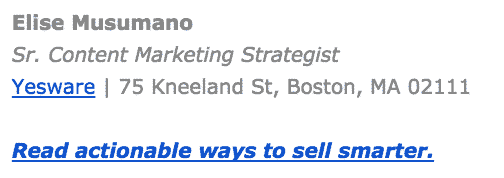
By call-to-action, we mean a line of text that prompts your recipients to take an action. It can be any action: booking a demo, registering for an event, downloading a white paper, etc. See how Elise Musumano, also from Yesware, uses her email signature to encourage people to visit her company’s blog:
A warning: listing all your phone numbers, all your email addresses and all your social networks is something to avoid at all costs. The more links you put in your email signature, the less likely your recipients are to click on them. This is a psychological phenomenon known as the “paradox of choice”: the more options we have, the less we choose. Here is an example of an email signature you should never copy (this one is a fictional example, for once!):
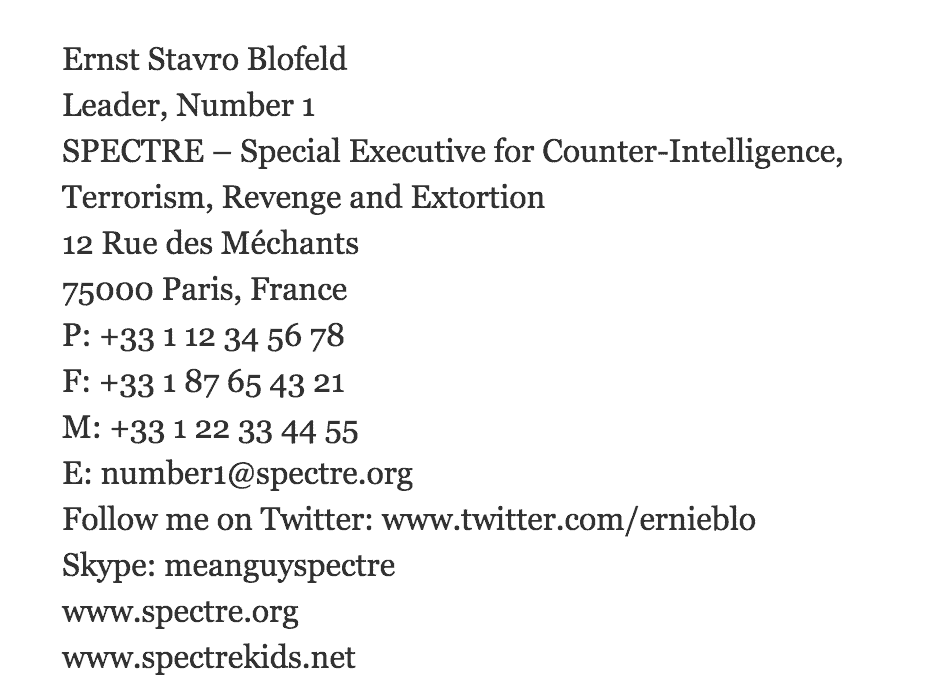
15 lines… Imagine reading this signature on a mobile screen!
Also worth readingDiscover the full list of the best B2B prospecting tools.
Why you should not put your email address in your email signature
Putting your email address in… your email signature? The idea is absurd when you think about it, puzzling, and yet so common. It is as if a colleague introducing you to someone said “Hi Quentin, meet Yassine” and Yassine replied “Hi, Yassine, nice to meet you”. Putting your email in your email signature amounts to roughly the same thing. It is useless because the sender’s email address is always displayed and, besides, the recipient only has to click “Reply” if they want to answer you. Use the space in your email signature for more useful information or elements: links to your social accounts, the name of your company blog, a portfolio, etc.
Include an image (and don’t hesitate to use color images)
It is well known that people remember images more easily than text. But some images stick more than others, and those showing smiling faces are among them. Take this beautiful mountain landscape:

As stunning as this landscape is, you will forget it in 10 seconds. On the other hand, you are much more likely to remember this face:

Very serious scientific studies have shown that the images people remember most are those showing people.
The Salesdorado tipUse the same profile picture as the one you use on LinkedIn, and every time you speak publicly (podcasts, guest articles) and in your email signature. You will create a kind of “asymmetric familiarity”, through which your recipients will feel they know you, even if they have never met you.
Other studies have shown that color images are easier to remember than black and white ones. Conclusion: don’t hesitate to use color photos in your email signature to stand out and hold your recipients’ attention.
Also worth readingLearn how to write a good follow-up email.
Add the “Sent from my iPhone”
A English-language study carried out a few years ago showed that adding “Sent from my iPhone” to an email signature tended to increase the perceived credibility of emails containing spelling mistakes. What the study also showed is that well-written emails, free of spelling, grammar or punctuation errors, significantly strengthened the sender’s credibility, regardless of whether the “Sent from my iPhone” line was there or not. Recipients are therefore much more tolerant of language slips when that line is present.
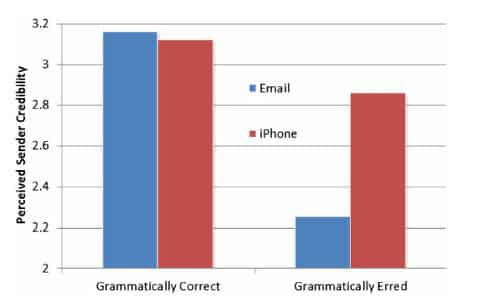
Recipients are more tolerant of mistakes when the email is written on a mobile device. So don’t hesitate to customize the signature of emails sent from your mobile device. You don’t have to use the classic “Sent from my iPhone”, you can create your own mobile email signature. Here are a few original examples:
- iPhone. iTypos. iApologize.
- Sent from my smartphone, please forgive the spelling mistakes
- Email sent by [Your name]. Typos sent by my iPhone.
- Sorry for the tpyos, this email is sent from my iPhone.
- Sent from my iPhone. Please forgive the brevity, the typos and the lack of nuance in this message.
5 email signature generators to try
The good news is that you don’t even need to apply all these remarks and tips yourself to create your new professional email signature. You can use an app for that. Simple as that. We have selected 5. We invite you to test them.
1. HubSpot’s professional signature builder
HubSpot offers a free email signature generator that combines ease of use, modern design and visual appeal, while staying simple. The generated signatures display the key information while offering multiple customization options.
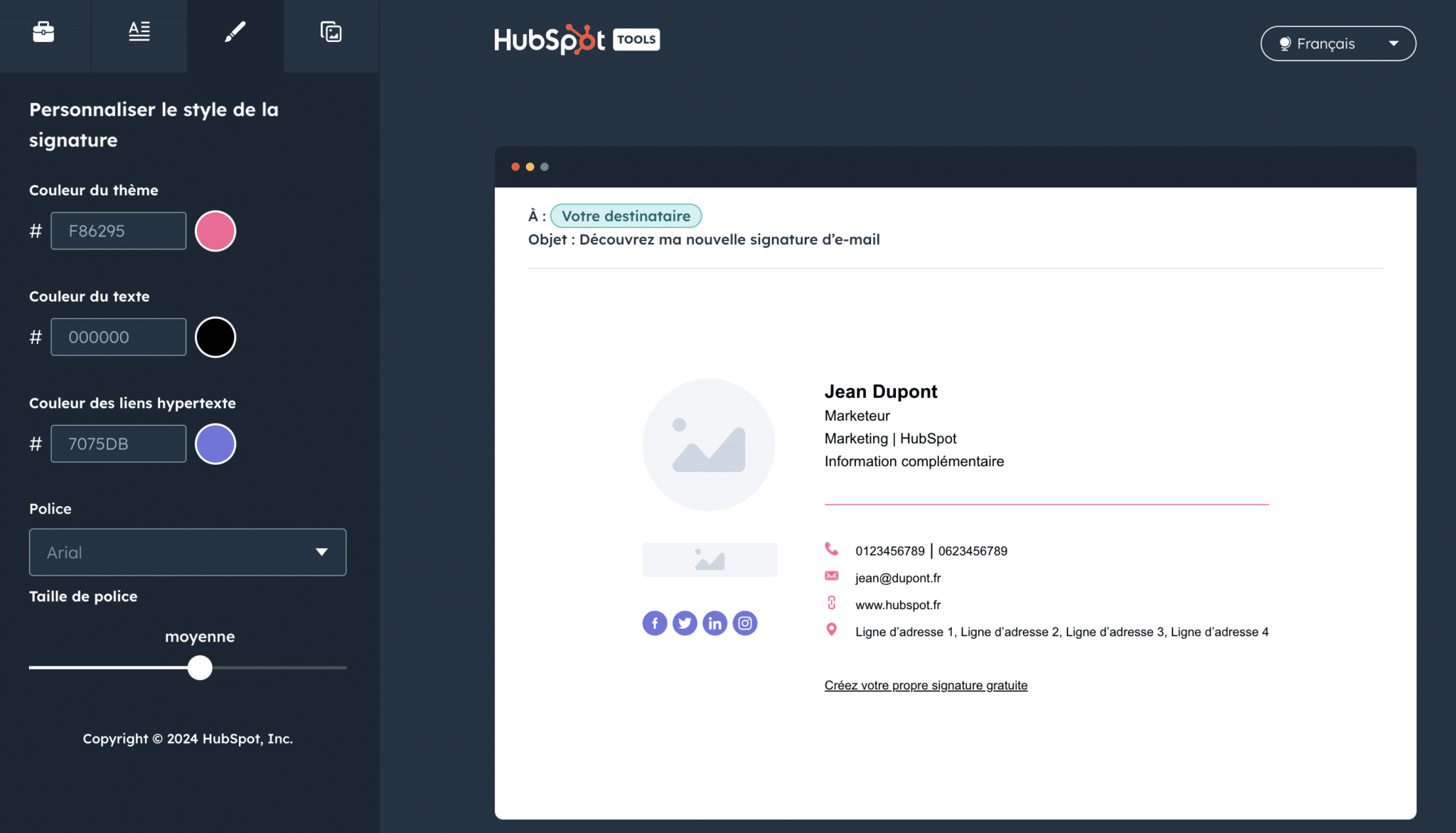
You can also add a call-to-action to direct your recipients to webinars or encourage them to download white papers, for example. HubSpot’s email signature builder is also completely free, making it a customizable and practical solution for your email communication.
2. LeadFuze – free signature generator
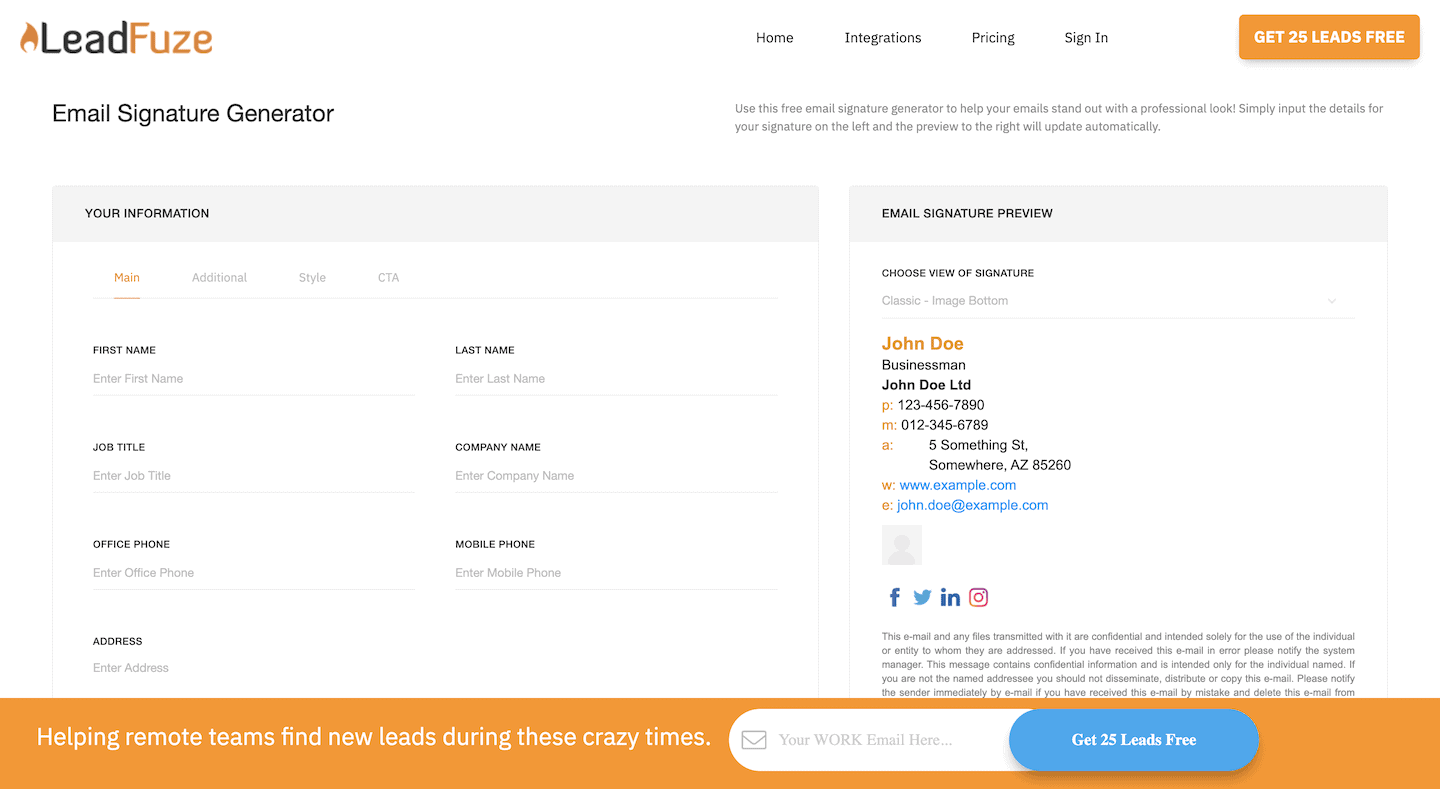
LeadFuze is a powerful lead generation tool. But what interests us here is their professional email signature builder, which is completely free and very effective. We recommend starting there if you want to make your emails look more professional.
3. Weadvocacy
Weadvocacy is an email signature solution that lets you standardize the email signatures of all a company’s employees in a few clicks. The administrator can customize signatures very easily using an editor and a base of customizable libraries.
The tool’s main strength is that it lets you create communication campaigns (internal or external) that appear as banners below the signatures.

4. WiseStamp
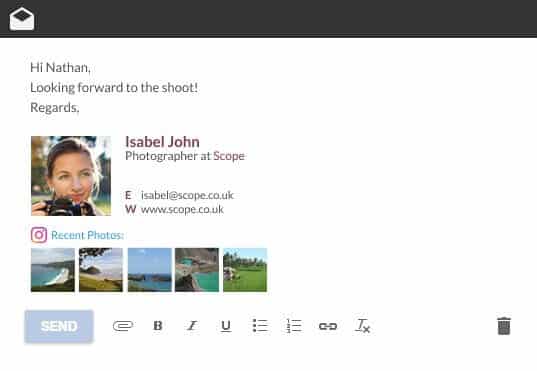
WiseStamp is a free professional email signature generator that integrates directly with your email client and automatically loads attractive designs and custom signatures into your compose window.
With WiseStamp, you can very easily add a photo, an RSS feed that pushes your latest blog post or social post, etc.
5. Newoldstamp
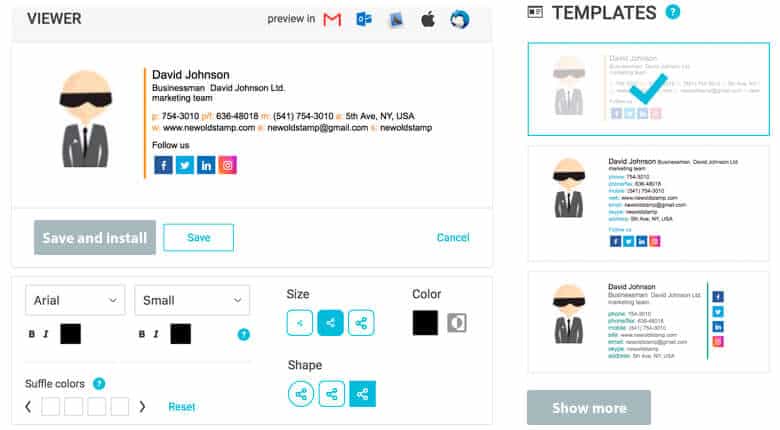
If you want a unique, original email signature, we recommend using Newoldstamp. You can choose from 18 email signature templates, customize the format, colors and fonts, add your photo, your links to your social networks, etc. This tool is really very complete. It is paid, however, and rather expensive ($24 per year for one signature…).
If you don’t want to use these generators, because they are paid for example, you can perfectly well create your signature manually. You will find resources online to:
- Create an email signature in Gmail
- Create an email signature in Outlook
- Create an email signature in Yahoo Mail!
- Create an email signature in Mail (Apple)
You now have everything you need to create a classy and effective professional email signature. All that’s left is to find your prospects’ email addresses and launch your prospecting campaigns!
The questions we get over and over.
What should go in a professional email signature?
Your first and last name, your job title (optional), your company with a link to the website, and your phone number. Three or four lines of text are enough.
Should you put your email address in your email signature?
No. The sender’s address is always displayed, and the recipient only has to click “Reply” to write to you. Use that space instead for links to your social accounts, your company blog or a portfolio.
Should you put a photo in your email signature?
Yes: the images people remember most are those showing people, and color images are remembered better than black and white ones. Use the same profile picture as on LinkedIn.
Why not list all your contact details and social networks in your signature?
The more links you put in your signature, the less likely your recipients are to click on them. That is the paradox of choice: the more options we have, the less we choose.
What difference does “Sent from my iPhone” make?
According to an English-language study, it makes recipients more tolerant of spelling mistakes. A well-written email with no mistakes strengthens the sender’s credibility with or without that line.


What the community says.